

RULES.md. You can edit files yourself or ask the context editing chat to do it, then publish the changes through Git.
Open it from Context Hub in the sidebar, or from Settings → Context Hub.
The Context Hub is available to the Admin and Context Admin roles. Editing requires a connected context repository. Without one, your edits are kept as a private draft in nao until a repository is connected.
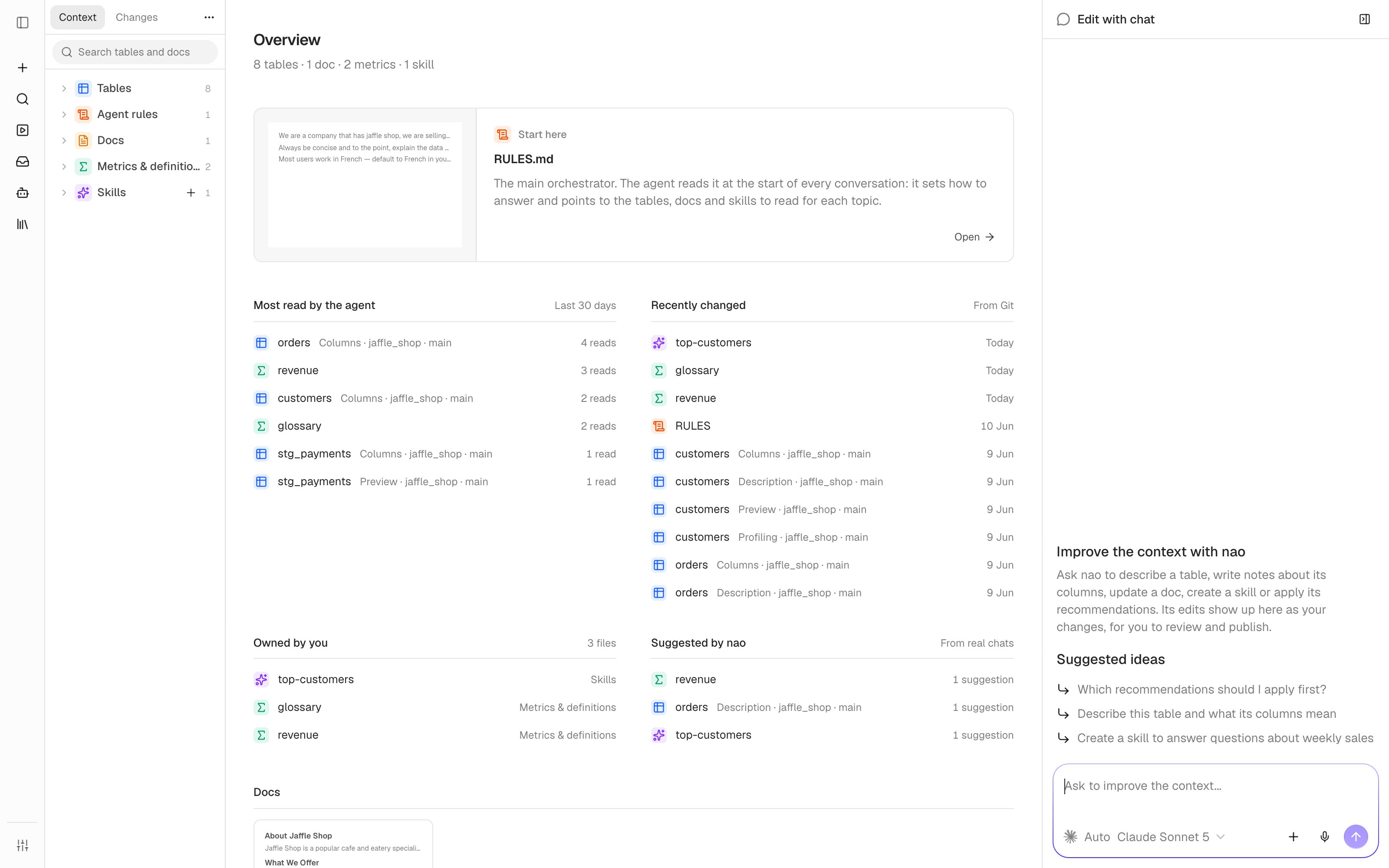
Two views
Use the ⋯ menu next to the Context and Changes tabs to switch views:- Doc view shows tables, docs, and skills as pages, grouped by what they are for. This is the default for most people.
- File tree shows every file of the project, with branches and tests. See File tree view.
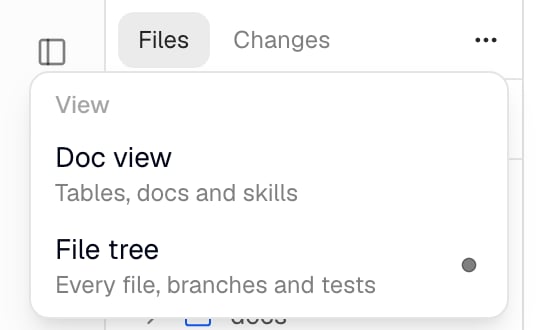
Overview
The doc view opens on an overview of the project’s context:
Below these lists, each section has a card per doc, metric, and skill.
Navigate the context
The navigator on the left groups the context into sections:- Tables: one page per synced table, with Description, Notes, Columns, Preview, and Profiling tabs. Tables appear once your databases are synced.
- Agent rules:
RULES.md. - Docs: business documentation, such as pages synced from Notion or Confluence.
- Metrics & definitions: metric definitions and the glossary.
- Skills: the agent’s skills. Click + to create a new skill. It is saved as
agent/skills/<name>.mdand stays in your changes until you publish them.
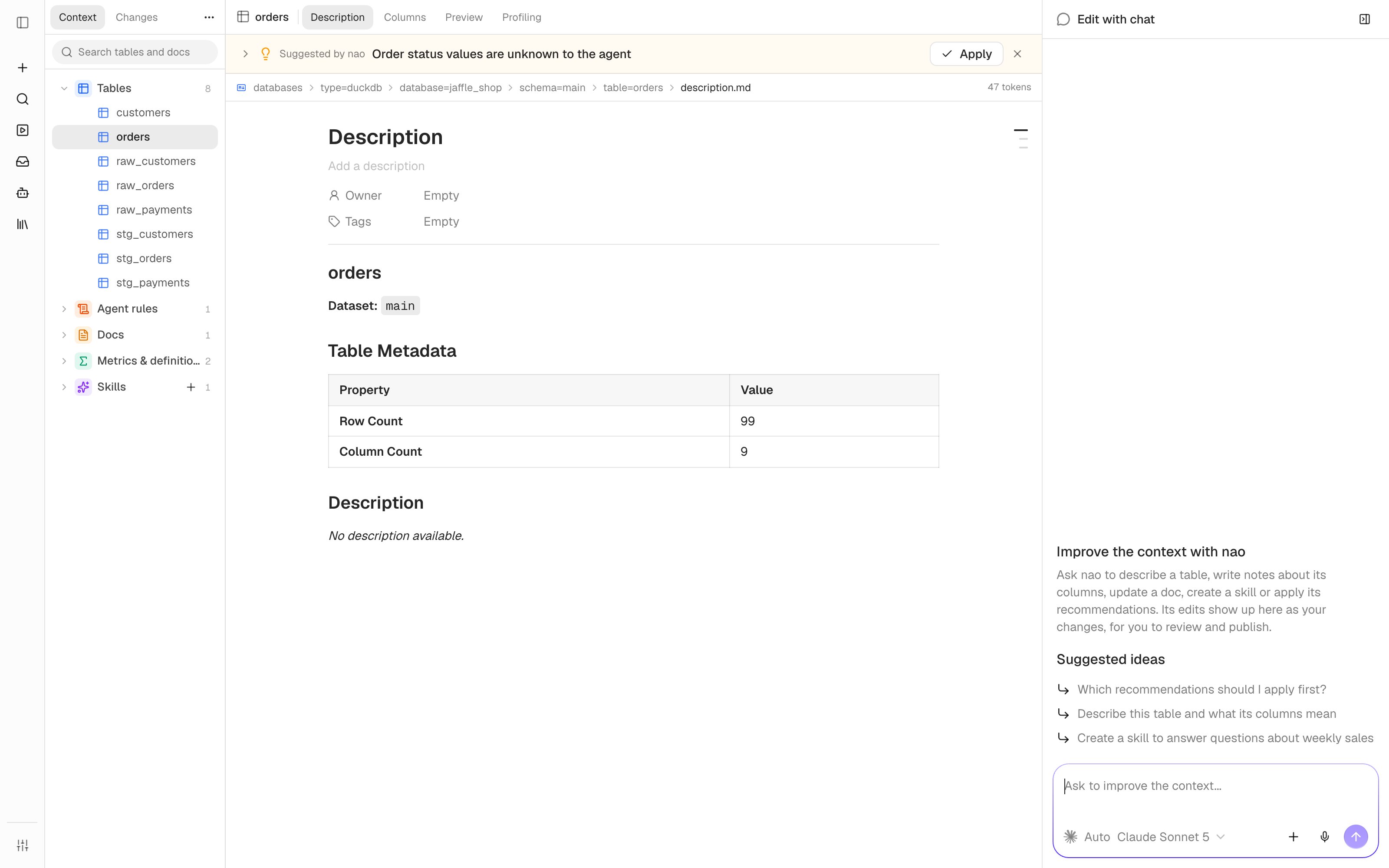
columns.md, preview.md, and profiling.md, are rewritten by nao sync. Write notes about a table in its annotations.md instead, shown in the Notes tab.
Edit a page
Click into a page to edit it. Markdown is edited as a formatted page, and only the blocks you change are rewritten, so diffs stay small.- Press
Cmd+S(Ctrl+S) anywhere on the page to save. The path bar shows Unsaved changes, Saving…, then Saved. - Saving writes to your own workspace, never to the live context the agent reads. Your edits reach the agent once they are merged and pulled. See Branches and changes.
- If you leave a page with unsaved edits, nao asks you to Keep editing or Discard changes.
Edit with chat
The Edit with chat panel on the right is a chat with an agent that edits context files for you. Ask it to describe a table, write notes about its columns, update a doc, create a skill, or apply a recommendation.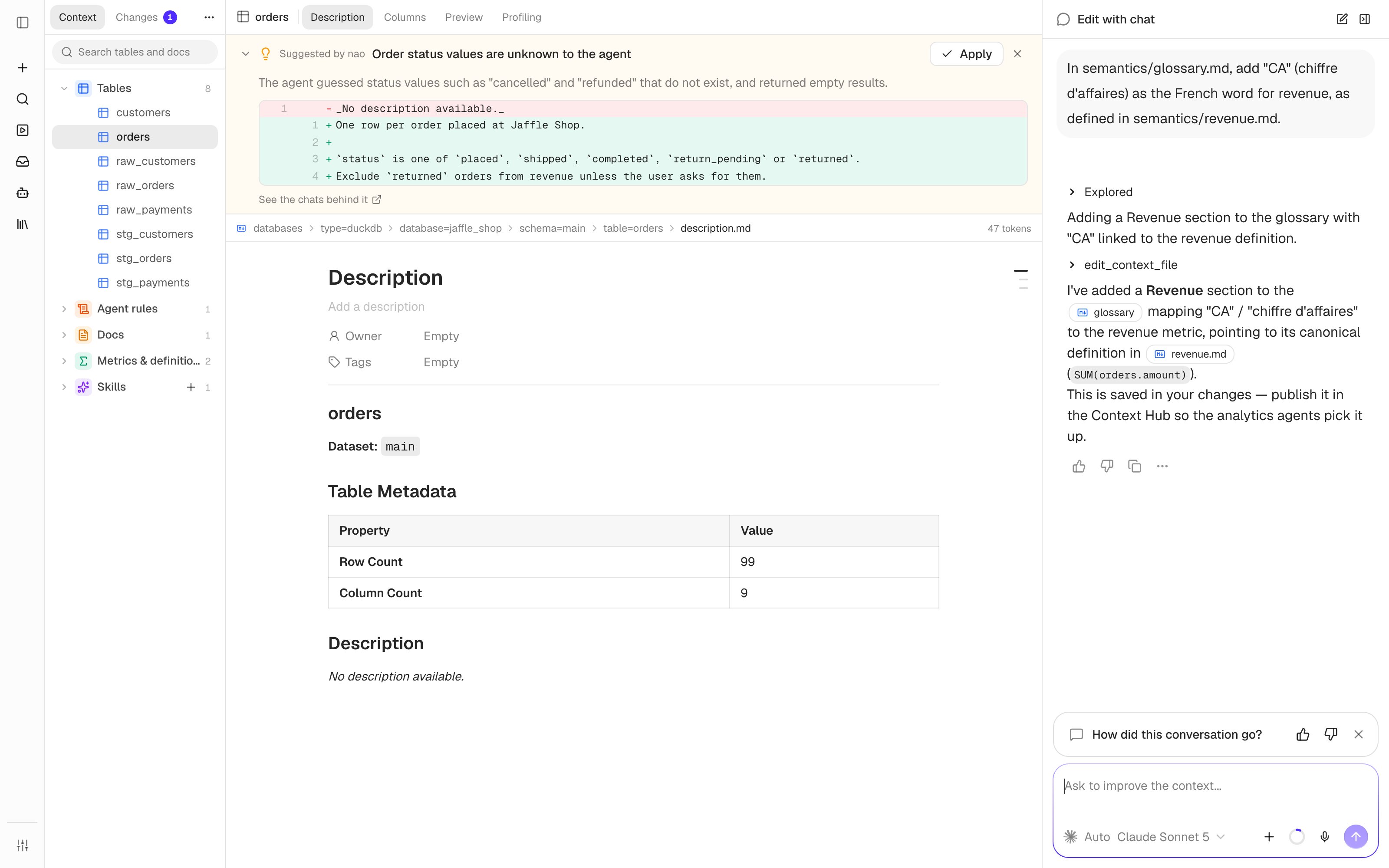
- Can query your data and read the context like the analytics agent, so it can check what it writes against the warehouse.
- Edits files by replacing an exact passage or creating a new file. It does not rewrite generated files such as
columns.md. Table notes go inannotations.md. - Writes into your workspace, so its edits show up in Changes for you to review, commit, and publish. It never changes the live context directly.
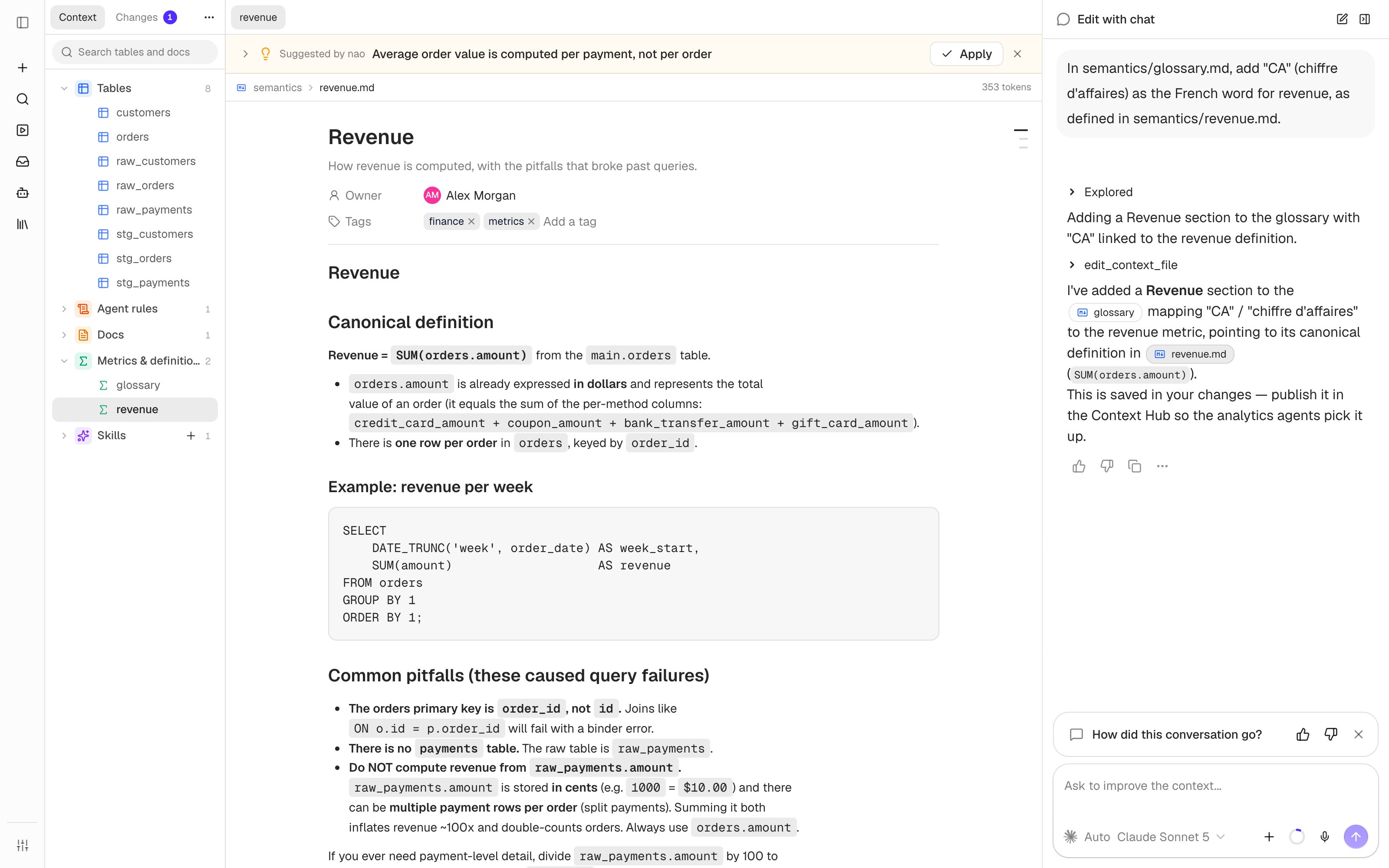
Recommendations on files
When context recommendations are enabled, open recommendations show above the file they change, in both views. Expand one to see why nao suggests it and the proposed diff. When a file has more than 3 recommendations, they are folded behind one row, nao suggests N changes to this file, so the file stays in view. A link to a specific recommendation opens the group with that recommendation first.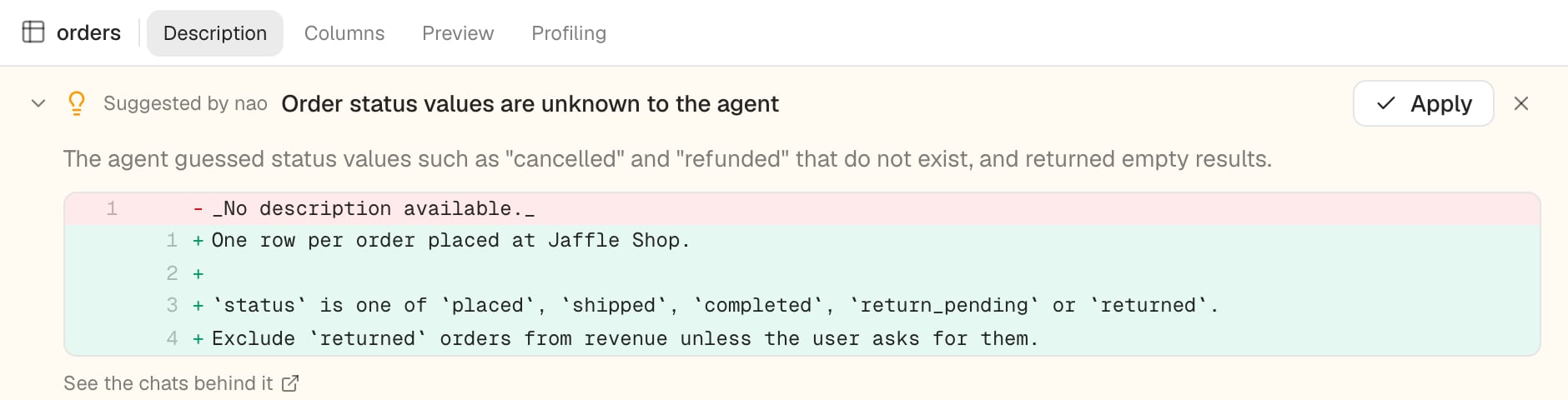
- Apply writes the proposed edits into your changes. A recommendation that changes several files offers Apply to N files. Save or discard your own edits to the file first.
- Dismiss closes the recommendation, so nao stops suggesting it.
- See the chats behind it opens the conversations that triggered it.