

Overview
Thenao test command allows you to measure your agent’s performance on a set of unit tests created by you. It’s meant to help you monitor and improve your context’s quality over time.
nao test is your offline eval: a fixed suite you run before shipping and in CI to catch regressions against a benchmark you control. Its online counterpart is Recommendations, which mines real production usage to surface the gaps you didn’t think to test. Use both to close the feedback loop between shipping context and improving it.
nao test
Thenao test command runs unit tests from your tests/ folder, executes them against your agent, and compares results to verify correctness.
Create unit tests
Create atests/ folder in your project root:
tests/ folder. Test files should have a .yml or .yaml extension.
Test files follow this template:
name: A descriptive name for the testprompt: The question or prompt to testsql: SQL query which produces the right data
Launch nao test command
Before runningnao test:
- Start the nao chat server (for example with
nao chator your usual local setup) so that the backend API is available. - On the first
nao testrun, the CLI will prompt you to log in in your browser — use the same account you use in the local nao chat interface, so tests run under the same project and permissions.
RULES.md. Sign in as the intended test user when evaluating group-specific behavior.
Run all tests:
- Discover all
.ymland.yamlfiles in thetests/folder - Run each test against the configured models,
openai:gpt-4.1by default - Display results in a summary table
- Save detailed results to
tests/outputs/results_TIMESTAMP.json
provider:model_id. The provider must be one you configured in the llm block of nao_config.yaml or in the admin UI - see LLM providers and models.
Repeat the flag to compare several models on the same suite. Every test then runs once per model, and the summary table has one row per test and model:
tests/, which runs every test it contains:
nao test run opens a browser to log in. For CI pipelines, pass credentials directly so the run never blocks on a prompt:
Defaults in nao_config.yaml
Rather than repeating the same flags on every run, declare your defaults in thetest block of nao_config.yaml and commit them with the suite:
Which tests to run stays a per-run decision with
-s/--select, and credentials stay out of the config: pass them with -u/--password or the NAO_USERNAME / NAO_PASSWORD environment variables.
Comparison tolerances
test.comparison controls how the agent’s data is compared to the result of your sql query:
Raise
decimals when a test legitimately hinges on more precision than two decimals, and lower it when rounding differences between the agent’s SQL and your reference SQL cause false failures.
Test costs
The cost of each run comes from nao’s built-in price table for the model under test. When you declare a model underllm.providers[].models with a costs block, those prices win — which is how you get accurate costs for a model nao doesn’t know, such as an alias exposed by a LiteLLM proxy:
nao test -m openai:my-proxy-alias. Models with no price anywhere report an empty cost, while tokens, duration and pass/fail are still recorded. See Model costs.
The deprecated
llm.meta.costs block is still read as a last-resort price for every model. Move those prices onto the models they belong to so a multi-model run reports real numbers.Test mode behavior
Whennao test runs a prompt, the agent operates in test mode. In this mode the clarification tool is removed from the agent’s toolset, so the agent cannot ask follow-up questions. Instead, it makes reasonable assumptions or states that it cannot answer. This prevents tests from hanging on a clarification prompt and ensures every test produces a deterministic result.
Interactive chat is unaffected: the clarification tool remains available in normal conversations.
How It Works
-
Test Discovery: Scans the
tests/folder for.ymland.yamlfiles -
Test Execution: For each test:
- Sends the prompt to your agent in test mode (clarification disabled, see above)
- Captures the agent’s full conversation history, tool calls, and response text
-
Data Verification:
- Extract actual data: rather than asking the model to retype its answer as JSON (which loses precision on large or wide results), nao loads every
execute_sqlresult from the run into an in-memory DuckDB, one table named after each query id, and asks the model for a DuckDB query over those rows that returns the final answer. The query runs locally against the data the agent already fetched.
Rows are loaded as newline-delimited JSON so DuckDB infers the column types instead of nao guessing them. If the model’s query fails, one repair attempt is allowed: the error is sent back and the model gets a second try. - The verification query produces structured data matching the expected columns.
- Execute expected SQL: the
sqlquery from your test file is executed against your database to get the expected results - Compare data: the agent answer’s data and expected data (from SQL execution) are compared
- Extract actual data: rather than asking the model to retype its answer as JSON (which loses precision on large or wide results), nao loads every
-
Data Comparison Process:
- Normalize datasets: Both datasets are converted to DataFrames and normalized (resets index, infers types, and sorts columns alphabetically)
- Ignore row order: Rows are sorted by all columns before comparison so equivalent results with different row order still pass
- Row count match:If row count doesn’t match, they are not compared
- Round floats: Float columns are rounded to
comparison.decimals(2 by default) so display-level precision differences don’t fail a test - Exact match: First attempts exact equality comparison
- Approximate match: For numeric columns, uses numpy’s
allclosewith thecomparison.rtolandcomparison.atoltolerances (1e-5 and 1e-8 by default) to handle floating-point differences - Diff generation: If both comparisons fail, generates a detailed diff showing where values differ
-
Result Collection: Collects metrics including:
- Pass/fail status of the data diff
- Token usage and costs (inputs and outputs of the LLM), priced as described in Test costs
- Execution duration
- Tool call count
Test Outputs
Console Output The command displays a summary table with:- Test name
- Model used
- Pass/fail status
- Message (e.g., “match”, “values differ”)
- Token usage
- Cost
- Execution time
- Tool call count
- A final summary with total passed/failed counts

-t/--threads, live output is still interleaved but these tables always list runs grouped by model, in the order the models were configured.
JSON Results File
Detailed results are saved to tests/outputs/results_TIMESTAMP.json. Each result carries a details.reference_sql field holding the sql query from the test YAML file, including for tests that errored out:
summary aggregates every run of the file, while by_model holds the same metrics per model, ranked exactly like the Performance by Model table. Use it to assert a per-model pass rate in CI instead of recomputing it from results.
nao test server
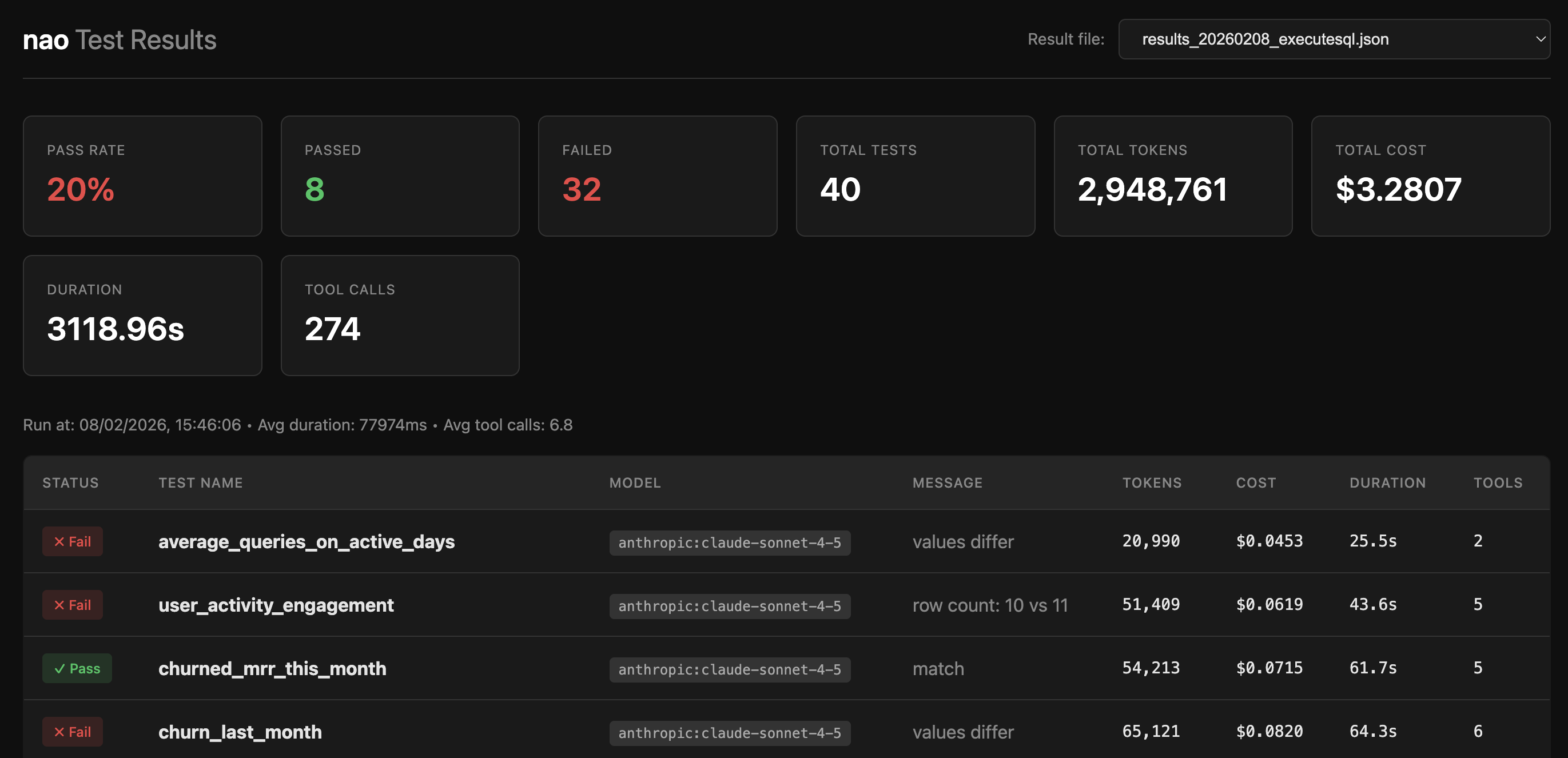
Thenao test server command starts a web server to explore test results in a visual interface.
The test server provides:
- Summary Dashboard: Overview cards showing pass rate, total tests, tokens, costs, and duration
- Performance by Model: for multi-model runs, one row per model with its pass rate, passed runs, tokens, cost, average duration and average tool calls. Click a row to filter the run table down to that model
- Pass / Fail by Test and Model: for multi-model runs, a grid of tests against models. Each cell shows the status and duration, and opens the detailed view of that run
- Results Table: Interactive table of all test runs with status, metrics, and details, filterable by model
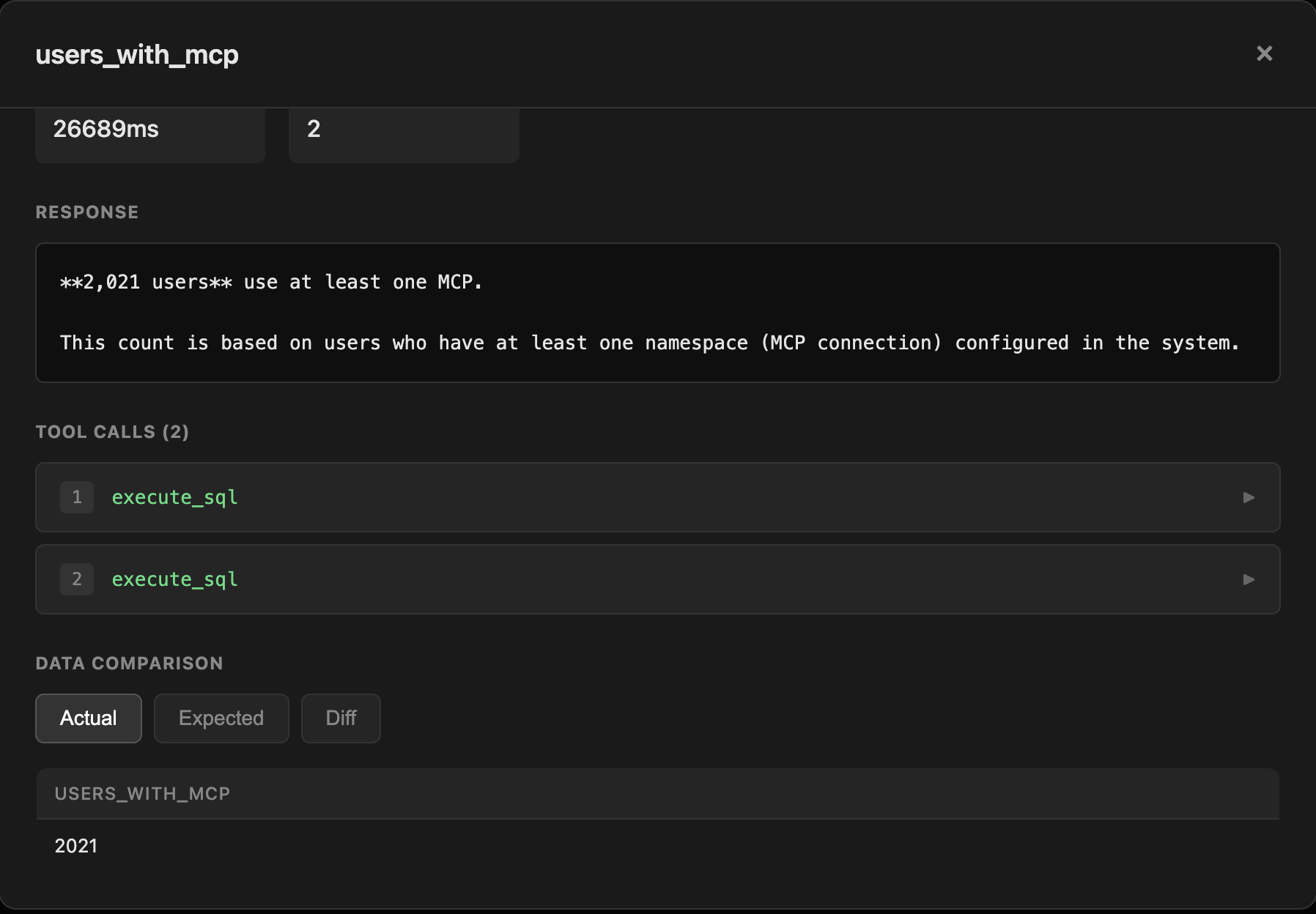
- Detailed View: Click any test to see:
- Full response text
- Reference SQL: the
sqlquery defined in the test YAML file, so you can compare it side by side with what the agent ran. It is shown even when the test errored out. - Tool calls with arguments and results.
execute_sqlcalls render theirsql_queryas formatted multi-line SQL instead of a JSON blob, with any remaining arguments listed separately. - Data comparison (actual vs expected)
- Diff view for failed tests
- Performance metrics
http://localhost:8765
Result files written before per-model summaries existed still get the model views: the server computes by_model on the fly when a file doesn’t carry it.
Best Practices
Creating Effective Tests
- Start with critical queries: Test the most important questions your users ask
- Cover edge cases: Include tests for boundary conditions and complex scenarios
- Keep tests focused: Each test should verify one specific behavior
- Avoid overfitting and leakage: Avoid including exact answers or overly specific details in your context that would allow the agent to “cheat” by pattern matching rather than actually understanding the context.
Integrating into Workflow
- Version control: Commit your
tests/folder to git - CI/CD integration: Run tests automatically on context changes
- Regular evaluation: Run tests weekly or after major context updates
- Track trends: Monitor pass rates and costs over time
Context Engineering Playbook
Learn how to integrate testing into your context engineering workflow