

The onboarding agent only helps with setup. For anything else, open a regular chat. Onboarding chats are free and don’t use your nao credits. They are kept in your sidebar, so you can leave and come back: progress survives a page refresh.
Connect warehouse
Use this path when you have a warehouse but no nao project yet. nao builds the project for you in the cloud. Progress steps: Connect warehouse -> Initialize -> Verify -> Sync metadata -> Prepare context.-
Pick your warehouse. Supported: Amazon Athena, Amazon Redshift, BigQuery, ClickHouse, Databricks, Microsoft Fabric, Microsoft SQL Server / Azure SQL, MotherDuck, MySQL, Postgres, Snowflake, StarRocks, and Trino.
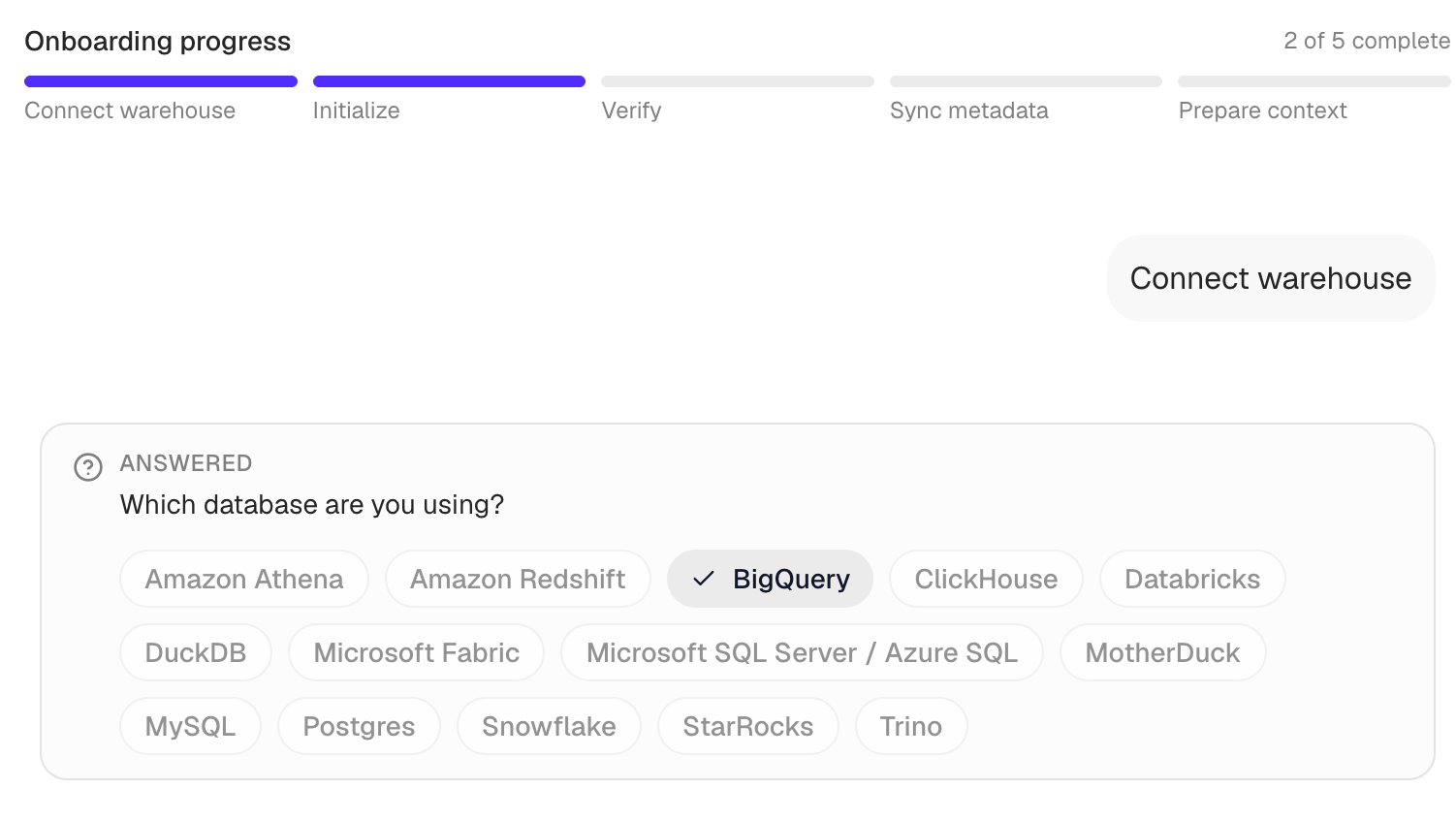
- Enter your credentials. Click Enter credentials and fill in the connection details for your warehouse (for example GCP Project ID and Service Account JSON for BigQuery). Click Connect: nao checks the connection before you continue. Credentials are submitted securely and are never shared with the agent.
-
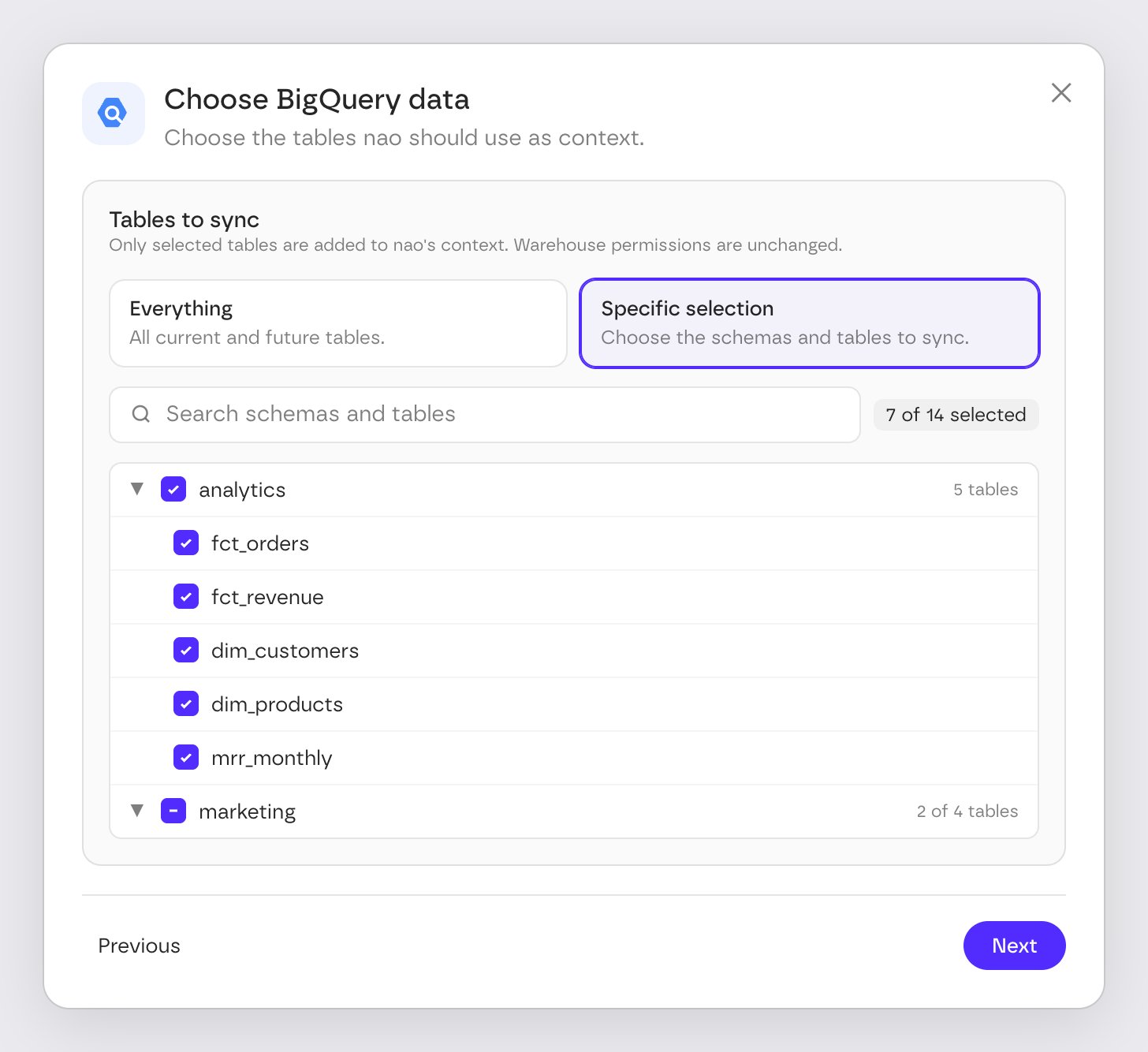
Choose the tables to sync. Once the connection is verified, click Next: nao lists the schemas and tables it found. Under Tables to sync, keep Everything (all current and future tables) or pick specific schemas and tables, with a search box to find them. Select at least one table to continue.
-
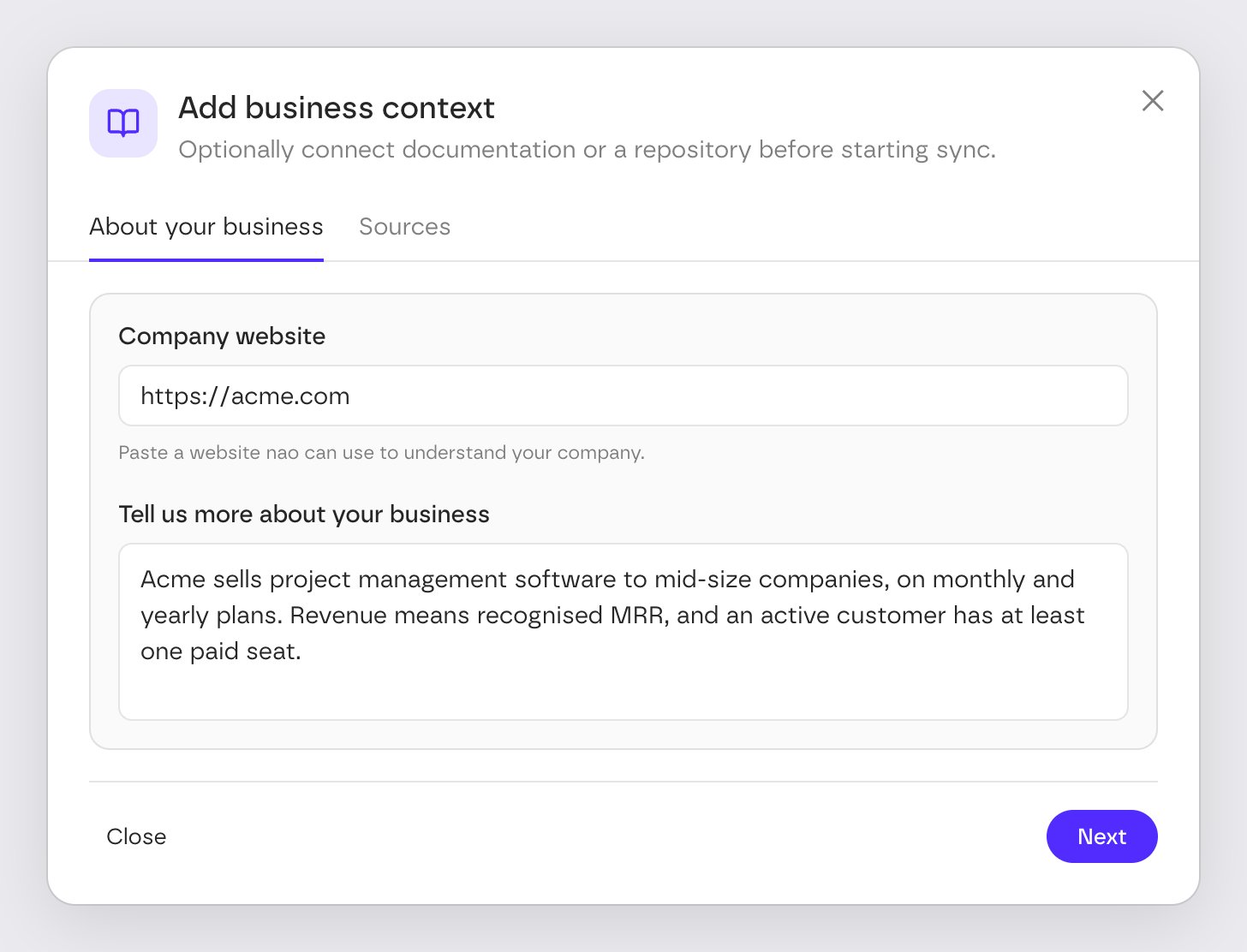
Add business context (optional). While nao runs
nao initandnao debugin the background, an Add business context card helps the agent understand your company. It has two tabs:- About your business: your Company website, and Tell us more about your business: what your company does and what nao should understand about it.
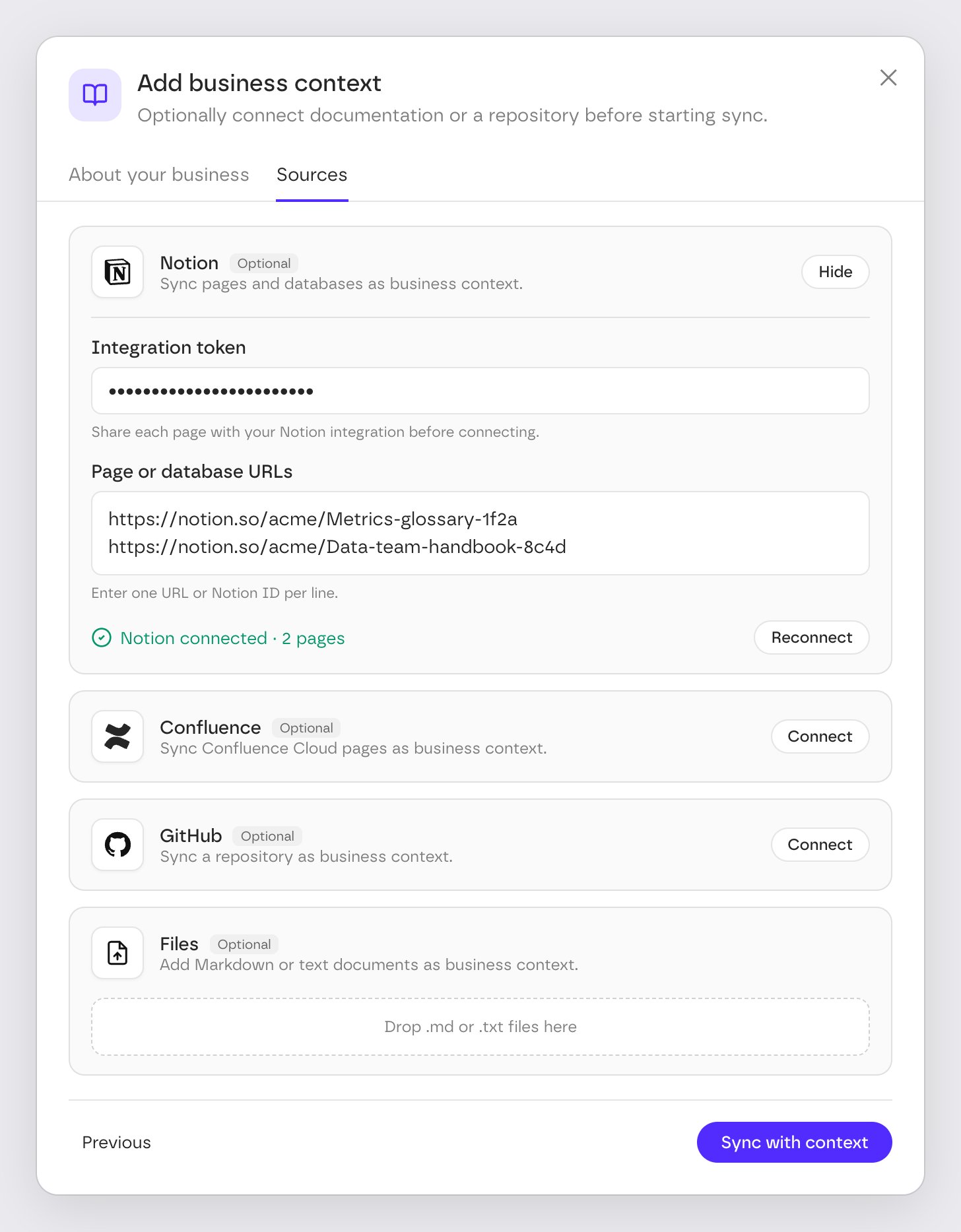
- Sources: documentation to sync alongside your warehouse:
- Notion: an integration token and the URLs of the pages or databases to sync, one per line.
- Confluence: your Confluence Cloud site URL, account email, Atlassian API token, and the URLs of the pages to sync.
- GitHub: connect your GitHub account and choose a repository, such as your dbt project.
- Files: upload
.mdor.txtdocuments (up to 10 files, 5 MB each, 25 MB in total).
-
Let nao sync. nao runs
nao syncon the tables you selected and on your business context sources. A progress card shows each stage, and you can open View nao sync logs to see the raw output. If an optional source fails, setup continues and the card lists it under Some optional business context was not synced.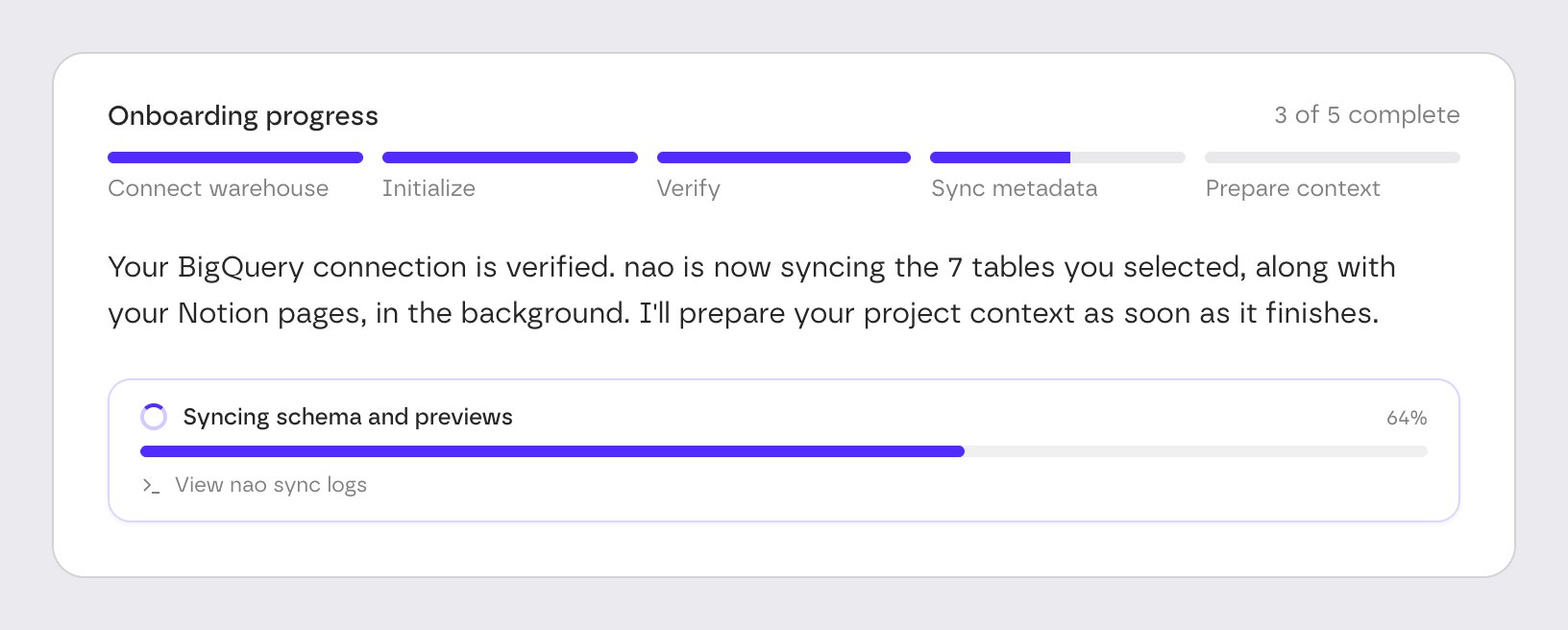
-
Start chatting. nao writes a first
RULES.mdfrom your synced metadata and business context, creates the project (named after you, for example “Claire’s project”), and shows Start chatting.
Import project
Choose Import project, then answer Where is the nao project you want to import?I don’t have a project yet
Build the project on your machine, then deploy it to nao Cloud. Progress steps: Install -> Initialize -> Verify & sync -> Deploy. The agent asks How would you like to create your new nao project?- Let my local agent do it: copy the prompt shown in the chat into Claude Code, Codex, Cursor, or another coding agent. It installs the nao skills and
nao-core, then runsnao init,nao syncandnao debug. - Show me the step-by-step guide: the agent walks you through installing
nao-core(withuvorpip), thennao init,nao debugandnao sync, one command at a time.
Import a local project
You already have a folder with anao_config.yaml.
Progress steps: Locate project -> Verify -> Sync -> Deploy.
The agent asks you to cd into the project folder, run nao debug and nao sync, then deploy from the CLI.
Import from GitHub
Your nao project lives in a GitHub repository (a folder containingnao_config.yaml).
Progress steps: Connect GitHub -> Import repository.
- On the Add an existing project card, click Connect and authorize GitHub in the popup.
- On the Choose a repository card, click Browse and pick the repository and branch.
The repository picker only lists repos the nao GitHub app can access. If yours isn’t listed, add it to the app’s installation on GitHub.
Deploy from the CLI
The local paths end with a Ready to deploy your project card.- Click Generate deploy key. nao creates an organization API key and shows the full deploy command. Only organization admins can generate the key: other members are asked to get it from an admin.
-
Run the command from your project folder:
nao deploy reference for flags, .naoignore, and create-vs-update behavior.
After setup
When your organization’s first project is created:- Your 14-day free trial starts.
- Once the project has a working database connection, $20 of nao credits are added to your organization, so your team can ask questions without an LLM API key.
- The Jaffle Shop example chats are no longer available. Open your project and start asking questions on your own data.