

Your workspace is separate from the live context the agent reads. Nothing you save, commit, or push changes what the agent sees until the pull request is merged and an admin clicks Pull latest in Settings → Git, or the deployment syncs.
Review your changes
Open the Changes tab next to Files (or Context in the doc view). The badge counts the files you changed.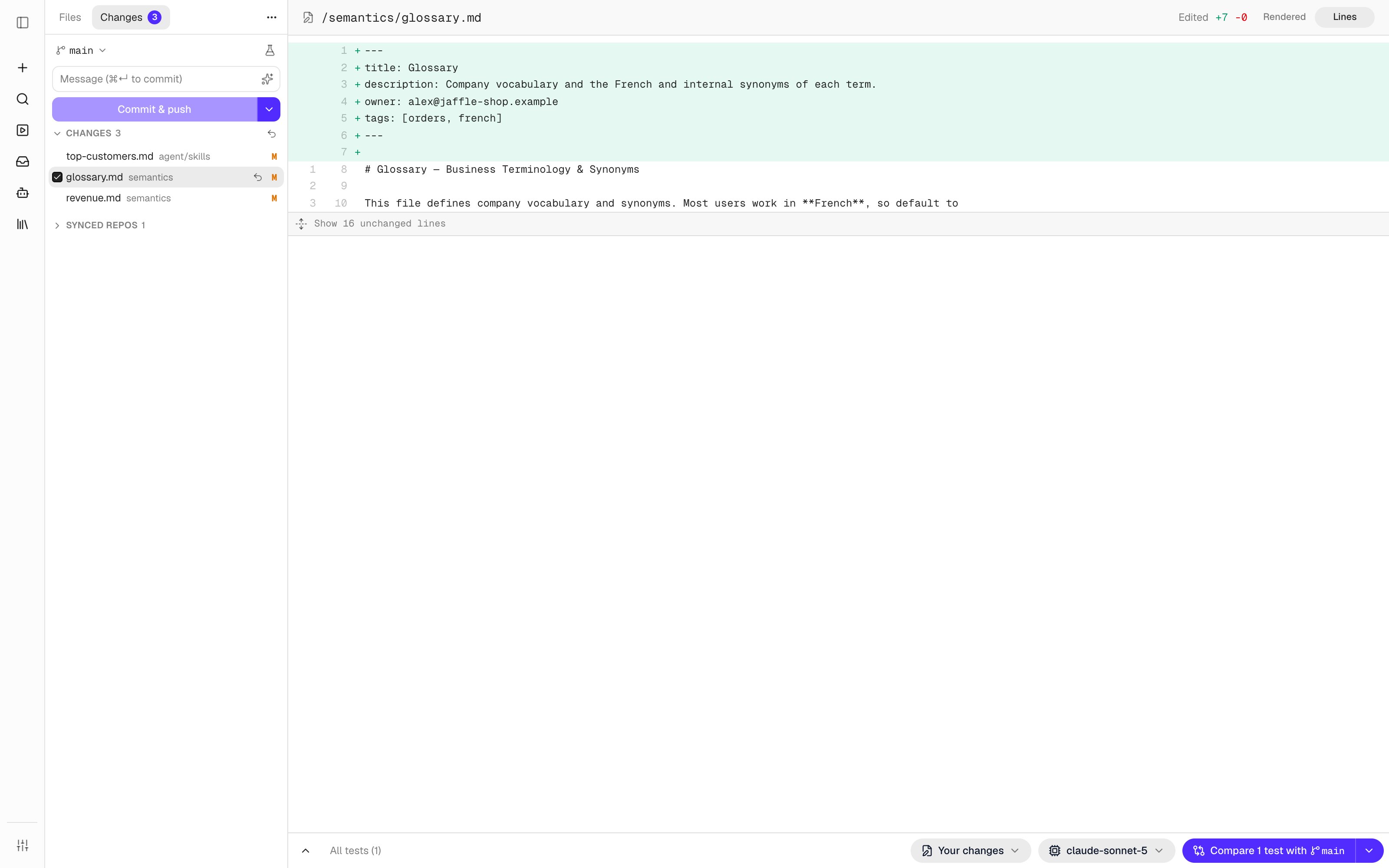
- Click a file to open its diff. Markdown diffs can be read Rendered or as Lines. nao picks Lines when the header changed, since the rendered view doesn’t show it.
- Use the checkbox next to a file to leave it out of the next commit.
- Use the undo icon next to a file to discard its changes, or the one next to Changes to discard them all. Discarding can’t be undone.
Commit and open a pull request
1
Write the commit message
Type a message, or click the sparkles icon (Write it for me) to let nao write one line from the selected changes with the project’s model.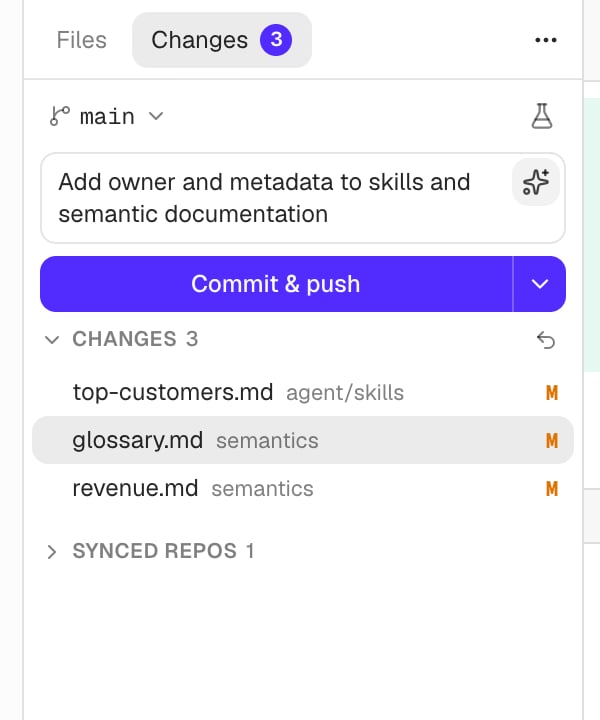
2
Commit and push
Click Commit & push, or press
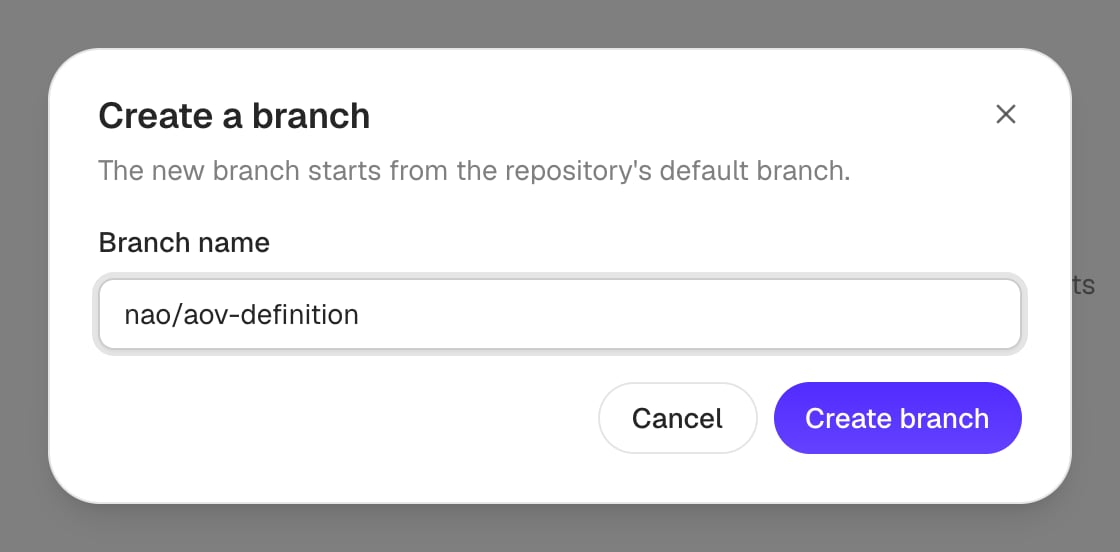
Cmd+Enter. When only some files are selected, the button reads Commit N of M & push.You never commit to the default branch. Committing from main first creates a branch for you, named like nao/context-edits-…. Use Rename branch in the menu next to the button to choose another name.3
Review the pull request
The first push opens a pull request (a merge request on GitLab) and shows a link to it, such as #12. Later pushes from the same branch update that pull request instead of opening another one.If the provider can’t create the pull request, nao still pushes the branch and asks you to open the pull request yourself.
Commit without pushing
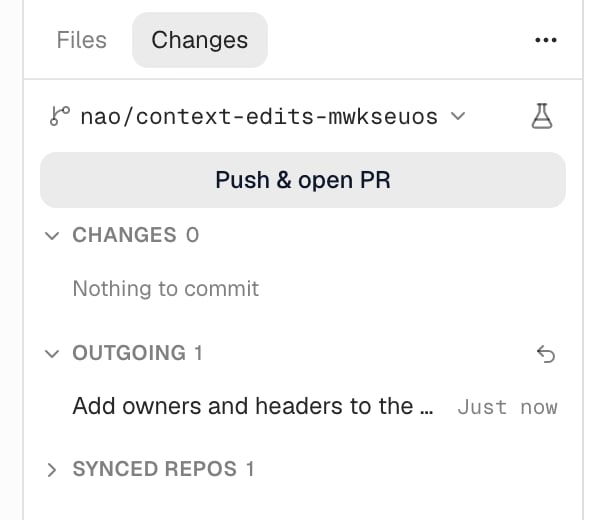
The menu next to Commit & push also offers Commit without pushing. Commits that are not pushed yet are listed under Outgoing. Click Push & open PR when you are ready, or the undo icon to Undo last commit, keeping its changes. Only a commit that has not been pushed can be undone.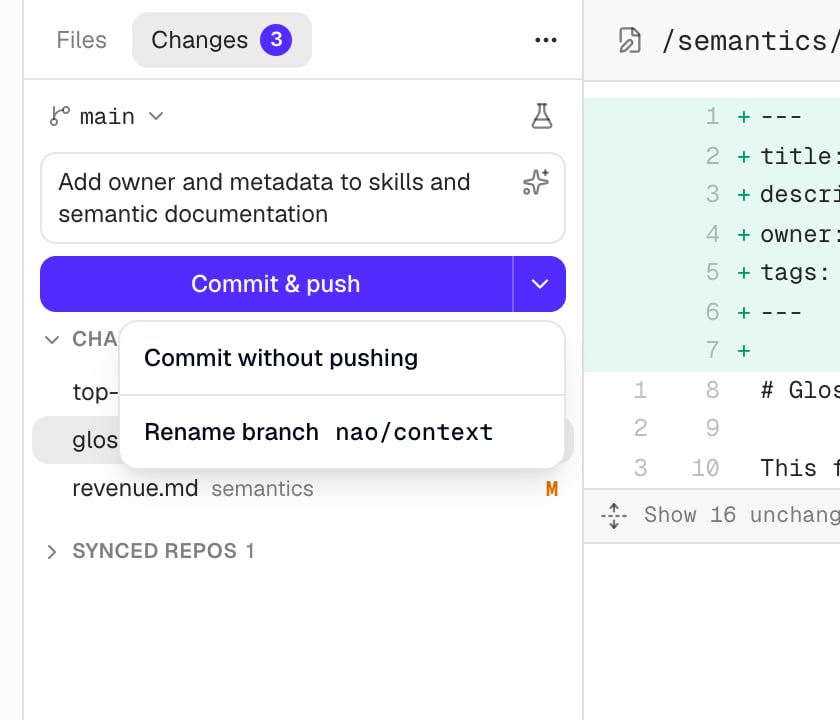
Switch branches
The branch button at the top of Changes shows the branch your workspace is on. Click it to open any branch of the repository.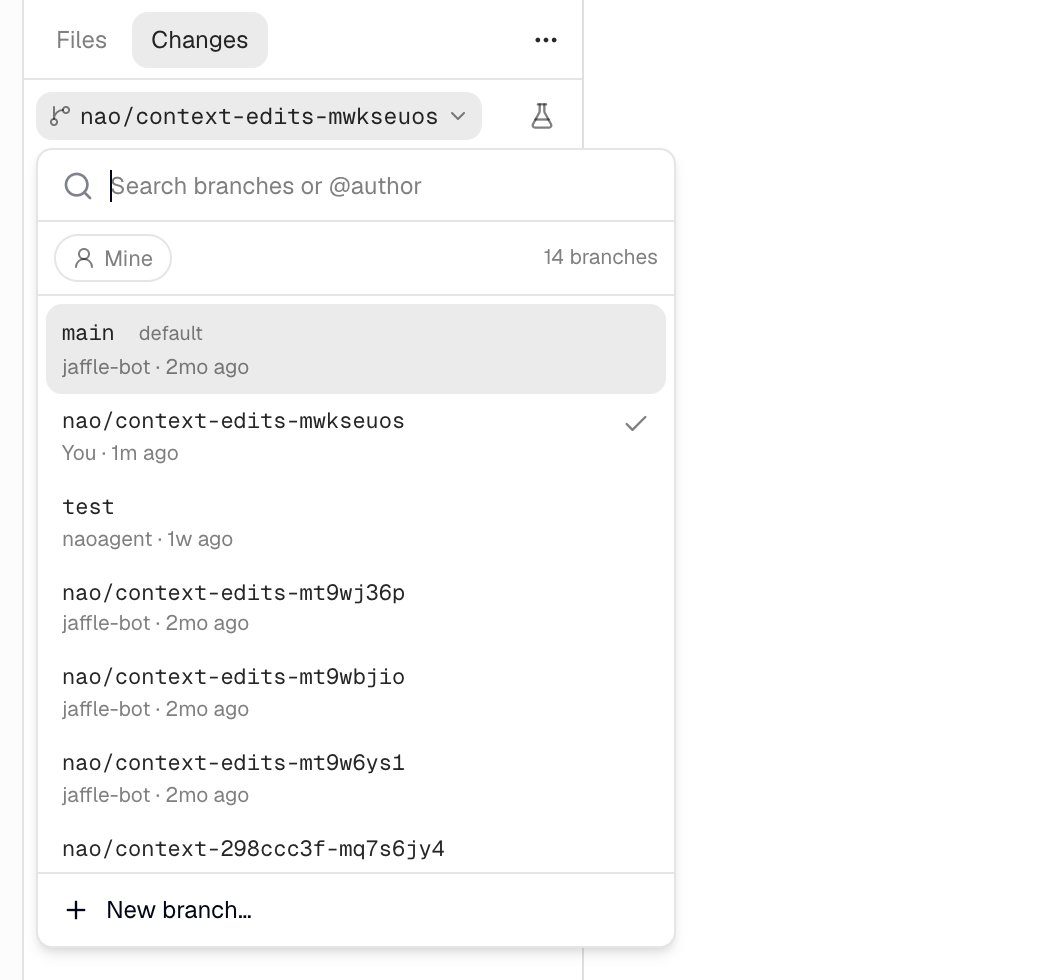
- The default branch comes first, marked default. Each branch shows who last committed to it and when.
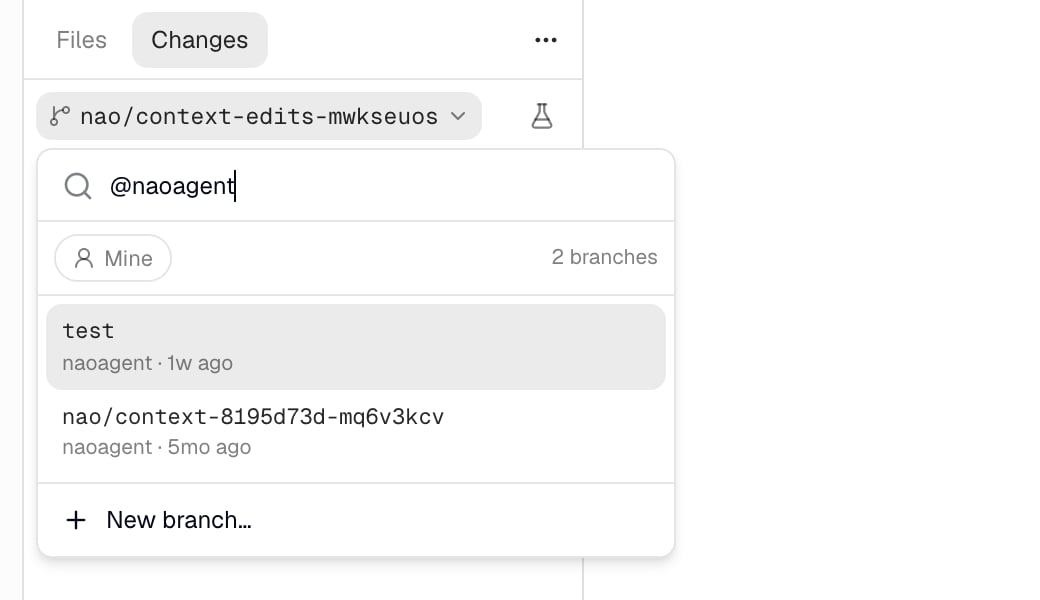
- Search by name, or type
@followed by a name to find someone’s branches, such as@alex. - Toggle Mine to only see the branches you last committed to. With a shared access token, only branches created in nao count as yours.
- Repositories with more than 1,000 branches are listed from Git directly, so every branch can still be found.
Before you switch
- Save or discard the open file, and commit or discard your changes. nao won’t switch branches with uncommitted work, so nothing is lost.
- A branch someone else is working on opens read-only, marked with an eye icon. Switch to one of your branches, or create one, to make changes.
Keep your workspace up to date
When the live context moves ahead of your workspace (for example after Pull latest), nao updates clean workspaces automatically. When it can’t, an update icon appears in Changes. Click it to Update File Explorer, which moves your workspace to the default branch with the latest files. Your other branches and commits are kept. If you have uncommitted changes, commit or discard them first.Preview a branch of a synced repository
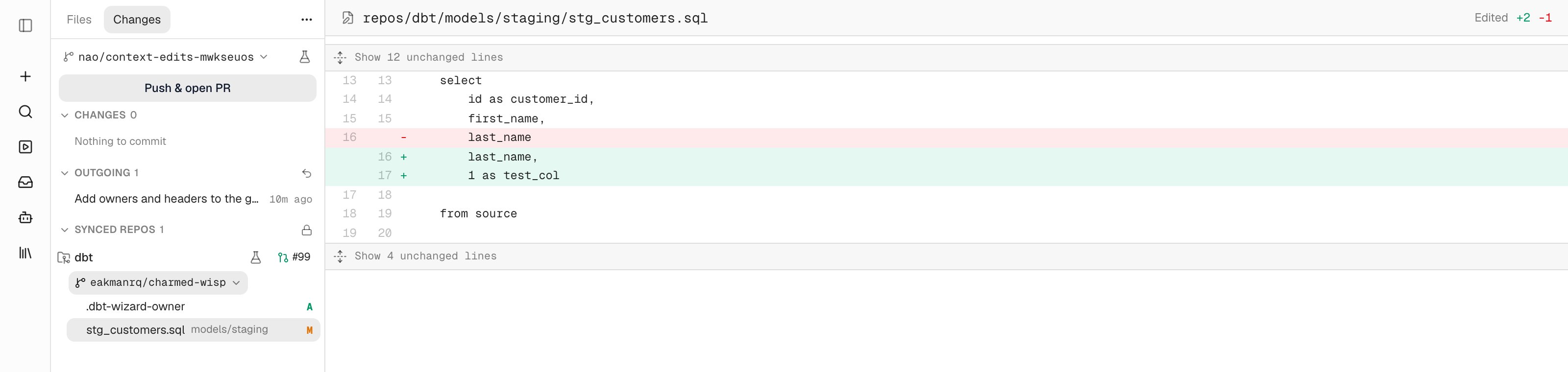
Repositories thatnao sync copies into the context, such as a dbt project listed under repos in nao_config.yaml, appear under Synced repos. They are read-only in nao: change them in their own repository.
Pick a branch of a synced repository to see how it would change the context before it is merged:
- nao syncs that branch and lists the files it changes compared with production.
- Click a file to see its diff.
- The pull request of the branch is linked next to the repository, such as #99.
- Tests compare against that branch, so you can check how the agent behaves with it. Click the flask icon to Test this branch.
NAO_CONTEXT_SYNCED_REPOS_ENABLED=false: the Synced repos section of the Changes tab and their branches in the tests’ branch picker go away. nao sync still copies them, and their files stay in the context, available to the agent.