

Default context
By default, nao agent has always access to your codebase info and data warehouse metadata (list of tables and their schema). You can give some more precise context:- Files from your repositories
- Data warehouse tables
- SQL Worksheets
Context Picker
The context picker is a powerful tool that helps you add relevant context to your agent conversations. Click on “Add context” in the chat area to open it.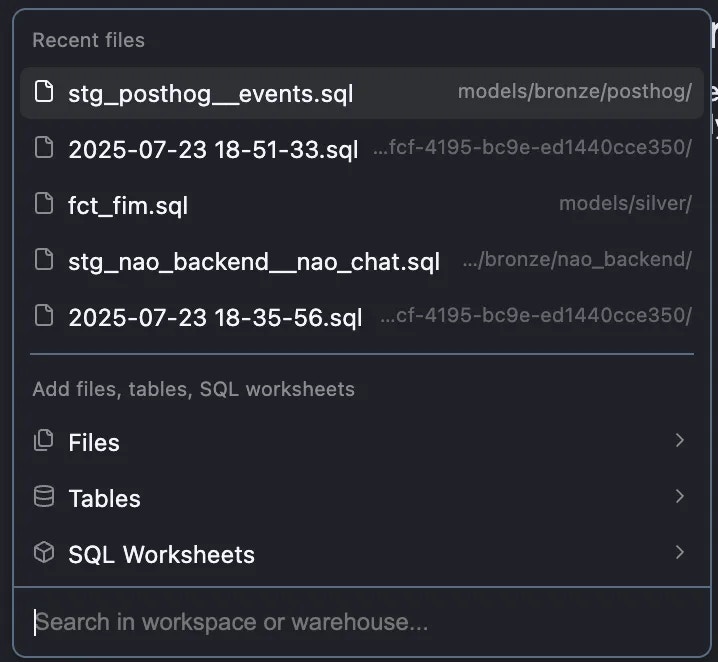
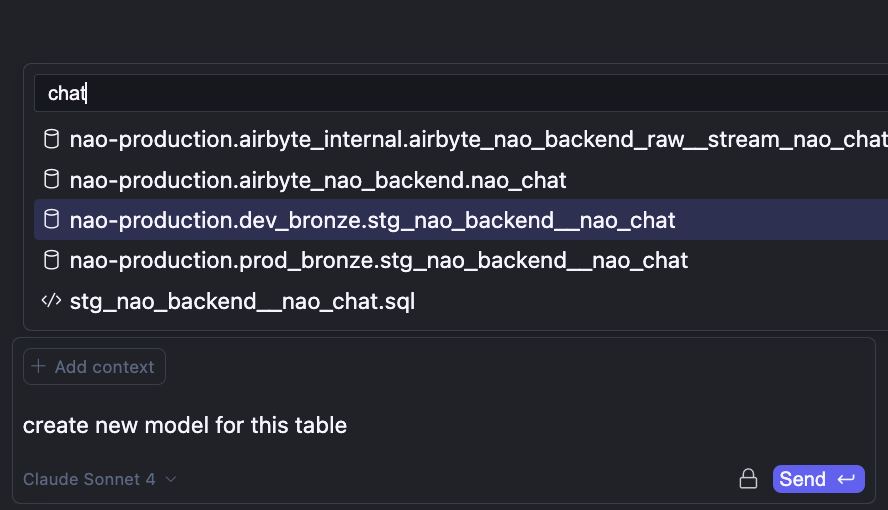
- Files: Browse and select files from your repository
- Folders: Add entire folders to provide broader context
- SQL Worksheets: Include saved SQL worksheets
- Data Warehouse Tables: Add table schemas (metadata only, not data content)
- Schemas: Select entire database schemas
Table Context Note
When you add a table to context, only the table’s schema (column names, types, etc.) is sent to the agent, not the actual data. This keeps your data private while giving the agent the information it needs to write accurate SQL.
- Latest table viewed: The context picker shows the most recently viewed table - only sends their schema
- Previewed tables: When you preview a table, its schema is automatically added to the agent context
- Open files: Files you’re currently viewing are available to the agent
Drag and Drop context
You can drag and drop items directly into the chat to add them as context. This is a quick way to add files, tables, or other items without using the context picker.
Cmd L
You can add lines of code as context to the chat as well. Select code in your worksheet that you want to add. Then click ”+ Add to Chat” when it appears, or alternatively use ⌘ + L.
How to use
- Execute a SQL query in a worksheet or SQL file
- Select the results or use ⌘ + L to send them to the chat
- The agent receives the data and can analyze it
- Ask questions about the data or request visualizations
- Analyze query results
- Create visualizations from your data
- Identify patterns or anomalies
- Generate insights and recommendations
Infinite Chat
nao supports infinite chat conversations with no token limitations. You can have extended conversations with the agent without worrying about hitting token limits or losing context.Benefits
- No conversation length restrictions
- Maintain full context throughout long conversations
- Continue complex multi-step workflows without interruption
- Review and reference earlier parts of the conversation seamlessly