- A prompt you send to the agent
- Enriched with context & indexing of your codebase and data schema
- A specific agent mode
- A foundational model
- Your own rules
- Tools executed by the agent
Prompting
Agent modes
There are 3 different agent modes: Chat, Edit, Plan. You can switch modes direclty within the agent prompt form, at any point of a conversation.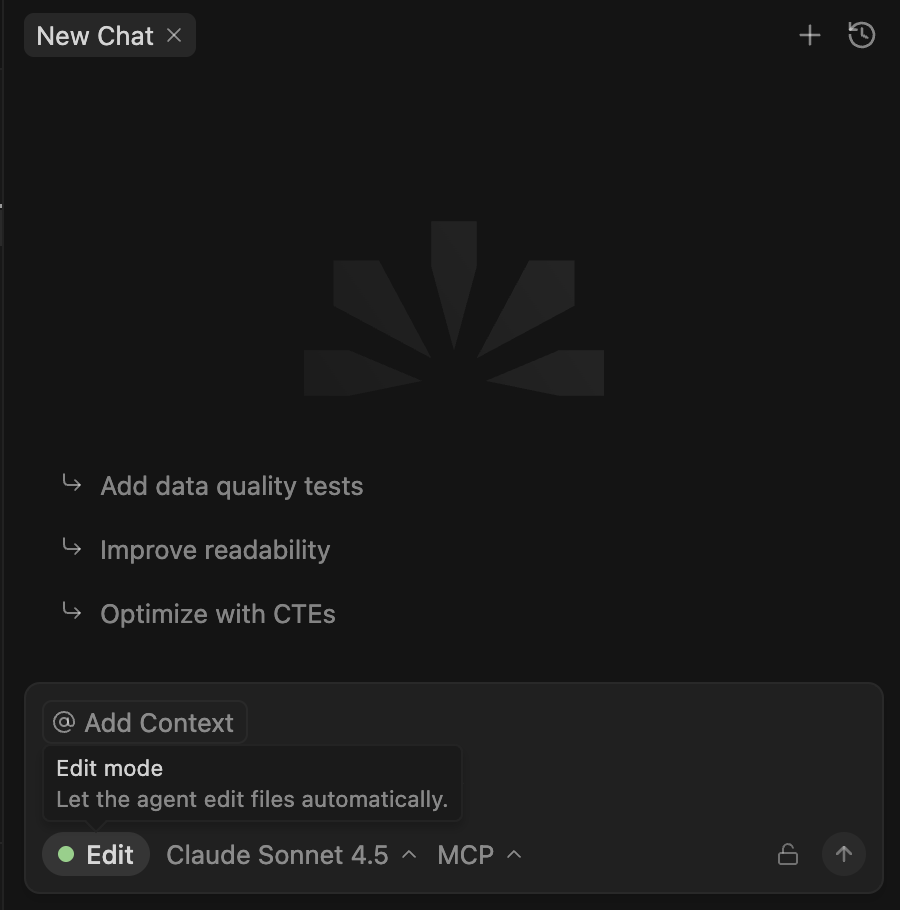
Chat
In Chat mode, the agent will answer questions and suggest code changes.You can then:
- Apply changes: Click “Apply” button to see the suggested changes directly applied in your files
- Accept/reject changes Accept/reject each bit of code or all of the code suggested.
Edit
In Edit mode, the agent will auto-apply suggestions. You can always review the changes and decide whether to accept or reject them.Plan
In Plan mode, the agent will first write a plan to answer your request. This mode is mostly useful for long-tasks that require thoughtful planning. In this mode, the agent won’t apply any changes - you can switch to edit mode for the agent to execute the drafted plan.Multiple chats
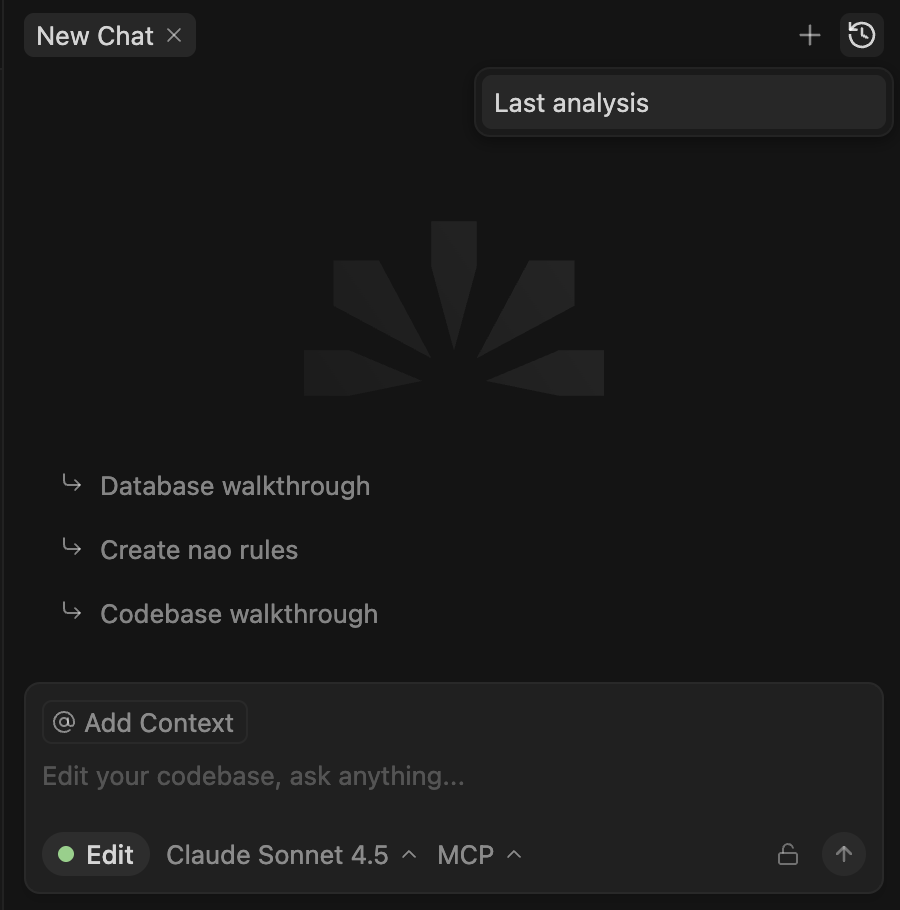
You can run multiple chats at the same time within nao. They will keep running in parallel, even if you switch between multiple chats. You will see a chat is running with a blue dot on it - when it goes away it means the chat has finished its task. Once you have created multiple chats, you will be able to rename them by double clicking it, and reorder chat tabs. Every tab will also show you the active changes in the specific chat.Chat History
All your chat conversations are saved within nao. Each conversation is linked to one folder / repository and can only be retrieved from there. You can access previous conversations to view them, and continue them from where you left off. All your chat history is accessible from this icon on top right of your chat: