

Setup dbt
To get the most of using dbt in nao, you should set up your dbt config within nao.See the Set up dbt page for a step-by-step guide.
Preview, run, build dbt models
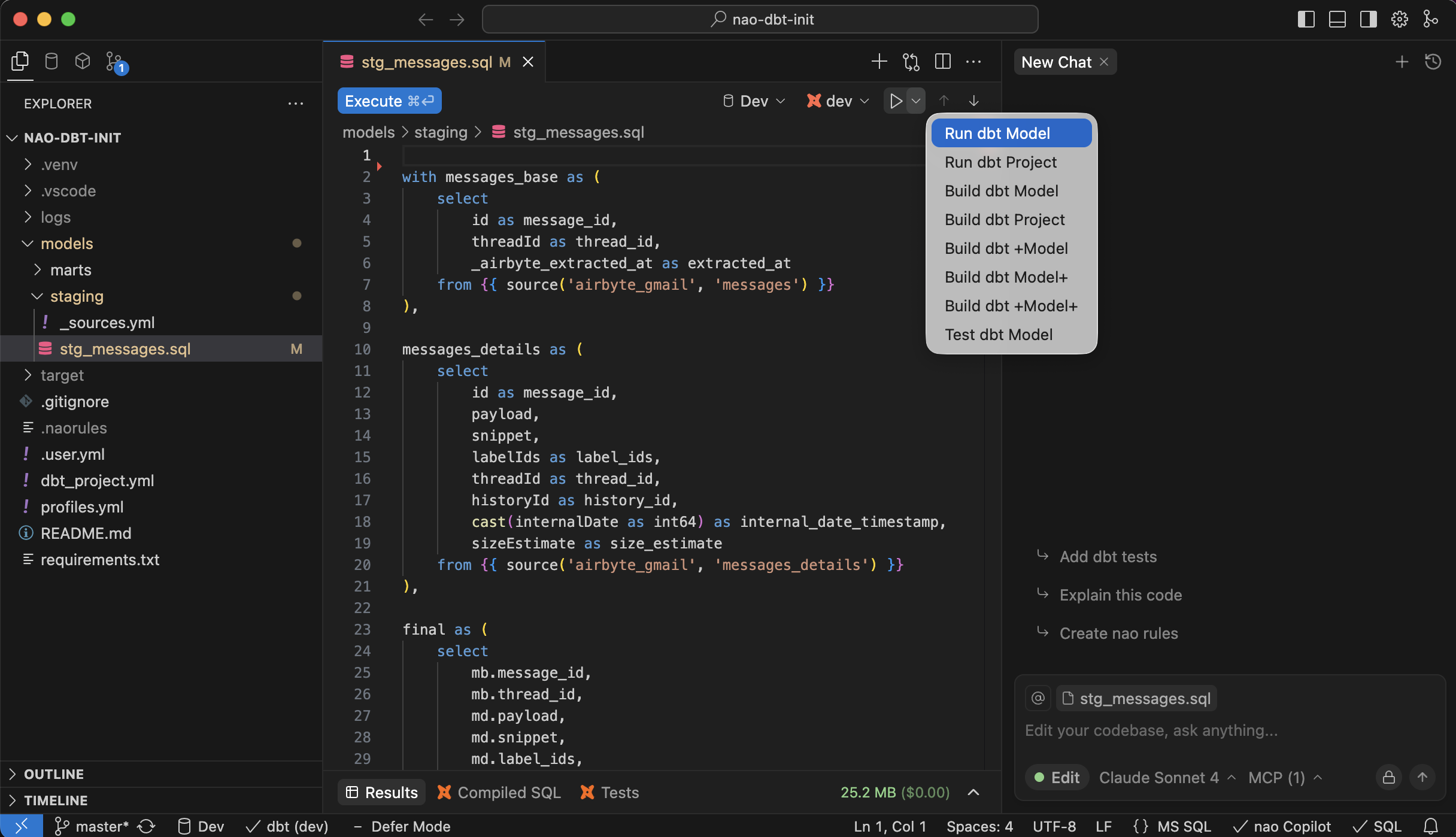
You can directly preview dbt models in nao, if your dbt is setup well and you added your data connection.Just click on the execute SQL button on the top bar, or press ⌘ + ⏎. On top of your dbt model, you will also have a dropdown to run, build, test dbt models and their dependencies.
Run dbt tests
If a dbt model has tests defined, you will be able to execute them directly from the preview panel.On Database mode, the tests will be executed on the materialized dbt model.
On Code mode, the tests will be executed on the preview of current dbt code.

View dbt lineage
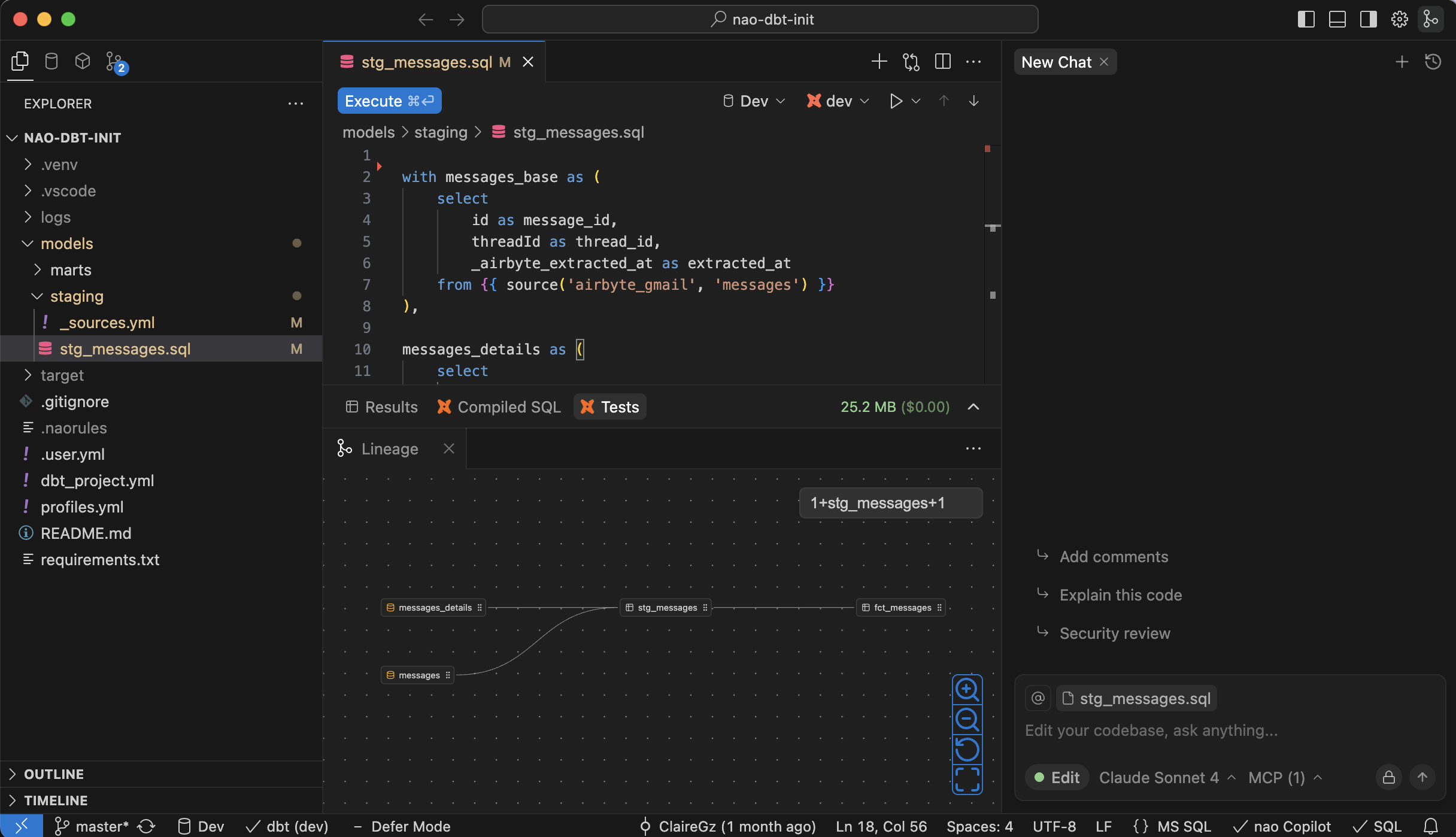
You can open dbt lineage from the top right icon.If you currently have a dbt sql file opened, the lineage will be zoomed in 1+model+1.
If not, it will open full lineage. Within lineage, you can expand lineage nodes to see further model dependencies.
You can also use selection form on the top right to select a precise part of lineage.
You can click on a node of the lineage to open the corresponding sql file of each model.
Navigate dbt dependencies
When a dbt model file is open, you will have access to its dependencies in the top tool bar. It will show if the model has upstream and/or downstrea dependencies. You can also navigate between dbt models & columns with ⌘ + click:- Use ⌘ + click on ref names to open the corresponding sql file
- Use ⌘ + click on a CTE name to jump to the CTE definition
- Use ⌘ + click on a column to jump to the previous definition of this column
Auto-complete on dbt models
Auto-complete sources & refsWhen writing from in a dbt context, nao suggest a shortcut to add sources and refs. It will then suggest the list of available refs/sources in your dbt repository. Auto-complete columns from sources & refs
When selecting columns from a source of a ref, nao will extract the list of available columns. It will then suggest the list of available columns for the specifc ref/source you are working on.
Agent dbt tools
nao agent has several tools specifically made for dbt use:- Create dbt models
- Create dbt sources
- Create dbt documentation & testing
- Get model / column dependencies in lineage
- Execute dbt commands