Skip to main contentOpen and manage the terminal
- Press ⌘ + J to toggle the terminal drawer at any time.
- Use the
+ icon in the terminal header to open multiple shells (bash, zsh, python, etc.).
- Each workspace remembers the shells you had open, so you can pick up where you left off.
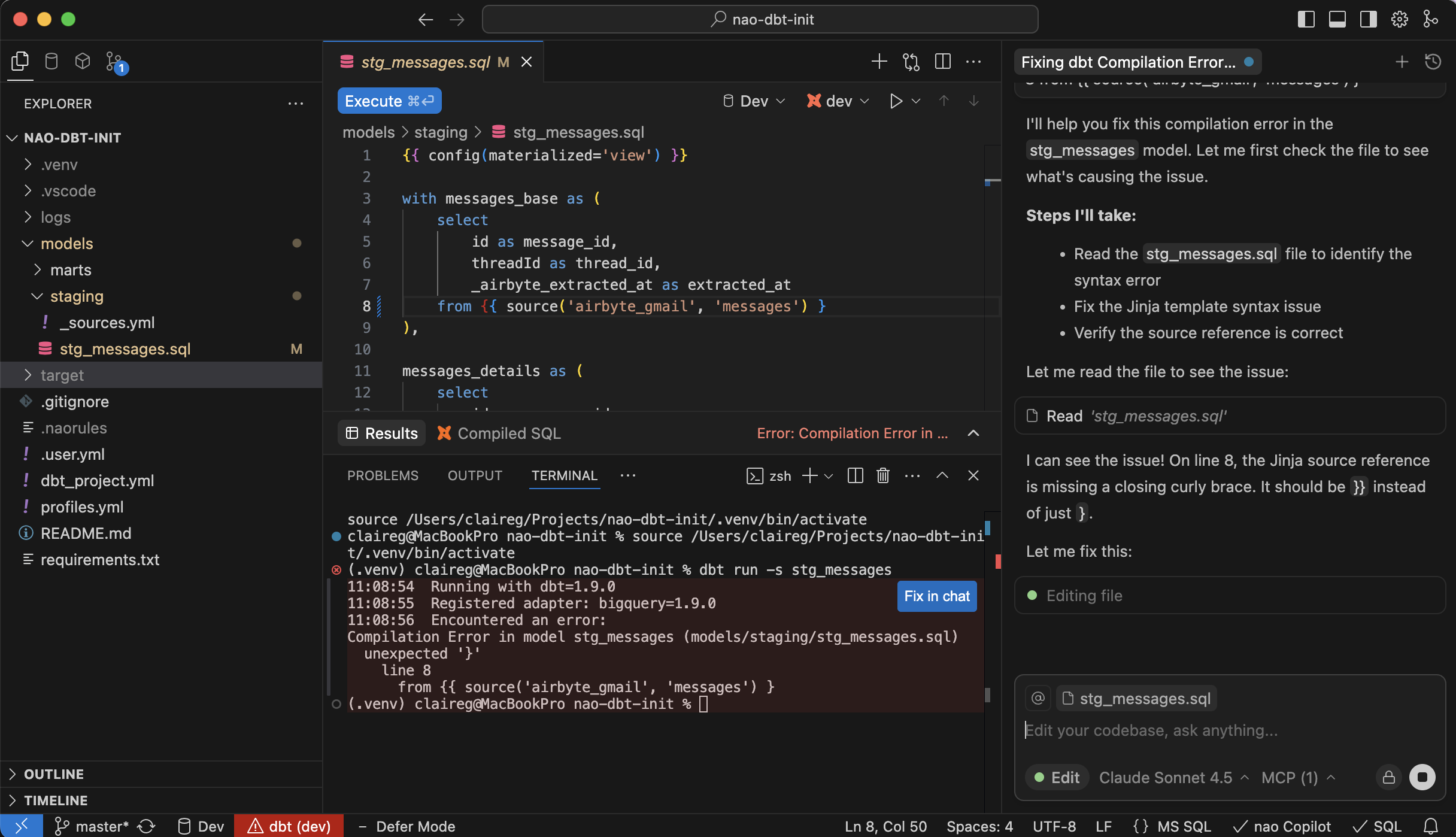
Fix terminal errors in chat
Whenever a terminal command fails, nao highlights the error and shows a Fix in chat button. Click it to send the command and its stderr to nao AI—the agent will propose a corrected command or patch, and you can apply it back to the terminal with one click.
Let nao AI run terminal commands
From the chat sidebar you can ask nao AI to run terminal commands on your behalf (for example, “run tests” or “install dependencies”). The agent will:
- Suggest the command it plans to run.
- Wait for your approval.
- Execute the command in the integrated terminal and stream back the output.
You can read more about command execution permissions and guardrails in the nao agent tools.