

- Runs against your own self-hosted Mattermost server
- Connects as a bot account with a personal access token, over a persistent WebSocket
- Answers mentions in channels, and every message in direct messages
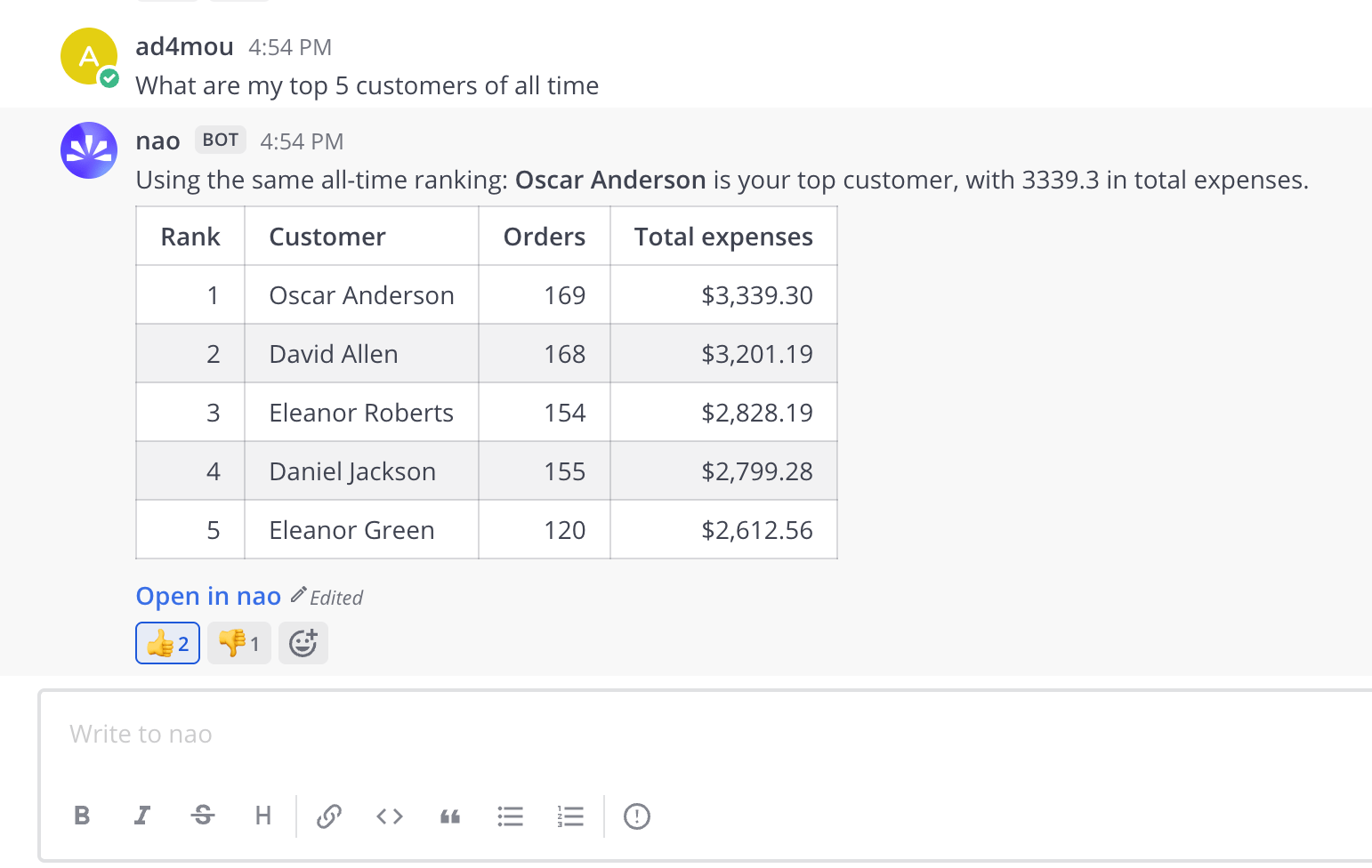
- Returns answers with SQL queries, data tables, and visualizations
- Streams the answer into a single message that is edited as the answer grows
The Mattermost bot uses the same agent context, rules, models, and capabilities
as your web chat interface. Any improvements to your agent automatically
benefit Mattermost users.
Setup
Step 1: Create a Bot Account in Mattermost
- In Mattermost, go to the System Console → Integrations → Bot Accounts and set Enable Bot Account Creation to true. It is off by default.
- Go to Integrations → Bot Accounts → Add Bot Account, create the bot, and copy the token. It is shown only once, at creation.
- Add the bot to the team first, then to each channel where it should answer.
Adding the bot straight to a channel does not work until it is a member of the
team. Add it to the team first, then to the channels.
Step 2: Connect your Mattermost Bot to nao
- In nao, open Settings -> Integrations & MCP -> Mattermost
- Fill in the Server URL (for example
https://mattermost.example.com) and the Bot Token - Click “Save”
- Choose the model used for Mattermost replies
Step 3: Turn on the Stop button
On the same settings page, turn on Enable interactive buttons. This adds a Stop button to the answer while nao is generating, so people can cut a long answer short. The button disappears on its own once the answer finishes. Buttons work by Mattermost calling back into nao over HTTP, so your Mattermost server must be able to reach nao. Two things commonly block that:- The address is wrong. The address your Mattermost server uses to reach nao can differ from the one you use in your browser. That is what the optional Callback URL field is for — leave it blank unless buttons fail. For example, with Mattermost running in Docker on a laptop, the callback URL would be
http://host.docker.internal:5005. - The host is not allow-listed. Mattermost refuses calls to internal hosts unless you allow them.
Step 4: Account Linking
People are linked automatically by their Mattermost email. If the email on someone’s Mattermost account matches their nao account, they are recognised on their first message and there is nothing to type. If the two emails do not match, they can link manually instead: send the bot a direct message withlogin <linking_code>. The linking code is on the Mattermost settings page, tucked behind a collapsible section.
Write
login <linking_code> without a leading slash. Mattermost intercepts
slash commands, so /login never reaches the bot.Usage
Ask Questions In a channel, mention the bot:- Process your question using the same agent as the web interface
- Generate SQL queries based on your context
- Execute queries against your connected databases
- Stream the answer into a single Mattermost message, editing it as the answer grows
- End the answer with a bold Open in nao link to the full conversation
The first answer lands in the channel itself, and follow-up housekeeping
messages go into a thread under it, so channels stay quiet. Direct messages
are never threaded.
Admin Setup
Configure authentication, models, and messaging integrations
Chat Overview
Learn how the main chat interface works