Display name for this connection inside nao.
Comma-separated project IDs. Supports wildcards (e.g. project_*) and exclusions (!project-dev).
Optional BigQuery location. Leave blank to use the project default.
Optionally scope access to specific datasets by listing them explicitly.
authentication_method
string
default:"SSO via OAuth"
required
Choose between SSO via OAuth or Service Account. SSO requires your BQ project ID; service accounts use key files.
service_account_private_key
Required only when Service Account authentication is selected. Upload the JSON key for a service account with at least the BigQuery Data Viewer (Reader) role.
Connect multiple BigQuery projectsSelect multiple project-ids and datasets using the following patterns:
- Comma separated values (project1,project2): Select specific projects by listing them explicitly (no space after the comma)
- Wildcard prefix (project_*): Select all projects that start with “project_”
- Exclusion (!project2): Select all projects except “project2”
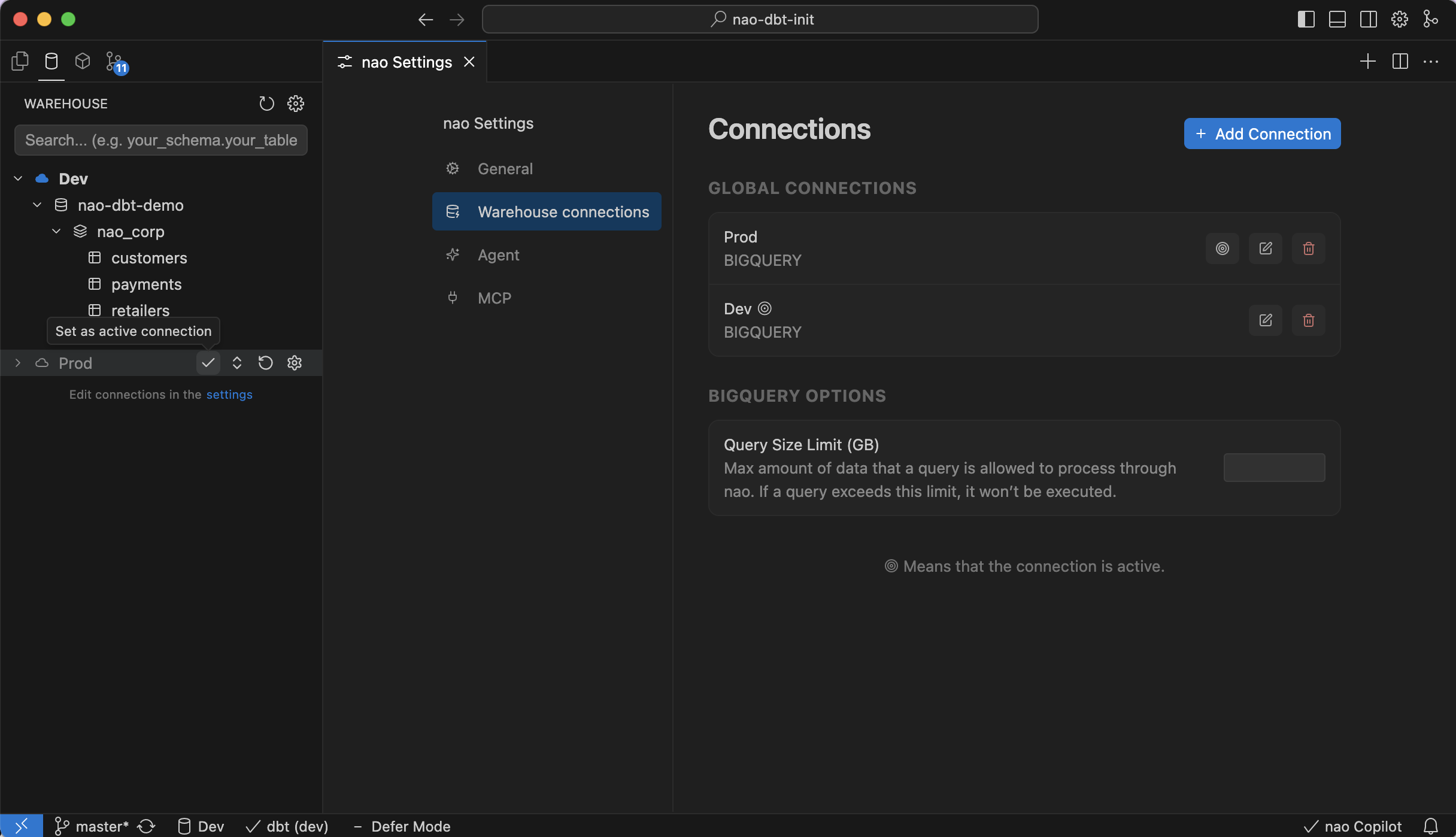
Set query size limitsYou can limit the size of queries executed within nao.If you do, nao will perform a dry run of every query, and cancel query execution if it’s above the GB limit.
The limit will be effective for both user queries and AI agent queries.Go to Settings → Warehouse Connections and set the query size limit field to the maximum rows you want nao to run automatically.
Name that appears inside nao; can be any label you prefer.
Snowflake account identifier without .snowflakecomputing.com.
Target warehouse for query execution.
Optional role override for this connection.
Optional list of databases to load. Supports comma-separated values, wildcards (db_*), and exclusions (!db2).
Optional schemas to load. Accepts the same comma, wildcard, and exclusion patterns as databases.
authentication_method
string
default:"SSO"
required
Choose between Password, SSO, or Key Pair Authentication.
Only required when Password authentication is selected.
Password for the Snowflake user. Approve the DUO prompt both when testing and saving the connection.
Snowflake user that owns the private key. Required for Key Pair Authentication.
key_pair_auth.private_key
Upload the PEM private key file corresponding to your Snowflake user.
Optional passphrase protecting the private key.
MFA reminder
Password-based logins require approving the DUO push twice: once for Test Connection and again for Save.
Friendly name for the connection inside nao.
Hostname or IP where Postgres is reachable.
port
number
default:"5432"
required
Listening port for your Postgres instance.
Target database to connect to.
Database user nao should authenticate with.
Password for the database user. Stored securely in nao.
Enable SSH tunneling. When toggled, provide the SSH host, port, username, and a private key or password.
Turn on SSL/TLS. Choose SSL, TLS, or add channel binding depending on your Postgres setup.
Name that appears inside nao for this workspace connection.
Databricks workspace hostname.
HTTP path for the SQL warehouse or cluster you want nao to use.
Optional catalog that nao should select by default.
Optional schema to use when one is not specified in queries.
authentication_method
string
default:"OAuth User-to-Machine (U2M)"
required
Choose between OAuth User-to-Machine (U2M) or Personal Access Token.
Required only when using the Personal Access Token authentication method.
Friendly label for this Redshift connection.
Redshift cluster endpoint.
port
number
default:"5439"
required
Port Redshift listens on (defaults to 5439).
Default database nao should use.
Database user with access to the schemas you need.
Password for that database user.
Enable SSH tunneling and provide SSH host, port, username, and private key/passphrase.
Turn on SSL/TLS. Choose SSL, TLS, and optional channel binding per your security requirements.
Friendly label for this ClickHouse connection.
authentication_method
string
default:"HTTPS"
required
Choose between HTTPS or Local.
Full URL to your ClickHouse instance, including protocol and port. Use http://localhost:8123 for Local connections or https://your-instance.clickhouse.cloud:8443 for HTTPS connections.
ClickHouse user with access to the databases you need.
Password for the ClickHouse user.
Optional database to load. If not specified, nao will discover available databases.
Friendly name for the Athena connection inside nao.
AWS region where your Athena workgroup runs.
Access key for the IAM user or role you created for nao.
Secret key paired with the access key.
Optional default Athena database to load.
Choose any label for the DuckDB connection inside nao.
database_type
string
default:"File Database"
required
Select File Database to point to a .duckdb file, or In-Memory Database to create a temporary in-memory database.
Required when File Database is selected. Browse to an existing file or provide a new path to create one.
Optional comma-separated list of schemas to load.
Enable to prevent nao from making any modifications to the DuckDB database.


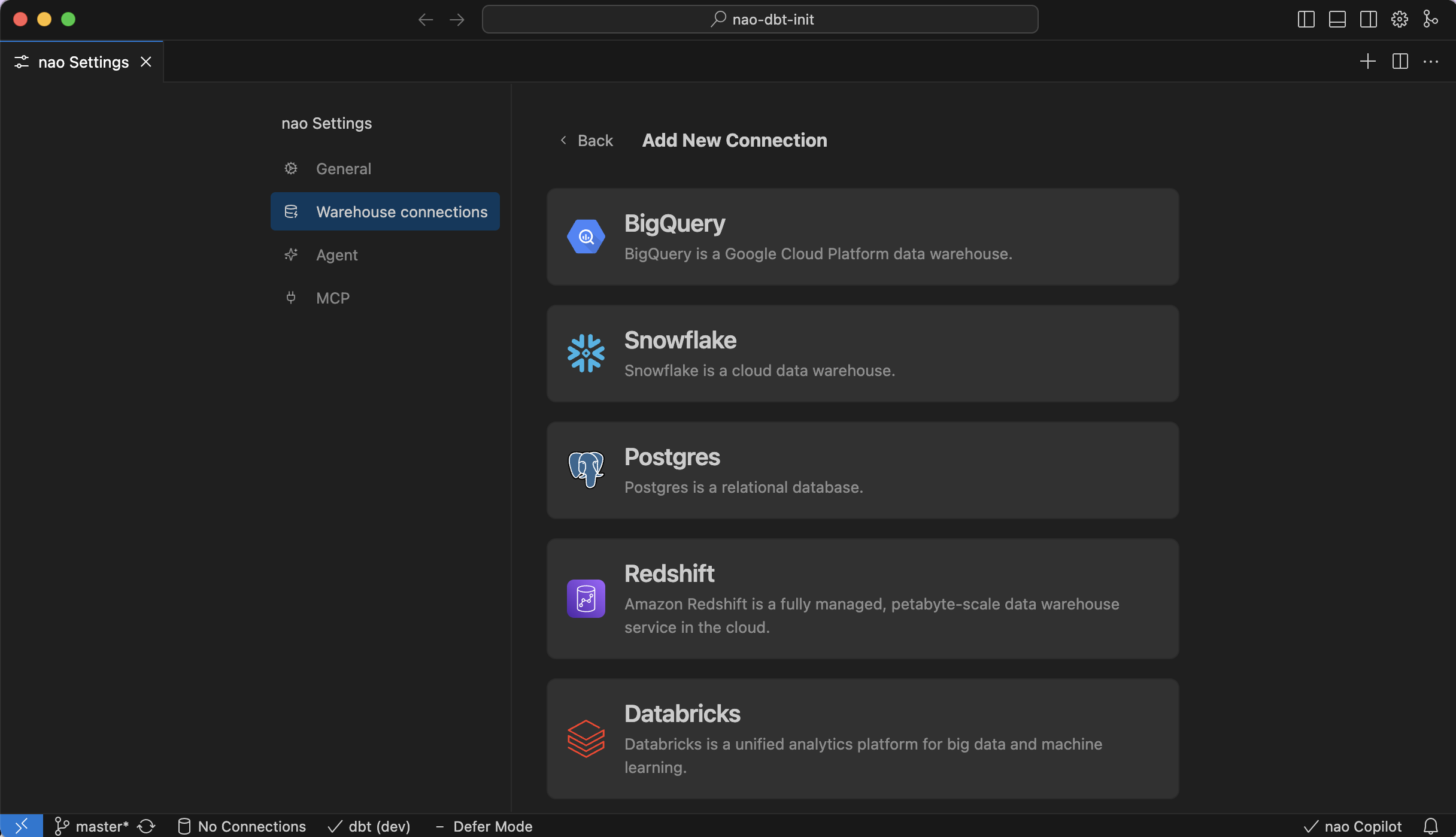
 BigQuery
 Snowflake
 Postgres
 Databricks
 Redshift
 ClickHouse
 Amazon Athena
 DuckDB
 MotherDuck