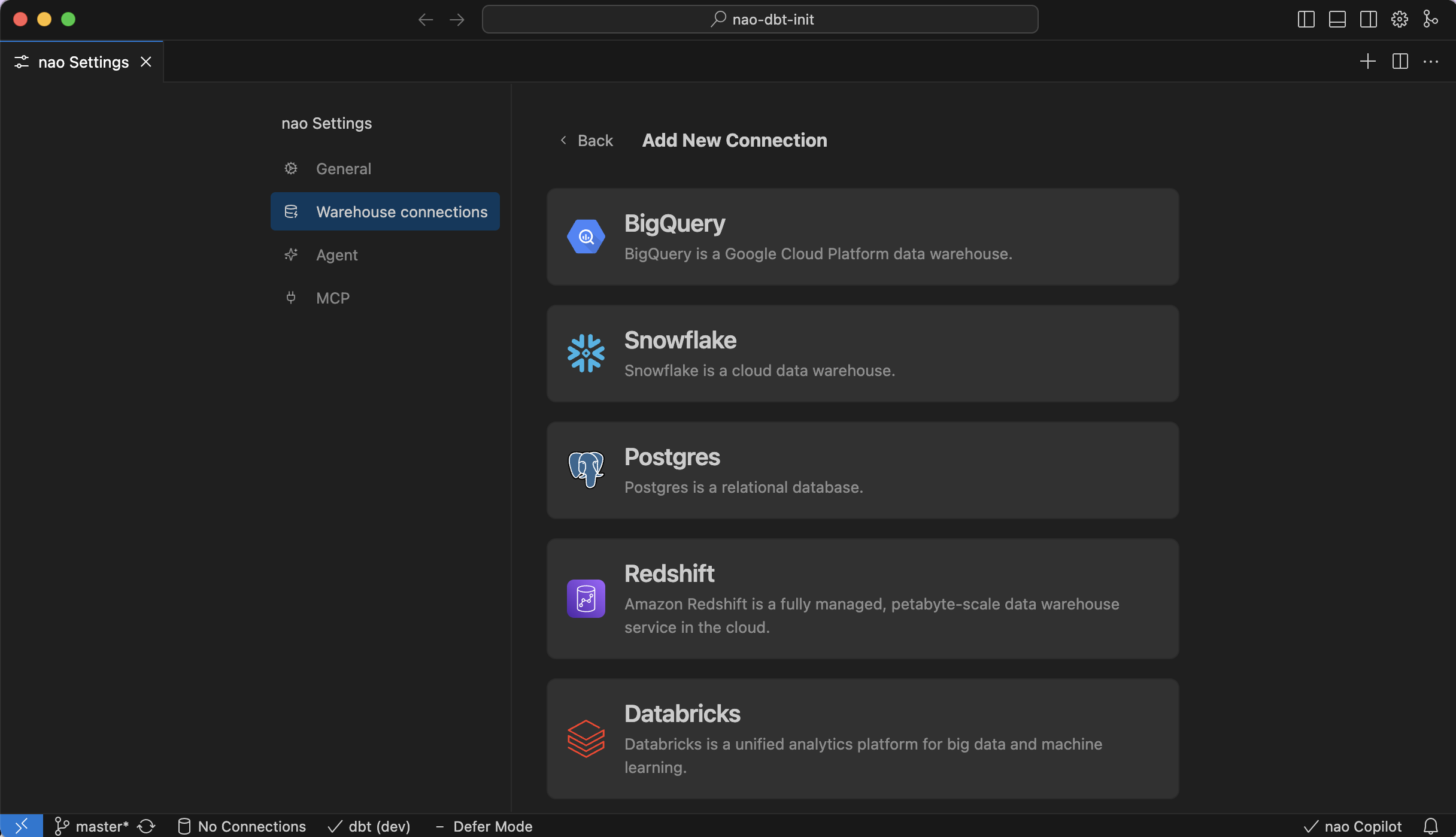
Data connection in nao is key.
It allows you to browse, view, query your data directly in the IDE.
It gives context of your data schema to nao AI featurse.
Data privacy:
When you connect a data warehouse to nao, your connection stays between your computer and the data warehouse. No data content is ever sent to nao servers or the LLM. Only metadata (like table and column names) is used to provide warehouse context to nao features.Read more about how your data is secured in our security documentation.
Required only when Service Account authentication is selected. Upload the JSON key for a service account with at least the BigQuery Data Viewer (Reader) role.
Connect multiple BigQuery projectsSelect multiple project-ids and datasets using the following patterns:
Comma separated values (project1,project2): Select specific projects by listing them explicitly (no space after the comma)
Wildcard prefix (project_*): Select all projects that start with “project_”
Exclusion (!project2): Select all projects except “project2”
Set query size limitsYou can limit the size of queries executed within nao.If you do, nao will perform a dry run of every query, and cancel query execution if it’s above the GB limit.
The limit will be effective for both user queries and AI agent queries.Go to Settings → Warehouse Connections and set the query size limit field to the maximum rows you want nao to run automatically.
Full URL to your ClickHouse instance, including protocol and port. Use http://localhost:8123 for Local connections or https://your-instance.clickhouse.cloud:8443 for HTTPS connections.
Enable to prevent nao from making any modifications to the DuckDB database.
MotherDuck connections use the same flow as DuckDB. Open the DuckDB tab in this section and follow that form to connect to your MotherDuck warehouse.
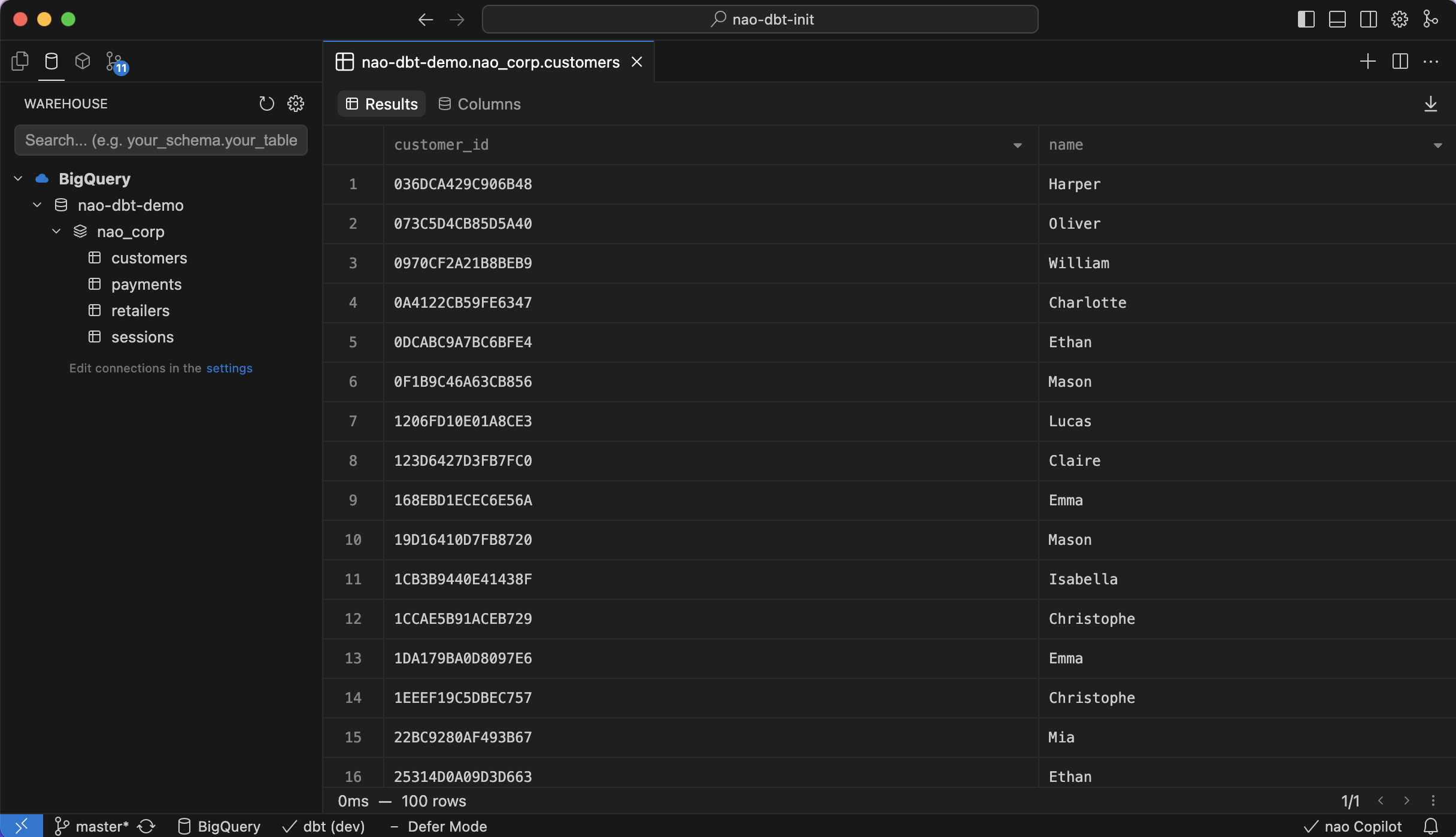
To check your data is connected, open the left panel then click on the data warehouse icon. Here you will see all the tables from your data connection.When you click on a table, you will be able to preview it directly within nao.
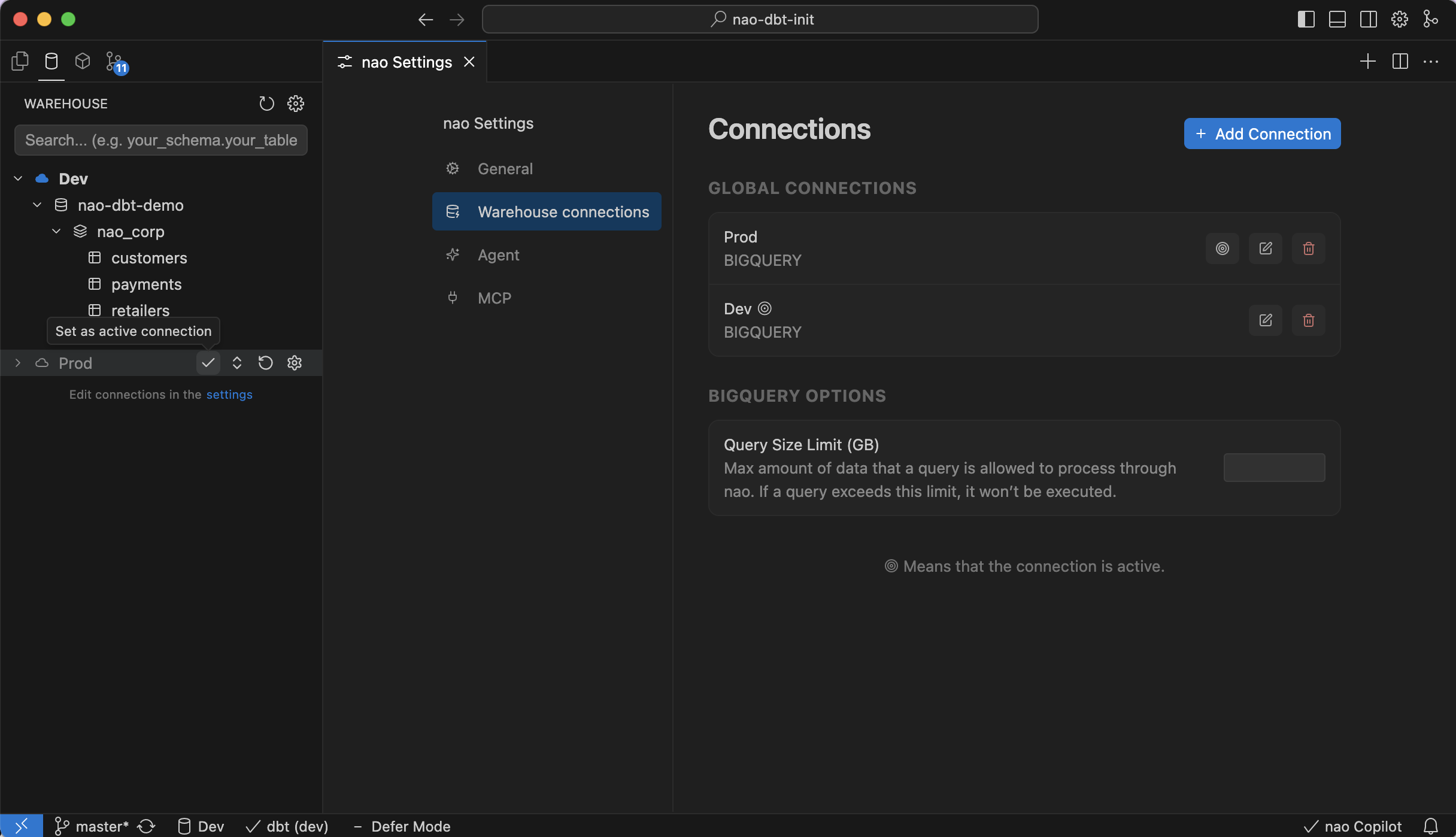
You can connect multiple databases at once in nao.
You can choose to:
Set a connection as a global connection (available across all folders in nao)
Attach a connection to a specific workspace
To do this, hover over a connection and you’ll see the options:
“Attach to workspace” or “Make global”
Only one connection is active at once in nao.You can choose the active connection either from the data tree on the left or from the nao settings / data connections menu with the small circles.
{"docsConfig":{"theme":"mint","$schema":"https://mintlify.com/docs.json","name":"nao Labs","colors":{"primary":"#522BFF","light":"#FAFAFD","dark":"#1D1F24"},"logo":{"light":"https://mintcdn.com/naolabs/GfySj0mWgsca4SVG/logo/light.svg?fit=max\u0026auto=format\u0026n=GfySj0mWgsca4SVG\u0026q=85\u0026s=b70099fe6c9ac8679aeb115e3819d55c","dark":"https://mintcdn.com/naolabs/GfySj0mWgsca4SVG/logo/dark.svg?fit=max\u0026auto=format\u0026n=GfySj0mWgsca4SVG\u0026q=85\u0026s=af44c01c99c28a86b3862898cd71efd5"},"favicon":"https://mintcdn.com/naolabs/m5BzQr8fEtipgbHO/favicon.svg?fit=max\u0026auto=format\u0026n=m5BzQr8fEtipgbHO\u0026q=85\u0026s=e6a1d84767c52f778ba3f8ac93c2adf2","background":{"color":{"light":"#FAFAFD","dark":"#1D1F24"}},"navbar":{"links":[{"href":"https://getnao.io/blog","label":"Blog"},{"href":"mailto:claire@getnao.io","label":"Support"}]},"footer":{"socials":{"slack":"https://join.slack.com/t/naolabs/shared_invite/zt-4080jlm79-nm52x5nZhG2N1ben8zwpiQ"}},"errors":{"404":{"redirect":false,"title":"404: Data Not Found","description":"This page returned **NULL**. Looks like this query didn't find what you were looking for! Try checking the [navigation](/nao-ide/get-started/welcome) or use our [search](/nao-ide/get-started/welcome) to find what you need."}},"contextual":{"options":["copy","view","chatgpt","claude","perplexity"],"display":"header"},"styling":{"latex":true},"navigation":{"global":{"anchors":[{"anchor":"GitHub","icon":"github","href":"https://github.com/getnao/nao"},{"anchor":"Slack","icon":"slack","href":"https://join.slack.com/t/naolabs/shared_invite/zt-4080jlm79-nm52x5nZhG2N1ben8zwpiQ"},{"anchor":"Blog","icon":"book","href":"https://getnao.io/blog"}]},"pages":[]}},"deployment":{"deploymentMetadataValue":{"subdomain":"naolabs","hasAudioNarration":false,"actualSubdomain":"naolabs","customDomains":["docs.getnao.io"],"gitSource":{"type":"github","owner":"getnao","repo":"nao-docs","deployBranch":"main","contentDirectory":"","isPrivate":true,"mountPath":"","label":""},"chroma":{"liveDeploymentHistoryId":"6ae46781737a5e6c8f10af9c","collectionId":"df0311a9-298d-4efb-b5c1-8fbb3ef2e25b","schemaVersion":"v3","latestBuiltDeploymentHistoryId":"6ae46781737a5e6c8f10af9c"},"entitlements":{},"buildId":"6ae46781737a5e6c8f10af9c","clientVersion":"0.0.4044","searchFilterCounts":[{"language":"default","tag":"nao Open Source Agent","count":58},{"language":"default","tag":"nao IDE","count":32},{"language":"default","tag":"Chat Interface","count":18},{"language":"default","tag":"Get Started","count":11},{"language":"default","tag":"Context Builder","count":10},{"language":"default","tag":"Capabilities","count":8},{"language":"default","tag":"Admin","count":7},{"language":"default","tag":"Connectors","count":7},{"language":"default","tag":"Context Providers","count":7},{"language":"default","tag":"nao AI","count":7}]},"assistantConfig":{"enableAskAiButton":false,"enableStarterQuestions":false,"enableAskAiSearchBar":true},"basePath":"","hasChatPermissions":false,"hasWebMcpPermissions":false,"toggles":[{"name":"kill-isr","enabled":true,"variant":{"name":"disabled","enabled":false,"feature_enabled":true},"impressionData":false},{"name":"agent-mintlify-slack","enabled":true,"variant":{"name":"disabled","enabled":false,"feature_enabled":true},"impressionData":false},{"name":"agent-integrations-settings","enabled":true,"variant":{"name":"disabled","enabled":false,"feature_enabled":true},"impressionData":false},{"name":"automations-pr-grouping","enabled":true,"variant":{"name":"disabled","enabled":false,"feature_enabled":true},"impressionData":false},{"name":"custom-prefix","enabled":true,"variant":{"name":"disabled","enabled":false,"feature_enabled":true},"impressionData":false},{"name":"analytics-v7","enabled":true,"variant":{"name":"disabled","enabled":false,"feature_enabled":true},"impressionData":false},{"name":"user-flows-analytics","enabled":true,"variant":{"name":"disabled","enabled":false,"feature_enabled":true},"impressionData":false},{"name":"no-publish-flow","enabled":true,"variant":{"name":"disabled","enabled":false,"feature_enabled":true},"impressionData":false},{"name":"workos-onboarding","enabled":true,"variant":{"name":"disabled","enabled":false,"feature_enabled":true},"impressionData":false},{"name":"llms-txt-v2","enabled":true,"variant":{"name":"disabled","enabled":false,"feature_enabled":true},"impressionData":false},{"name":"snapshot-serving-live","enabled":true,"variant":{"name":"disabled","enabled":false,"feature_enabled":true},"impressionData":false},{"name":"stripTemperatureMiddleware","enabled":true,"variant":{"name":"disabled","enabled":false,"feature_enabled":true},"impressionData":false},{"name":"support-platform-pylon-zendesk","enabled":true,"variant":{"name":"disabled","enabled":false,"feature_enabled":true},"impressionData":false},{"name":"snapshot-serving","enabled":true,"variant":{"name":"disabled","enabled":false,"feature_enabled":true},"impressionData":false},{"name":"instant-rollback","enabled":true,"variant":{"name":"disabled","enabled":false,"feature_enabled":true},"impressionData":false},{"name":"granular-notifications-server","enabled":true,"variant":{"name":"disabled","enabled":false,"feature_enabled":true},"impressionData":false},{"name":"granular-notifications","enabled":true,"variant":{"name":"disabled","enabled":false,"feature_enabled":true},"impressionData":false},{"name":"automations-fable","enabled":true,"variant":{"name":"disabled","enabled":false,"feature_enabled":true},"impressionData":false},{"name":"fixed-ai-action-pricing","enabled":true,"variant":{"name":"disabled","enabled":false,"feature_enabled":true},"impressionData":false},{"name":"automation-resolve-merge-conflict","enabled":true,"variant":{"name":"disabled","enabled":false,"feature_enabled":true},"impressionData":false},{"name":"scoped-publishing","enabled":true,"variant":{"name":"disabled","enabled":false,"feature_enabled":true},"impressionData":false},{"name":"mintql","enabled":true,"variant":{"name":"disabled","enabled":false,"feature_enabled":true},"impressionData":false},{"name":"page-level-analytics","enabled":true,"variant":{"name":"disabled","enabled":false,"feature_enabled":true},"impressionData":false},{"name":"editor-version-history-v2","enabled":true,"variant":{"name":"disabled","enabled":false,"feature_enabled":true},"impressionData":false},{"name":"billing-page-v2","enabled":true,"variant":{"name":"disabled","enabled":false,"feature_enabled":true},"impressionData":false},{"name":"full-page-search","enabled":true,"variant":{"name":"disabled","enabled":false,"feature_enabled":true},"impressionData":false},{"name":"workspace-projects","enabled":true,"variant":{"name":"disabled","enabled":false,"feature_enabled":true},"impressionData":false},{"name":"assistant-v5","enabled":true,"variant":{"name":"disabled","enabled":false,"feature_enabled":true},"impressionData":false},{"name":"byok-sep-25","enabled":true,"variant":{"name":"disabled","enabled":false,"feature_enabled":true},"impressionData":false},{"name":"fork-pr-previews","enabled":true,"variant":{"name":"disabled","enabled":false,"feature_enabled":true},"impressionData":false},{"name":"revalidation-jwt","enabled":true,"variant":{"name":"disabled","enabled":false,"feature_enabled":true},"impressionData":false},{"name":"vite-origin","enabled":true,"variant":{"name":"disabled","enabled":false,"feature_enabled":true},"impressionData":false},{"name":"billing-updated-9-15","enabled":true,"variant":{"name":"disabled","enabled":false,"feature_enabled":true},"impressionData":false},{"name":"workos-sso-scim","enabled":true,"variant":{"name":"disabled","enabled":false,"feature_enabled":true},"impressionData":false},{"name":"hobby-abuse-scan","enabled":true,"variant":{"name":"disabled","enabled":false,"feature_enabled":true},"impressionData":false},{"name":"dashboard-inbox","enabled":true,"variant":{"name":"disabled","enabled":false,"feature_enabled":true},"impressionData":false},{"name":"workos-signup","enabled":true,"variant":{"name":"disabled","enabled":false,"feature_enabled":true},"impressionData":false},{"name":"turbopuffer-dual-write","enabled":true,"variant":{"name":"disabled","enabled":false,"feature_enabled":true},"impressionData":false},{"name":"workos-enabled","enabled":true,"variant":{"name":"disabled","enabled":false,"feature_enabled":true},"impressionData":false},{"name":"approve-review-flow","enabled":true,"variant":{"name":"disabled","enabled":false,"feature_enabled":true},"impressionData":false},{"name":"sso-setup-deadline-banner","enabled":true,"variant":{"name":"disabled","enabled":false,"feature_enabled":true},"impressionData":false}],"googleFontsInlined":false},"customCss":[{"filePath":"styles.css","content":"@font-face{font-family:'Borna';src:url(/fonts/Borna/Borna-Regular.otf) format('opentype');font-weight:400;font-style:normal;font-display:swap}@font-face{font-family:'Borna';src:url(/fonts/Borna/Borna-Medium.otf) format('opentype');font-weight:500;font-style:normal;font-display:swap}@font-face{font-family:'Borna';src:url(/fonts/Borna/Borna-SemiBold.otf) format('opentype');font-weight:600;font-style:normal;font-display:swap}@font-face{font-family:'Borna';src:url(/fonts/Borna/Borna-Bold.otf) format('opentype');font-weight:700;font-style:normal;font-display:swap}@font-face{font-family:'Geist';src:url(/fonts/Geist/webfonts/Geist-Regular.woff2) format('woff2');font-weight:400;font-style:normal;font-display:swap}@font-face{font-family:'Geist';src:url(/fonts/Geist/webfonts/Geist-Medium.woff2) format('woff2');font-weight:500;font-style:normal;font-display:swap}@font-face{font-family:'Geist';src:url(/fonts/Geist/webfonts/Geist-SemiBold.woff2) format('woff2');font-weight:600;font-style:normal;font-display:swap}@font-face{font-family:'Geist';src:url(/fonts/Geist/webfonts/Geist-Bold.woff2) format('woff2');font-weight:700;font-style:normal;font-display:swap}:root{--font-heading:'Borna', -apple-system, BlinkMacSystemFont, 'Segoe UI', sans-serif;--font-body:'Geist', -apple-system, BlinkMacSystemFont, 'Segoe UI', sans-serif}.mdx-heading,.title,[class*=heading]{font-family:var(--font-heading)}.mdx-content,[class*=content],body,div,p,span{font-family:var(--font-body)}h1,h2,h3,h4,h5,h6{font-family:var(--font-heading)!important;font-weight:500!important}.sidebar-title{font-family:-apple-system,BlinkMacSystemFont,'Segoe UI',system-ui,sans-serif!important}.highlight,.highlight *,.highlight code,.highlight pre,.hljs,.hljs *,.shiki,.shiki *,.shiki code,.shiki code *,.shiki pre,.shiki pre *,.token,[class*=Code],[class*=Code] *,[class*=code],[class*=code] *,code,code *,div code,div pre,div[class*=Code],div[class*=code],pre,pre *,pre code,pre code *{font-family:'SF Mono','Monaco','Inconsolata','Fira Code','Droid Sans Mono','Source Code Pro','Courier New',Courier,monospace!important}.eyebrow,.eyebrow.dark\\:text-primary-light,.eyebrow.text-primary,[class*=eyebrow]{color:#000!important;font-weight:400!important}img{border-radius:10px!important}img[alt*=\"Nao logo\"],img[alt*=\"nao logo\"],img[alt=nao],img[src*=\"/logo/\"]{border-radius:0!important}.Card,.card,[class*=Card],[class*=card]{background-color:#fafafd!important;border:0!important;box-shadow:none!important}.dark .Card,.dark .card,.dark [class*=Card],.dark [class*=card]{background-color:#1d1f24!important;border:0!important;box-shadow:none!important}"}],"page":{"pagePath":"nao-ide/get-started/set-up-data-connection","slug":"/nao-ide/get-started/set-up-data-connection","pageMetadata":{"title":"Data connection","description":null,"href":"/nao-ide/get-started/set-up-data-connection"},"pageType":"default","mdx":{"mdxSource":{"compiledSource":"\"use strict\";const{Fragment:_Fragment,jsx:_jsx,jsxs:_jsxs}=arguments[0];const{useMDXComponents:_provideComponents}=arguments[0];function _createMdxContent(props){const _components={a:`a`,br:`br`,code:`code`,li:`li`,p:`p`,strong:`strong`,ul:`ul`,..._provideComponents(),...props.components},{Heading,Info,OptimizedImage,ParamField,Tab,Tabs,Tip}=_components;if(!Heading)_missingMdxReference(`Heading`,true);if(!Info)_missingMdxReference(`Info`,true);if(!OptimizedImage)_missingMdxReference(`OptimizedImage`,true);if(!ParamField)_missingMdxReference(`ParamField`,true);if(!Tab)_missingMdxReference(`Tab`,true);if(!Tabs)_missingMdxReference(`Tabs`,true);if(!Tip)_missingMdxReference(`Tip`,true);return _jsxs(_Fragment,{children:[_jsxs(_components.p,{children:[`Data connection in nao is key.`,_jsx(`br`,{}),`\nIt allows you to browse, view, query your data directly in the IDE.`,_jsx(`br`,{}),`\nIt gives context of your data schema to nao AI featurse.`]}),`\n`,_jsxs(Tip,{children:[_jsxs(_components.p,{children:[_jsx(_components.strong,{children:`Data privacy:`}),_jsx(_components.br,{}),`\n`,`When you connect a data warehouse to nao, your connection stays between your computer and the data warehouse. `,_jsx(_components.strong,{children:`No data content is ever sent to nao servers or the LLM.`}),` Only metadata (like table and column names) is used to provide warehouse context to nao features.`]}),_jsxs(_components.p,{children:[`Read more about how your data is secured in our `,_jsx(_components.a,{href:`/nao-ide/support/security`,children:`security documentation`}),`.`]})]}),`\n`,_jsx(Heading,{level:`2`,id:`add-a-data-connection`,children:`Add a data connection`}),`\n`,_jsxs(_components.p,{children:[`To add a connection:`,_jsx(`br`,{}),`\nGo to Settings > Warehouse Connections > Add Connection`,_jsx(`br`,{})]}),`\n`,_jsx(`div`,{style:{textAlign:`center`},children:_jsx(OptimizedImage,{src:`https://mintcdn.com/naolabs/hnfoHyTp46IcsGKd/images/get-started/dataco_data_connection_panel.png?fit=max\u0026auto=format\u0026n=hnfoHyTp46IcsGKd\u0026q=85\u0026s=52d6a62cba3becf1edc3a45257ef00c8`,alt:`Data connection panel`,width:`800`,\"data-og-width\":`2432`,\"data-og-height\":`1398`,\"data-path\":`images/get-started/dataco_data_connection_panel.png`,\"data-optimize\":`true`,\"data-opv\":`3`,srcset:`https://mintcdn.com/naolabs/hnfoHyTp46IcsGKd/images/get-started/dataco_data_connection_panel.png?w=280\u0026fit=max\u0026auto=format\u0026n=hnfoHyTp46IcsGKd\u0026q=85\u0026s=770d668a3a41a497bf4a8fdbc57bcfdb 280w, https://mintcdn.com/naolabs/hnfoHyTp46IcsGKd/images/get-started/dataco_data_connection_panel.png?w=560\u0026fit=max\u0026auto=format\u0026n=hnfoHyTp46IcsGKd\u0026q=85\u0026s=a2c0a456f5d93f58bba69c025f252cdd 560w, https://mintcdn.com/naolabs/hnfoHyTp46IcsGKd/images/get-started/dataco_data_connection_panel.png?w=840\u0026fit=max\u0026auto=format\u0026n=hnfoHyTp46IcsGKd\u0026q=85\u0026s=94d27b5ba754b3f69962a8931acefcd9 840w, https://mintcdn.com/naolabs/hnfoHyTp46IcsGKd/images/get-started/dataco_data_connection_panel.png?w=1100\u0026fit=max\u0026auto=format\u0026n=hnfoHyTp46IcsGKd\u0026q=85\u0026s=e40ff742710139d3abc666b82551b7b8 1100w, https://mintcdn.com/naolabs/hnfoHyTp46IcsGKd/images/get-started/dataco_data_connection_panel.png?w=1650\u0026fit=max\u0026auto=format\u0026n=hnfoHyTp46IcsGKd\u0026q=85\u0026s=4fb588b92ea359399593b65a8938fddd 1650w, https://mintcdn.com/naolabs/hnfoHyTp46IcsGKd/images/get-started/dataco_data_connection_panel.png?w=2500\u0026fit=max\u0026auto=format\u0026n=hnfoHyTp46IcsGKd\u0026q=85\u0026s=543a1995f9156cda647dc7bd7caacc16 2500w`})}),`\n`,_jsx(`br`,{}),`\n`,_jsxs(Tabs,{children:[_jsxs(Tab,{title:`BigQuery`,icon:`https://mintcdn.com/naolabs/SrCHy4m-rDoUF-k2/images/get-started/datawarehouses/bigquery.webp?fit=max\u0026auto=format\u0026n=SrCHy4m-rDoUF-k2\u0026q=85\u0026s=e00fe8f4a047b119aa2fbb3174c744d9`,\"data-og-width\":`512`,width:`512`,\"data-og-height\":`512`,height:`512`,\"data-path\":`images/get-started/datawarehouses/bigquery.webp`,\"data-optimize\":`true`,\"data-opv\":`3`,srcset:`https://mintcdn.com/naolabs/SrCHy4m-rDoUF-k2/images/get-started/datawarehouses/bigquery.webp?w=280\u0026fit=max\u0026auto=format\u0026n=SrCHy4m-rDoUF-k2\u0026q=85\u0026s=95e96164f0627ef2946167b38d9cf6ef 280w, https://mintcdn.com/naolabs/SrCHy4m-rDoUF-k2/images/get-started/datawarehouses/bigquery.webp?w=560\u0026fit=max\u0026auto=format\u0026n=SrCHy4m-rDoUF-k2\u0026q=85\u0026s=e722c5488fda0eeccd8caae9ad0f058f 560w, https://mintcdn.com/naolabs/SrCHy4m-rDoUF-k2/images/get-started/datawarehouses/bigquery.webp?w=840\u0026fit=max\u0026auto=format\u0026n=SrCHy4m-rDoUF-k2\u0026q=85\u0026s=4996924d926f296713e7799b788ead34 840w, https://mintcdn.com/naolabs/SrCHy4m-rDoUF-k2/images/get-started/datawarehouses/bigquery.webp?w=1100\u0026fit=max\u0026auto=format\u0026n=SrCHy4m-rDoUF-k2\u0026q=85\u0026s=80e218018adfb732362778eda0527fe1 1100w, https://mintcdn.com/naolabs/SrCHy4m-rDoUF-k2/images/get-started/datawarehouses/bigquery.webp?w=1650\u0026fit=max\u0026auto=format\u0026n=SrCHy4m-rDoUF-k2\u0026q=85\u0026s=bb833619ef50013397a4dabd72964a0f 1650w, https://mintcdn.com/naolabs/SrCHy4m-rDoUF-k2/images/get-started/datawarehouses/bigquery.webp?w=2500\u0026fit=max\u0026auto=format\u0026n=SrCHy4m-rDoUF-k2\u0026q=85\u0026s=ba6f13f9883a6c774cb53042a67b56a1 2500w`,id:`bigquery`,children:[_jsx(ParamField,{path:`connection_name`,type:`string`,required:true,placeholder:`BigQuery`,id:`param-connection-name`,children:_jsx(_components.p,{children:`Display name for this connection inside nao.`})}),_jsx(ParamField,{path:`project_ids`,type:`string`,required:true,placeholder:`project-1,project-2`,id:`param-project-ids`,children:_jsxs(_components.p,{children:[`Comma-separated project IDs. Supports wildcards (e.g. `,_jsx(_components.code,{children:`project_*`}),`) and exclusions (`,_jsx(_components.code,{children:`!project-dev`}),`).`]})}),_jsx(ParamField,{path:`region`,type:`string`,placeholder:`US`,id:`param-region`,children:_jsx(_components.p,{children:`Optional BigQuery location. Leave blank to use the project default.`})}),_jsx(ParamField,{path:`datasets`,type:`string`,placeholder:`dataset1,dataset2`,id:`param-datasets`,children:_jsx(_components.p,{children:`Optionally scope access to specific datasets by listing them explicitly.`})}),_jsx(ParamField,{path:`authentication_method`,type:`string`,required:true,default:`SSO via OAuth`,id:`param-authentication-method`,children:_jsxs(_components.p,{children:[`Choose between `,_jsx(_components.strong,{children:`SSO via OAuth`}),` or `,_jsx(_components.strong,{children:`Service Account`}),`. SSO requires your BQ project ID; service accounts use key files.`]})}),_jsx(ParamField,{path:`service_account_private_key`,type:`file`,placeholder:`Select private key file`,id:`param-service-account-private-key`,children:_jsxs(_components.p,{children:[`Required only when `,_jsx(_components.strong,{children:`Service Account`}),` authentication is selected. Upload the JSON key for a service account with at least the `,_jsx(_components.strong,{children:`BigQuery Data Viewer`}),` (Reader) role.`]})}),_jsxs(Tip,{children:[_jsx(_components.p,{children:_jsx(_components.strong,{children:`Connect multiple BigQuery projects`})}),_jsx(_components.p,{children:`Select multiple project-ids and datasets using the following patterns:`}),_jsxs(_components.ul,{children:[`\n`,_jsx(_components.li,{children:`Comma separated values (project1,project2): Select specific projects by listing them explicitly (no space after the comma)`}),`\n`,_jsx(_components.li,{children:`Wildcard prefix (project_*): Select all projects that start with “project_”`}),`\n`,_jsx(_components.li,{children:`Exclusion (!project2): Select all projects except “project2”`}),`\n`]})]}),_jsxs(Info,{children:[_jsx(_components.p,{children:_jsx(_components.strong,{children:`Set query size limits`})}),_jsx(_components.p,{children:`You can limit the size of queries executed within nao.`}),_jsxs(_components.p,{children:[`If you do, nao will perform a dry run of every query, and cancel query execution if it’s above the GB limit.\nThe limit will be effective for `,_jsx(_components.strong,{children:`both user queries and AI agent queries`}),`.`]}),_jsx(_components.p,{children:`Go to Settings → Warehouse Connections and set the query size limit field to the maximum rows you want nao to run automatically.`})]})]}),_jsxs(Tab,{title:`Snowflake`,icon:`https://mintcdn.com/naolabs/SrCHy4m-rDoUF-k2/images/get-started/datawarehouses/snowflake.png?fit=max\u0026auto=format\u0026n=SrCHy4m-rDoUF-k2\u0026q=85\u0026s=785ab7a0776f774eef24fe5bd87a35ff`,\"data-og-width\":`2160`,width:`2160`,\"data-og-height\":`2160`,height:`2160`,\"data-path\":`images/get-started/datawarehouses/snowflake.png`,\"data-optimize\":`true`,\"data-opv\":`3`,srcset:`https://mintcdn.com/naolabs/SrCHy4m-rDoUF-k2/images/get-started/datawarehouses/snowflake.png?w=280\u0026fit=max\u0026auto=format\u0026n=SrCHy4m-rDoUF-k2\u0026q=85\u0026s=db4b5479c5fdc35ace6d3e49f16d6e96 280w, https://mintcdn.com/naolabs/SrCHy4m-rDoUF-k2/images/get-started/datawarehouses/snowflake.png?w=560\u0026fit=max\u0026auto=format\u0026n=SrCHy4m-rDoUF-k2\u0026q=85\u0026s=71b742a71859b346db68174468f9b6ae 560w, https://mintcdn.com/naolabs/SrCHy4m-rDoUF-k2/images/get-started/datawarehouses/snowflake.png?w=840\u0026fit=max\u0026auto=format\u0026n=SrCHy4m-rDoUF-k2\u0026q=85\u0026s=242c277824cf9093cc5db4a5ff4e4b90 840w, https://mintcdn.com/naolabs/SrCHy4m-rDoUF-k2/images/get-started/datawarehouses/snowflake.png?w=1100\u0026fit=max\u0026auto=format\u0026n=SrCHy4m-rDoUF-k2\u0026q=85\u0026s=76ecd07fec331124a1056f6d79d3e93b 1100w, https://mintcdn.com/naolabs/SrCHy4m-rDoUF-k2/images/get-started/datawarehouses/snowflake.png?w=1650\u0026fit=max\u0026auto=format\u0026n=SrCHy4m-rDoUF-k2\u0026q=85\u0026s=0a426ab60a82db7b3a101377c7facde3 1650w, https://mintcdn.com/naolabs/SrCHy4m-rDoUF-k2/images/get-started/datawarehouses/snowflake.png?w=2500\u0026fit=max\u0026auto=format\u0026n=SrCHy4m-rDoUF-k2\u0026q=85\u0026s=21fa64cb0a2316e4615365ccd549dfeb 2500w`,id:`snowflake`,children:[_jsx(ParamField,{path:`connection_name`,type:`string`,required:true,placeholder:`Custom display name`,id:`param-connection-name-1`,children:_jsx(_components.p,{children:`Name that appears inside nao; can be any label you prefer.`})}),_jsx(ParamField,{path:`account_id`,type:`string`,required:true,placeholder:`your-account`,id:`param-account-id`,children:_jsxs(_components.p,{children:[`Snowflake account identifier without `,_jsx(_components.code,{children:`.snowflakecomputing.com`}),`.`]})}),_jsx(ParamField,{path:`warehouse`,type:`string`,required:true,placeholder:`Warehouse name`,id:`param-warehouse`,children:_jsx(_components.p,{children:`Target warehouse for query execution.`})}),_jsx(ParamField,{path:`role`,type:`string`,placeholder:`Role name`,id:`param-role`,children:_jsx(_components.p,{children:`Optional role override for this connection.`})}),_jsx(ParamField,{path:`databases`,type:`string`,placeholder:`db1,db2`,id:`param-databases`,children:_jsxs(_components.p,{children:[`Optional list of databases to load. Supports comma-separated values, wildcards (`,_jsx(_components.code,{children:`db_*`}),`), and exclusions (`,_jsx(_components.code,{children:`!db2`}),`).`]})}),_jsx(ParamField,{path:`schemas`,type:`string`,placeholder:`schema1,schema2`,id:`param-schemas`,children:_jsx(_components.p,{children:`Optional schemas to load. Accepts the same comma, wildcard, and exclusion patterns as databases.`})}),_jsx(ParamField,{path:`authentication_method`,type:`string`,required:true,default:`SSO`,id:`param-authentication-method-1`,children:_jsxs(_components.p,{children:[`Choose between `,_jsx(_components.strong,{children:`Password`}),`, `,_jsx(_components.strong,{children:`SSO`}),`, or `,_jsx(_components.strong,{children:`Key Pair Authentication`}),`.`]})}),_jsx(ParamField,{path:`password_auth.username`,type:`string`,placeholder:`Username`,id:`param-password-auth-username`,children:_jsxs(_components.p,{children:[`Only required when `,_jsx(_components.strong,{children:`Password`}),` authentication is selected.`]})}),_jsx(ParamField,{path:`password_auth.password`,type:`string`,placeholder:`Password`,id:`param-password-auth-password`,children:_jsx(_components.p,{children:`Password for the Snowflake user. Approve the DUO prompt both when testing and saving the connection.`})}),_jsx(ParamField,{path:`key_pair_auth.username`,type:`string`,placeholder:`Username`,id:`param-key-pair-auth-username`,children:_jsxs(_components.p,{children:[`Snowflake user that owns the private key. Required for `,_jsx(_components.strong,{children:`Key Pair Authentication`}),`.`]})}),_jsx(ParamField,{path:`key_pair_auth.private_key`,type:`file`,placeholder:`Select private key file`,id:`param-key-pair-auth-private-key`,children:_jsx(_components.p,{children:`Upload the PEM private key file corresponding to your Snowflake user.`})}),_jsx(ParamField,{path:`key_pair_auth.passphrase`,type:`string`,placeholder:`Passphrase`,id:`param-key-pair-auth-passphrase`,children:_jsx(_components.p,{children:`Optional passphrase protecting the private key.`})}),_jsx(Tip,{children:_jsxs(_components.p,{children:[_jsx(_components.strong,{children:`MFA reminder`}),`\nPassword-based logins require approving the DUO push twice: once for `,_jsx(_components.strong,{children:`Test Connection`}),` and again for `,_jsx(_components.strong,{children:`Save`}),`.`]})})]}),_jsxs(Tab,{title:`Postgres`,icon:`https://mintcdn.com/naolabs/SrCHy4m-rDoUF-k2/images/get-started/datawarehouses/postgres.png?fit=max\u0026auto=format\u0026n=SrCHy4m-rDoUF-k2\u0026q=85\u0026s=51ae18399a96e15cf49e34b45cca39a3`,\"data-og-width\":`1200`,width:`1200`,\"data-og-height\":`1237`,height:`1237`,\"data-path\":`images/get-started/datawarehouses/postgres.png`,\"data-optimize\":`true`,\"data-opv\":`3`,srcset:`https://mintcdn.com/naolabs/SrCHy4m-rDoUF-k2/images/get-started/datawarehouses/postgres.png?w=280\u0026fit=max\u0026auto=format\u0026n=SrCHy4m-rDoUF-k2\u0026q=85\u0026s=324dafbbd0285827e83566f7ae7878e1 280w, https://mintcdn.com/naolabs/SrCHy4m-rDoUF-k2/images/get-started/datawarehouses/postgres.png?w=560\u0026fit=max\u0026auto=format\u0026n=SrCHy4m-rDoUF-k2\u0026q=85\u0026s=ba92d223bfe6bfb91758e0b8a5620244 560w, https://mintcdn.com/naolabs/SrCHy4m-rDoUF-k2/images/get-started/datawarehouses/postgres.png?w=840\u0026fit=max\u0026auto=format\u0026n=SrCHy4m-rDoUF-k2\u0026q=85\u0026s=8f427bfb84e9d882b1b7a08dc13ffdde 840w, https://mintcdn.com/naolabs/SrCHy4m-rDoUF-k2/images/get-started/datawarehouses/postgres.png?w=1100\u0026fit=max\u0026auto=format\u0026n=SrCHy4m-rDoUF-k2\u0026q=85\u0026s=615bfecdd1b07400866b6882eb820711 1100w, https://mintcdn.com/naolabs/SrCHy4m-rDoUF-k2/images/get-started/datawarehouses/postgres.png?w=1650\u0026fit=max\u0026auto=format\u0026n=SrCHy4m-rDoUF-k2\u0026q=85\u0026s=4510e8c364072b6aee8153c4e22ab40a 1650w, https://mintcdn.com/naolabs/SrCHy4m-rDoUF-k2/images/get-started/datawarehouses/postgres.png?w=2500\u0026fit=max\u0026auto=format\u0026n=SrCHy4m-rDoUF-k2\u0026q=85\u0026s=ba129a4d4002d750b0efb62ed9656b7f 2500w`,id:`postgres`,children:[_jsx(ParamField,{path:`connection_name`,type:`string`,required:true,placeholder:`Custom display name`,id:`param-connection-name-2`,children:_jsx(_components.p,{children:`Friendly name for the connection inside nao.`})}),_jsx(ParamField,{path:`host`,type:`string`,required:true,placeholder:`10.192.1.10 or localhost`,id:`param-host`,children:_jsx(_components.p,{children:`Hostname or IP where Postgres is reachable.`})}),_jsx(ParamField,{path:`port`,type:`number`,required:true,default:`5432`,id:`param-port`,children:_jsx(_components.p,{children:`Listening port for your Postgres instance.`})}),_jsx(ParamField,{path:`database`,type:`string`,required:true,placeholder:`Database name`,id:`param-database`,children:_jsx(_components.p,{children:`Target database to connect to.`})}),_jsx(ParamField,{path:`username`,type:`string`,required:true,placeholder:`Username`,id:`param-username`,children:_jsx(_components.p,{children:`Database user nao should authenticate with.`})}),_jsx(ParamField,{path:`password`,type:`string`,required:true,placeholder:`Password`,id:`param-password`,children:_jsx(_components.p,{children:`Password for the database user. Stored securely in nao.`})}),_jsx(ParamField,{path:`advanced_options.ssh`,type:`boolean`,default:`false`,id:`param-advanced-options-ssh`,children:_jsx(_components.p,{children:`Enable SSH tunneling. When toggled, provide the SSH host, port, username, and a private key or password.`})}),_jsx(ParamField,{path:`advanced_options.ssl_tls`,type:`boolean`,default:`false`,id:`param-advanced-options-ssl-tls`,children:_jsx(_components.p,{children:`Turn on SSL/TLS. Choose SSL, TLS, or add channel binding depending on your Postgres setup.`})})]}),_jsxs(Tab,{title:`Databricks`,icon:`https://mintcdn.com/naolabs/SrCHy4m-rDoUF-k2/images/get-started/datawarehouses/databricks.png?fit=max\u0026auto=format\u0026n=SrCHy4m-rDoUF-k2\u0026q=85\u0026s=5df5ab7ff02c93012ad140db13745943`,\"data-og-width\":`2160`,width:`2160`,\"data-og-height\":`2160`,height:`2160`,\"data-path\":`images/get-started/datawarehouses/databricks.png`,\"data-optimize\":`true`,\"data-opv\":`3`,srcset:`https://mintcdn.com/naolabs/SrCHy4m-rDoUF-k2/images/get-started/datawarehouses/databricks.png?w=280\u0026fit=max\u0026auto=format\u0026n=SrCHy4m-rDoUF-k2\u0026q=85\u0026s=7fb95f948f7fa202f150f684f54e57e8 280w, https://mintcdn.com/naolabs/SrCHy4m-rDoUF-k2/images/get-started/datawarehouses/databricks.png?w=560\u0026fit=max\u0026auto=format\u0026n=SrCHy4m-rDoUF-k2\u0026q=85\u0026s=68662f5d6d51608ba23b4772468402d4 560w, https://mintcdn.com/naolabs/SrCHy4m-rDoUF-k2/images/get-started/datawarehouses/databricks.png?w=840\u0026fit=max\u0026auto=format\u0026n=SrCHy4m-rDoUF-k2\u0026q=85\u0026s=0b36a2bcd6e92521eea5c483e66865d8 840w, https://mintcdn.com/naolabs/SrCHy4m-rDoUF-k2/images/get-started/datawarehouses/databricks.png?w=1100\u0026fit=max\u0026auto=format\u0026n=SrCHy4m-rDoUF-k2\u0026q=85\u0026s=f0728aba490ae47acf2515ded791c01c 1100w, https://mintcdn.com/naolabs/SrCHy4m-rDoUF-k2/images/get-started/datawarehouses/databricks.png?w=1650\u0026fit=max\u0026auto=format\u0026n=SrCHy4m-rDoUF-k2\u0026q=85\u0026s=f388283198a19603860cf0f27f104da6 1650w, https://mintcdn.com/naolabs/SrCHy4m-rDoUF-k2/images/get-started/datawarehouses/databricks.png?w=2500\u0026fit=max\u0026auto=format\u0026n=SrCHy4m-rDoUF-k2\u0026q=85\u0026s=9806c821d9a9175f4b579901c3b34ea6 2500w`,id:`databricks`,children:[_jsx(`div`,{style:{textAlign:`center`}}),_jsx(ParamField,{path:`connection_name`,type:`string`,required:true,placeholder:`Custom display name`,id:`param-connection-name-3`,children:_jsx(_components.p,{children:`Name that appears inside nao for this workspace connection.`})}),_jsx(ParamField,{path:`server_hostname`,type:`string`,required:true,placeholder:`your-workspace.cloud.databricks.com`,id:`param-server-hostname`,children:_jsx(_components.p,{children:`Databricks workspace hostname.`})}),_jsx(ParamField,{path:`http_path`,type:`string`,required:true,placeholder:`/sql/1.0/warehouses/your-warehouse-id`,id:`param-http-path`,children:_jsx(_components.p,{children:`HTTP path for the SQL warehouse or cluster you want nao to use.`})}),_jsx(ParamField,{path:`default_catalog`,type:`string`,placeholder:`main`,id:`param-default-catalog`,children:_jsx(_components.p,{children:`Optional catalog that nao should select by default.`})}),_jsx(ParamField,{path:`default_schema`,type:`string`,placeholder:`default`,id:`param-default-schema`,children:_jsx(_components.p,{children:`Optional schema to use when one is not specified in queries.`})}),_jsx(ParamField,{path:`authentication_method`,type:`string`,required:true,default:`OAuth User-to-Machine (U2M)`,id:`param-authentication-method-2`,children:_jsxs(_components.p,{children:[`Choose between `,_jsx(_components.strong,{children:`OAuth User-to-Machine (U2M)`}),` or `,_jsx(_components.strong,{children:`Personal Access Token`}),`.`]})}),_jsx(ParamField,{path:`personal_access_token`,type:`string`,placeholder:`Databricks PAT`,id:`param-personal-access-token`,children:_jsxs(_components.p,{children:[`Required only when using the `,_jsx(_components.strong,{children:`Personal Access Token`}),` authentication method.`]})})]}),_jsxs(Tab,{title:`Redshift`,icon:`https://mintcdn.com/naolabs/mmkGAjayJmVMUkQm/images/get-started/datawarehouses/Redshift.svg?fit=max\u0026auto=format\u0026n=mmkGAjayJmVMUkQm\u0026q=85\u0026s=23aa98703d27a31fe0fcd7eaa7b158c6`,\"data-og-width\":`80`,width:`80`,\"data-og-height\":`80`,height:`80`,\"data-path\":`images/get-started/datawarehouses/Redshift.svg`,\"data-optimize\":`true`,\"data-opv\":`3`,srcset:`https://mintcdn.com/naolabs/mmkGAjayJmVMUkQm/images/get-started/datawarehouses/Redshift.svg?w=280\u0026fit=max\u0026auto=format\u0026n=mmkGAjayJmVMUkQm\u0026q=85\u0026s=c61a80b666209df91c85354bc0e2b133 280w, https://mintcdn.com/naolabs/mmkGAjayJmVMUkQm/images/get-started/datawarehouses/Redshift.svg?w=560\u0026fit=max\u0026auto=format\u0026n=mmkGAjayJmVMUkQm\u0026q=85\u0026s=8c0096a7be6c940babdc5aad5dc2c38a 560w, https://mintcdn.com/naolabs/mmkGAjayJmVMUkQm/images/get-started/datawarehouses/Redshift.svg?w=840\u0026fit=max\u0026auto=format\u0026n=mmkGAjayJmVMUkQm\u0026q=85\u0026s=3e5e9abc31d17b4909ad5608f500c029 840w, https://mintcdn.com/naolabs/mmkGAjayJmVMUkQm/images/get-started/datawarehouses/Redshift.svg?w=1100\u0026fit=max\u0026auto=format\u0026n=mmkGAjayJmVMUkQm\u0026q=85\u0026s=9f0b79285a673a1ff9aa5cd39df03c9e 1100w, https://mintcdn.com/naolabs/mmkGAjayJmVMUkQm/images/get-started/datawarehouses/Redshift.svg?w=1650\u0026fit=max\u0026auto=format\u0026n=mmkGAjayJmVMUkQm\u0026q=85\u0026s=7db968eaecdb8192f234b8f0b567c693 1650w, https://mintcdn.com/naolabs/mmkGAjayJmVMUkQm/images/get-started/datawarehouses/Redshift.svg?w=2500\u0026fit=max\u0026auto=format\u0026n=mmkGAjayJmVMUkQm\u0026q=85\u0026s=6f5fdc845818f8966d935b776aff547c 2500w`,id:`redshift`,children:[_jsx(ParamField,{path:`connection_name`,type:`string`,required:true,placeholder:`Custom display name`,id:`param-connection-name-4`,children:_jsx(_components.p,{children:`Friendly label for this Redshift connection.`})}),_jsx(ParamField,{path:`host`,type:`string`,required:true,placeholder:`your-cluster.region.redshift.amazonaws.com`,id:`param-host-1`,children:_jsx(_components.p,{children:`Redshift cluster endpoint.`})}),_jsx(ParamField,{path:`port`,type:`number`,required:true,default:`5439`,id:`param-port-1`,children:_jsx(_components.p,{children:`Port Redshift listens on (defaults to 5439).`})}),_jsx(ParamField,{path:`database`,type:`string`,required:true,placeholder:`Database name`,id:`param-database-1`,children:_jsx(_components.p,{children:`Default database nao should use.`})}),_jsx(ParamField,{path:`username`,type:`string`,required:true,placeholder:`Username`,id:`param-username-1`,children:_jsx(_components.p,{children:`Database user with access to the schemas you need.`})}),_jsx(ParamField,{path:`password`,type:`string`,required:true,placeholder:`Password`,id:`param-password-1`,children:_jsx(_components.p,{children:`Password for that database user.`})}),_jsx(ParamField,{path:`advanced_options.ssh`,type:`boolean`,default:`false`,id:`param-advanced-options-ssh-1`,children:_jsx(_components.p,{children:`Enable SSH tunneling and provide SSH host, port, username, and private key/passphrase.`})}),_jsx(ParamField,{path:`advanced_options.ssl_tls`,type:`boolean`,default:`false`,id:`param-advanced-options-ssl-tls-1`,children:_jsx(_components.p,{children:`Turn on SSL/TLS. Choose SSL, TLS, and optional channel binding per your security requirements.`})})]}),_jsxs(Tab,{title:`ClickHouse`,icon:`https://mintcdn.com/naolabs/mmkGAjayJmVMUkQm/images/get-started/datawarehouses/clickhouse.svg?fit=max\u0026auto=format\u0026n=mmkGAjayJmVMUkQm\u0026q=85\u0026s=9bdfc4d42233bf932b4cbb2982091adc`,\"data-og-width\":`2417`,width:`2417`,\"data-og-height\":`2500`,height:`2500`,\"data-path\":`images/get-started/datawarehouses/clickhouse.svg`,\"data-optimize\":`true`,\"data-opv\":`3`,srcset:`https://mintcdn.com/naolabs/mmkGAjayJmVMUkQm/images/get-started/datawarehouses/clickhouse.svg?w=280\u0026fit=max\u0026auto=format\u0026n=mmkGAjayJmVMUkQm\u0026q=85\u0026s=d83a3a1365e62227887289e7e871052d 280w, https://mintcdn.com/naolabs/mmkGAjayJmVMUkQm/images/get-started/datawarehouses/clickhouse.svg?w=560\u0026fit=max\u0026auto=format\u0026n=mmkGAjayJmVMUkQm\u0026q=85\u0026s=a8198a28b11ae01f8dd472831b60e7fa 560w, https://mintcdn.com/naolabs/mmkGAjayJmVMUkQm/images/get-started/datawarehouses/clickhouse.svg?w=840\u0026fit=max\u0026auto=format\u0026n=mmkGAjayJmVMUkQm\u0026q=85\u0026s=3f99701f563e93bf5c0bc2f3089347c7 840w, https://mintcdn.com/naolabs/mmkGAjayJmVMUkQm/images/get-started/datawarehouses/clickhouse.svg?w=1100\u0026fit=max\u0026auto=format\u0026n=mmkGAjayJmVMUkQm\u0026q=85\u0026s=047bc526939474b086f86d3abc4bdc3c 1100w, https://mintcdn.com/naolabs/mmkGAjayJmVMUkQm/images/get-started/datawarehouses/clickhouse.svg?w=1650\u0026fit=max\u0026auto=format\u0026n=mmkGAjayJmVMUkQm\u0026q=85\u0026s=518a53e5b78d94aad6e607f5bf82cca5 1650w, https://mintcdn.com/naolabs/mmkGAjayJmVMUkQm/images/get-started/datawarehouses/clickhouse.svg?w=2500\u0026fit=max\u0026auto=format\u0026n=mmkGAjayJmVMUkQm\u0026q=85\u0026s=f995fc27bf6e1348b988d0cb5dae840d 2500w`,id:`clickhouse`,children:[_jsx(ParamField,{path:`connection_name`,type:`string`,required:true,placeholder:`Custom display name`,id:`param-connection-name-5`,children:_jsx(_components.p,{children:`Friendly label for this ClickHouse connection.`})}),_jsx(ParamField,{path:`authentication_method`,type:`string`,required:true,default:`HTTPS`,id:`param-authentication-method-3`,children:_jsxs(_components.p,{children:[`Choose between `,_jsx(_components.strong,{children:`HTTPS`}),` or `,_jsx(_components.strong,{children:`Local`}),`.`]})}),_jsx(ParamField,{path:`url`,type:`string`,required:true,placeholder:`http://localhost:8123 or https://your-instance.clickhouse.cloud:8443`,id:`param-url`,children:_jsxs(_components.p,{children:[`Full URL to your ClickHouse instance, including protocol and port. Use `,_jsx(_components.code,{children:`http://localhost:8123`}),` for Local connections or `,_jsx(_components.code,{children:`https://your-instance.clickhouse.cloud:8443`}),` for HTTPS connections.`]})}),_jsx(ParamField,{path:`username`,type:`string`,required:true,placeholder:`Username`,id:`param-username-2`,children:_jsx(_components.p,{children:`ClickHouse user with access to the databases you need.`})}),_jsx(ParamField,{path:`password`,type:`string`,required:true,placeholder:`Password`,id:`param-password-2`,children:_jsx(_components.p,{children:`Password for the ClickHouse user.`})}),_jsx(ParamField,{path:`database`,type:`string`,placeholder:`Database to load (optional)`,id:`param-database-2`,children:_jsx(_components.p,{children:`Optional database to load. If not specified, nao will discover available databases.`})})]}),_jsxs(Tab,{title:`Amazon Athena`,icon:`https://mintcdn.com/naolabs/mmkGAjayJmVMUkQm/images/get-started/datawarehouses/Athena.svg?fit=max\u0026auto=format\u0026n=mmkGAjayJmVMUkQm\u0026q=85\u0026s=de045cb4eda5d2199ddd082bc8483183`,\"data-og-width\":`80`,width:`80`,\"data-og-height\":`80`,height:`80`,\"data-path\":`images/get-started/datawarehouses/Athena.svg`,\"data-optimize\":`true`,\"data-opv\":`3`,srcset:`https://mintcdn.com/naolabs/mmkGAjayJmVMUkQm/images/get-started/datawarehouses/Athena.svg?w=280\u0026fit=max\u0026auto=format\u0026n=mmkGAjayJmVMUkQm\u0026q=85\u0026s=d3af449fcb649dadab10b8c0f3109449 280w, https://mintcdn.com/naolabs/mmkGAjayJmVMUkQm/images/get-started/datawarehouses/Athena.svg?w=560\u0026fit=max\u0026auto=format\u0026n=mmkGAjayJmVMUkQm\u0026q=85\u0026s=9ea2c565fd59b69aabbb12dab8f4f0c6 560w, https://mintcdn.com/naolabs/mmkGAjayJmVMUkQm/images/get-started/datawarehouses/Athena.svg?w=840\u0026fit=max\u0026auto=format\u0026n=mmkGAjayJmVMUkQm\u0026q=85\u0026s=4be879421c14a759215fc45e85879cf9 840w, https://mintcdn.com/naolabs/mmkGAjayJmVMUkQm/images/get-started/datawarehouses/Athena.svg?w=1100\u0026fit=max\u0026auto=format\u0026n=mmkGAjayJmVMUkQm\u0026q=85\u0026s=bd478470bf89c54eb8a5d509e9eca37d 1100w, https://mintcdn.com/naolabs/mmkGAjayJmVMUkQm/images/get-started/datawarehouses/Athena.svg?w=1650\u0026fit=max\u0026auto=format\u0026n=mmkGAjayJmVMUkQm\u0026q=85\u0026s=607f70ed7d96fa3754667ce069c8feff 1650w, https://mintcdn.com/naolabs/mmkGAjayJmVMUkQm/images/get-started/datawarehouses/Athena.svg?w=2500\u0026fit=max\u0026auto=format\u0026n=mmkGAjayJmVMUkQm\u0026q=85\u0026s=b29fd9dd262b141e8b9967835163e8f2 2500w`,id:`amazon-athena`,children:[_jsx(ParamField,{path:`connection_name`,type:`string`,required:true,placeholder:`Custom display name`,id:`param-connection-name-6`,children:_jsx(_components.p,{children:`Friendly name for the Athena connection inside nao.`})}),_jsx(ParamField,{path:`region`,type:`string`,required:true,placeholder:`us-east-1`,id:`param-region-1`,children:_jsx(_components.p,{children:`AWS region where your Athena workgroup runs.`})}),_jsx(ParamField,{path:`access_key_id`,type:`string`,required:true,placeholder:`AWS Access Key ID`,id:`param-access-key-id`,children:_jsx(_components.p,{children:`Access key for the IAM user or role you created for nao.`})}),_jsx(ParamField,{path:`secret_access_key`,type:`string`,required:true,placeholder:`AWS Secret Access Key`,id:`param-secret-access-key`,children:_jsx(_components.p,{children:`Secret key paired with the access key.`})}),_jsx(ParamField,{path:`database`,type:`string`,placeholder:`default`,id:`param-database-3`,children:_jsx(_components.p,{children:`Optional default Athena database to load.`})})]}),_jsxs(Tab,{title:`DuckDB`,icon:`https://mintcdn.com/naolabs/SrCHy4m-rDoUF-k2/images/get-started/datawarehouses/duckdb.png?fit=max\u0026auto=format\u0026n=SrCHy4m-rDoUF-k2\u0026q=85\u0026s=5ccfda1cb24eda795bdb84b78d6aab41`,\"data-og-width\":`320`,width:`320`,\"data-og-height\":`320`,height:`320`,\"data-path\":`images/get-started/datawarehouses/duckdb.png`,\"data-optimize\":`true`,\"data-opv\":`3`,srcset:`https://mintcdn.com/naolabs/SrCHy4m-rDoUF-k2/images/get-started/datawarehouses/duckdb.png?w=280\u0026fit=max\u0026auto=format\u0026n=SrCHy4m-rDoUF-k2\u0026q=85\u0026s=66ac64fa28abc3acc9acdb7e641ae00f 280w, https://mintcdn.com/naolabs/SrCHy4m-rDoUF-k2/images/get-started/datawarehouses/duckdb.png?w=560\u0026fit=max\u0026auto=format\u0026n=SrCHy4m-rDoUF-k2\u0026q=85\u0026s=1e481c56642c05da6aa74ab82bb25db1 560w, https://mintcdn.com/naolabs/SrCHy4m-rDoUF-k2/images/get-started/datawarehouses/duckdb.png?w=840\u0026fit=max\u0026auto=format\u0026n=SrCHy4m-rDoUF-k2\u0026q=85\u0026s=9b7efeec68490b3f9dcbb8ba09d64ba4 840w, https://mintcdn.com/naolabs/SrCHy4m-rDoUF-k2/images/get-started/datawarehouses/duckdb.png?w=1100\u0026fit=max\u0026auto=format\u0026n=SrCHy4m-rDoUF-k2\u0026q=85\u0026s=504c3c9ec08a397182196aa3fe82d00f 1100w, https://mintcdn.com/naolabs/SrCHy4m-rDoUF-k2/images/get-started/datawarehouses/duckdb.png?w=1650\u0026fit=max\u0026auto=format\u0026n=SrCHy4m-rDoUF-k2\u0026q=85\u0026s=16cf91aa1132c0ba2106347a75930aef 1650w, https://mintcdn.com/naolabs/SrCHy4m-rDoUF-k2/images/get-started/datawarehouses/duckdb.png?w=2500\u0026fit=max\u0026auto=format\u0026n=SrCHy4m-rDoUF-k2\u0026q=85\u0026s=44264acb771cbb1a531dbad8476f2b54 2500w`,id:`duckdb`,children:[_jsx(ParamField,{path:`connection_name`,type:`string`,required:true,placeholder:`Custom display name`,id:`param-connection-name-7`,children:_jsx(_components.p,{children:`Choose any label for the DuckDB connection inside nao.`})}),_jsx(ParamField,{path:`database_type`,type:`string`,required:true,default:`File Database`,id:`param-database-type`,children:_jsxs(_components.p,{children:[`Select `,_jsx(_components.strong,{children:`File Database`}),` to point to a `,_jsx(_components.code,{children:`.duckdb`}),` file, or `,_jsx(_components.strong,{children:`In-Memory Database`}),` to create a temporary in-memory database.`]})}),_jsx(ParamField,{path:`database_file_path`,type:`string`,placeholder:`/path/to/db.duckdb`,id:`param-database-file-path`,children:_jsxs(_components.p,{children:[`Required when `,_jsx(_components.strong,{children:`File Database`}),` is selected. Browse to an existing file or provide a new path to create one.`]})}),_jsx(ParamField,{path:`schema_filter`,type:`string`,placeholder:`main,temp`,id:`param-schema-filter`,children:_jsx(_components.p,{children:`Optional comma-separated list of schemas to load.`})}),_jsx(ParamField,{path:`read_only_mode`,type:`boolean`,default:`false`,id:`param-read-only-mode`,children:_jsx(_components.p,{children:`Enable to prevent nao from making any modifications to the DuckDB database.`})})]}),_jsx(Tab,{title:`MotherDuck`,icon:`https://mintcdn.com/naolabs/SrCHy4m-rDoUF-k2/images/get-started/datawarehouses/MotherDuck.png?fit=max\u0026auto=format\u0026n=SrCHy4m-rDoUF-k2\u0026q=85\u0026s=37e1ecc5c5cf6fae4dc7875c616d385f`,\"data-og-width\":`156`,width:`156`,\"data-og-height\":`156`,height:`156`,\"data-path\":`images/get-started/datawarehouses/MotherDuck.png`,\"data-optimize\":`true`,\"data-opv\":`3`,srcset:`https://mintcdn.com/naolabs/SrCHy4m-rDoUF-k2/images/get-started/datawarehouses/MotherDuck.png?w=280\u0026fit=max\u0026auto=format\u0026n=SrCHy4m-rDoUF-k2\u0026q=85\u0026s=4a6eba25c40619604dfeab0d5c455882 280w, https://mintcdn.com/naolabs/SrCHy4m-rDoUF-k2/images/get-started/datawarehouses/MotherDuck.png?w=560\u0026fit=max\u0026auto=format\u0026n=SrCHy4m-rDoUF-k2\u0026q=85\u0026s=539816221b6677dec3fda1d5665abc1e 560w, https://mintcdn.com/naolabs/SrCHy4m-rDoUF-k2/images/get-started/datawarehouses/MotherDuck.png?w=840\u0026fit=max\u0026auto=format\u0026n=SrCHy4m-rDoUF-k2\u0026q=85\u0026s=a9fe8a580f03e056051bb0fbdfa71023 840w, https://mintcdn.com/naolabs/SrCHy4m-rDoUF-k2/images/get-started/datawarehouses/MotherDuck.png?w=1100\u0026fit=max\u0026auto=format\u0026n=SrCHy4m-rDoUF-k2\u0026q=85\u0026s=b79ea9fdffeebd854f35695004fd9de5 1100w, https://mintcdn.com/naolabs/SrCHy4m-rDoUF-k2/images/get-started/datawarehouses/MotherDuck.png?w=1650\u0026fit=max\u0026auto=format\u0026n=SrCHy4m-rDoUF-k2\u0026q=85\u0026s=0ef4ce2fa2a1d0bbe4ee98b145208b7b 1650w, https://mintcdn.com/naolabs/SrCHy4m-rDoUF-k2/images/get-started/datawarehouses/MotherDuck.png?w=2500\u0026fit=max\u0026auto=format\u0026n=SrCHy4m-rDoUF-k2\u0026q=85\u0026s=d2be3c223aaaaccf399abda78c22da51 2500w`,id:`motherduck`,children:_jsxs(_components.p,{children:[`MotherDuck connections use the same flow as DuckDB. Open the `,_jsx(_components.strong,{children:`DuckDB`}),` tab in this section and follow that form to connect to your MotherDuck warehouse.`]})})]}),`\n`,_jsx(_components.p,{children:`To check your data is connected, open the left panel then click on the data warehouse icon. Here you will see all the tables from your data connection.`}),`\n`,_jsx(_components.p,{children:`When you click on a table, you will be able to preview it directly within nao.`}),`\n`,_jsx(`div`,{style:{textAlign:`center`},children:_jsx(OptimizedImage,{src:`https://mintcdn.com/naolabs/hnfoHyTp46IcsGKd/images/get-started/dataco_data_preview.png?fit=max\u0026auto=format\u0026n=hnfoHyTp46IcsGKd\u0026q=85\u0026s=d81419ca2ff95ab2b9b56fea15147097`,alt:`Data preview`,width:`800`,\"data-og-width\":`2432`,\"data-og-height\":`1398`,\"data-path\":`images/get-started/dataco_data_preview.png`,\"data-optimize\":`true`,\"data-opv\":`3`,srcset:`https://mintcdn.com/naolabs/hnfoHyTp46IcsGKd/images/get-started/dataco_data_preview.png?w=280\u0026fit=max\u0026auto=format\u0026n=hnfoHyTp46IcsGKd\u0026q=85\u0026s=e4eff1954757de336c35b7193521599e 280w, https://mintcdn.com/naolabs/hnfoHyTp46IcsGKd/images/get-started/dataco_data_preview.png?w=560\u0026fit=max\u0026auto=format\u0026n=hnfoHyTp46IcsGKd\u0026q=85\u0026s=88c797fcabddd3bde24d1f21e8df1c3e 560w, https://mintcdn.com/naolabs/hnfoHyTp46IcsGKd/images/get-started/dataco_data_preview.png?w=840\u0026fit=max\u0026auto=format\u0026n=hnfoHyTp46IcsGKd\u0026q=85\u0026s=b51a26a1caa58f33819b14d391979d34 840w, https://mintcdn.com/naolabs/hnfoHyTp46IcsGKd/images/get-started/dataco_data_preview.png?w=1100\u0026fit=max\u0026auto=format\u0026n=hnfoHyTp46IcsGKd\u0026q=85\u0026s=67bccf41dbfafb9e145150193bb1b23f 1100w, https://mintcdn.com/naolabs/hnfoHyTp46IcsGKd/images/get-started/dataco_data_preview.png?w=1650\u0026fit=max\u0026auto=format\u0026n=hnfoHyTp46IcsGKd\u0026q=85\u0026s=b60aba7a96214748e63daa910a0a030d 1650w, https://mintcdn.com/naolabs/hnfoHyTp46IcsGKd/images/get-started/dataco_data_preview.png?w=2500\u0026fit=max\u0026auto=format\u0026n=hnfoHyTp46IcsGKd\u0026q=85\u0026s=28619e8a79baa084e9cc9890d575b21d 2500w`})}),`\n`,_jsx(Heading,{level:`2`,id:`multiple-data-connections`,children:`Multiple data connections`}),`\n`,_jsxs(_components.p,{children:[`You can connect multiple databases at once in nao.`,_jsx(`br`,{}),`\nYou can choose to:`]}),`\n`,_jsxs(_components.ul,{children:[`\n`,_jsx(_components.li,{children:`Set a connection as a global connection (available across all folders in nao)`}),`\n`,_jsx(_components.li,{children:`Attach a connection to a specific workspace`}),`\n`]}),`\n`,_jsx(_components.p,{children:`To do this, hover over a connection and you’ll see the options:\n“Attach to workspace” or “Make global”`}),`\n`,_jsxs(Info,{children:[_jsx(_components.p,{children:_jsx(_components.strong,{children:`Only one connection is active at once in nao.`})}),_jsx(_components.p,{children:`You can choose the active connection either from the data tree on the left or from the nao settings / data connections menu with the small circles.`})]}),`\n`,_jsx(`div`,{style:{textAlign:`center`},children:_jsx(OptimizedImage,{src:`https://mintcdn.com/naolabs/hnfoHyTp46IcsGKd/images/get-started/dataco_multiple_connections.png?fit=max\u0026auto=format\u0026n=hnfoHyTp46IcsGKd\u0026q=85\u0026s=6f1f793a041f101f20c64d40556e163e`,alt:`Data Multiple connections`,width:`800`,\"data-og-width\":`2432`,\"data-og-height\":`1398`,\"data-path\":`images/get-started/dataco_multiple_connections.png`,\"data-optimize\":`true`,\"data-opv\":`3`,srcset:`https://mintcdn.com/naolabs/hnfoHyTp46IcsGKd/images/get-started/dataco_multiple_connections.png?w=280\u0026fit=max\u0026auto=format\u0026n=hnfoHyTp46IcsGKd\u0026q=85\u0026s=ef7d8f270d5ecfab3acfe3487af28789 280w, https://mintcdn.com/naolabs/hnfoHyTp46IcsGKd/images/get-started/dataco_multiple_connections.png?w=560\u0026fit=max\u0026auto=format\u0026n=hnfoHyTp46IcsGKd\u0026q=85\u0026s=e69d681f80fb7b9a339f35f473ab4993 560w, https://mintcdn.com/naolabs/hnfoHyTp46IcsGKd/images/get-started/dataco_multiple_connections.png?w=840\u0026fit=max\u0026auto=format\u0026n=hnfoHyTp46IcsGKd\u0026q=85\u0026s=7bce154853a39829bd912b29bd1ce002 840w, https://mintcdn.com/naolabs/hnfoHyTp46IcsGKd/images/get-started/dataco_multiple_connections.png?w=1100\u0026fit=max\u0026auto=format\u0026n=hnfoHyTp46IcsGKd\u0026q=85\u0026s=298f2006cbeb4b59651e1910a9c45eb6 1100w, https://mintcdn.com/naolabs/hnfoHyTp46IcsGKd/images/get-started/dataco_multiple_connections.png?w=1650\u0026fit=max\u0026auto=format\u0026n=hnfoHyTp46IcsGKd\u0026q=85\u0026s=4a2c9e12ce5002d7c4d1cd1d6bbd2df6 1650w, https://mintcdn.com/naolabs/hnfoHyTp46IcsGKd/images/get-started/dataco_multiple_connections.png?w=2500\u0026fit=max\u0026auto=format\u0026n=hnfoHyTp46IcsGKd\u0026q=85\u0026s=8bf621a689f56a3441b74b1de2ee239b 2500w`})})]})}function MDXContent(props={}){const{wrapper:MDXLayout}={..._provideComponents(),...props.components};return MDXLayout?_jsx(MDXLayout,{...props,children:_jsx(_createMdxContent,{...props})}):_createMdxContent(props)}return{default:MDXContent};function _missingMdxReference(id,component){throw new Error(`Expected `+(component?`component`:`object`)+\" `\"+id+\"` to be defined: you likely forgot to import, pass, or provide it.\")}","frontmatter":{},"scope":{"config":{},"pageMetadata":{"title":"Data connection","description":null,"href":"/nao-ide/get-started/set-up-data-connection"}}},"mdxSourceWithNoJs":null},"mdxExtracts":{"tableOfContents":[{"title":"Add a data connection","slug":"add-a-data-connection","depth":2,"children":[]},{"title":"Multiple data connections","slug":"multiple-data-connections","depth":2,"children":[]}],"codeExamples":{}},"jsLinks":[],"subdomain":"naolabs","siteName":"nao Labs","title":"Data connection - nao Labs","navMaps":{"firstHrefInVersion":{},"firstHrefInLanguage":{}},"lastModified":"2026-10-29T09:01:51.075Z","originalFileLocation":"nao-ide/get-started/set-up-data-connection.mdx"},"headHtml":"\u003cscript data-mint-head>(function(){var d=document.documentElement,p=null;if(!p){try{p=localStorage.getItem(\"isDarkMode\")}catch(e){}if(p==='true')p='dark';else if(p==='false')p='light';if(p!=='light'\u0026\u0026p!=='dark'\u0026\u0026p!=='system')p=\"system\"}var r=p==='system'?(matchMedia(\"(prefers-color-scheme: dark)\").matches?'dark':'light'):p;d.classList.remove(r==='dark'?'light':'dark');d.classList.add(r);d.setAttribute(\"data-theme-preference\",p)})();\u003c/script>\u003cmeta data-mint-head name=\"application-name\" content=\"nao Labs\">\u003cmeta data-mint-head name=\"generator\" content=\"Mintlify\">\u003clink data-mint-head rel=\"icon\" type=\"image/png\" sizes=\"192x192\" href=\"/mintlify-assets/_mintlify/favicons/naolabs/0gNtSQeCliXzNtsF/_generated/favicon/android-chrome-192x192.png\" media=\"(prefers-color-scheme: light)\">\u003clink data-mint-head rel=\"apple-touch-icon\" type=\"image/png\" sizes=\"180x180\" href=\"/mintlify-assets/_mintlify/favicons/naolabs/0gNtSQeCliXzNtsF/_generated/favicon/apple-touch-icon.png\">\u003clink data-mint-head rel=\"icon\" type=\"image/png\" sizes=\"16x16\" href=\"/mintlify-assets/_mintlify/favicons/naolabs/0gNtSQeCliXzNtsF/_generated/favicon/favicon-16x16.png\" media=\"(prefers-color-scheme: light)\">\u003clink data-mint-head rel=\"icon\" type=\"image/png\" sizes=\"32x32\" href=\"/mintlify-assets/_mintlify/favicons/naolabs/0gNtSQeCliXzNtsF/_generated/favicon/favicon-32x32.png\" media=\"(prefers-color-scheme: light)\">\u003clink data-mint-head rel=\"shortcut icon\" type=\"image/x-icon\" href=\"/mintlify-assets/_mintlify/favicons/naolabs/0gNtSQeCliXzNtsF/_generated/favicon/favicon.ico\" media=\"(prefers-color-scheme: light)\">\u003clink data-mint-head rel=\"icon\" type=\"image/png\" sizes=\"192x192\" href=\"/mintlify-assets/_mintlify/favicons/naolabs/0gNtSQeCliXzNtsF/_generated/favicon-dark/android-chrome-192x192.png\" media=\"(prefers-color-scheme: dark)\">\u003clink data-mint-head rel=\"icon\" type=\"image/png\" sizes=\"16x16\" href=\"/mintlify-assets/_mintlify/favicons/naolabs/0gNtSQeCliXzNtsF/_generated/favicon-dark/favicon-16x16.png\" media=\"(prefers-color-scheme: dark)\">\u003clink data-mint-head rel=\"icon\" type=\"image/png\" sizes=\"32x32\" href=\"/mintlify-assets/_mintlify/favicons/naolabs/0gNtSQeCliXzNtsF/_generated/favicon-dark/favicon-32x32.png\" media=\"(prefers-color-scheme: dark)\">\u003clink data-mint-head rel=\"shortcut icon\" type=\"image/x-icon\" href=\"/mintlify-assets/_mintlify/favicons/naolabs/0gNtSQeCliXzNtsF/_generated/favicon-dark/favicon.ico\" media=\"(prefers-color-scheme: dark)\">\u003cmeta data-mint-head property=\"og:title\" content=\"Data connection - nao Labs\">\u003cmeta data-mint-head property=\"og:site_name\" content=\"nao Labs\">\u003cmeta data-mint-head property=\"og:url\" content=\"https://docs.getnao.io/nao-ide/get-started/set-up-data-connection\">\u003cmeta data-mint-head property=\"og:type\" content=\"website\">\u003cmeta data-mint-head property=\"og:image\" content=\"https://naolabs.mintlify.app/_mintlify/api/og/v2?division=Quickstart\u0026amp;title=Data+connection\u0026amp;theme=328c4407a0572aa3bc93c201\u0026amp;signature=e7537aa3714cc6f188d2f659b1cf90019f1ea997a7f88e1f5a3c2428372a1ee9\">\u003cmeta data-mint-head property=\"og:image:width\" content=\"1200\">\u003cmeta data-mint-head property=\"og:image:height\" content=\"630\">\u003cmeta data-mint-head name=\"twitter:card\" content=\"summary_large_image\">\u003cmeta data-mint-head name=\"twitter:title\" content=\"Data connection - nao Labs\">\u003cmeta data-mint-head name=\"twitter:image\" content=\"https://naolabs.mintlify.app/_mintlify/api/og/v2?division=Quickstart\u0026amp;title=Data+connection\u0026amp;theme=328c4407a0572aa3bc93c201\u0026amp;signature=e7537aa3714cc6f188d2f659b1cf90019f1ea997a7f88e1f5a3c2428372a1ee9\">\u003cmeta data-mint-head name=\"twitter:image:width\" content=\"1200\">\u003cmeta data-mint-head name=\"twitter:image:height\" content=\"630\">\u003cmeta data-mint-head name=\"msapplication-config\" content=\"/mintlify-assets/_mintlify/favicons/naolabs/0gNtSQeCliXzNtsF/_generated/favicon/browserconfig.xml\">\u003cmeta data-mint-head name=\"apple-mobile-web-app-title\" content=\"nao Labs\">\u003cmeta data-mint-head name=\"msapplication-TileColor\" content=\"#522BFF\">\u003clink data-mint-head rel=\"canonical\" href=\"https://docs.getnao.io/nao-ide/get-started/set-up-data-connection\">\u003clink data-mint-head rel=\"alternate\" type=\"application/xml\" href=\"/sitemap.xml\">\u003clink data-mint-head rel=\"alternate\" type=\"text/markdown\" href=\"/nao-ide/get-started/set-up-data-connection.md\">\u003cscript data-mint-head type=\"application/ld+json\">{\"@context\":\"https://schema.org\",\"@graph\":[{\"@type\":\"Organization\",\"@id\":\"https://docs.getnao.io/#organization\",\"name\":\"nao Labs\",\"url\":\"https://docs.getnao.io\",\"logo\":{\"@type\":\"ImageObject\",\"url\":\"https://mintcdn.com/naolabs/GfySj0mWgsca4SVG/logo/light.svg?fit=max\u0026auto=format\u0026n=GfySj0mWgsca4SVG\u0026q=85\u0026s=b70099fe6c9ac8679aeb115e3819d55c\"}},{\"@type\":\"WebSite\",\"@id\":\"https://docs.getnao.io#website\",\"name\":\"nao Labs\",\"url\":\"https://docs.getnao.io\",\"publisher\":{\"@id\":\"https://docs.getnao.io/#organization\"}},{\"@type\":\"WebPage\",\"@id\":\"https://docs.getnao.io/nao-ide/get-started/set-up-data-connection#webpage\",\"url\":\"https://docs.getnao.io/nao-ide/get-started/set-up-data-connection\",\"name\":\"Data connection\",\"dateModified\":\"2026-10-29T09:01:51.075Z\",\"isPartOf\":{\"@id\":\"https://docs.getnao.io#website\"},\"breadcrumb\":{\"@id\":\"https://docs.getnao.io/nao-ide/get-started/set-up-data-connection#breadcrumb\"}},{\"@type\":\"BreadcrumbList\",\"@id\":\"https://docs.getnao.io/nao-ide/get-started/set-up-data-connection#breadcrumb\",\"itemListElement\":[{\"@type\":\"ListItem\",\"position\":1,\"name\":\"Get Started\",\"item\":\"https://docs.getnao.io/nao-ide/get-started/welcome\"},{\"@type\":\"ListItem\",\"position\":2,\"name\":\"Quickstart\",\"item\":\"https://docs.getnao.io/nao-ide/get-started/quickstart\"},{\"@type\":\"ListItem\",\"position\":3,\"name\":\"Data connection\",\"item\":\"https://docs.getnao.io/nao-ide/get-started/set-up-data-connection\"}]},{\"@type\":[\"Article\",\"TechArticle\"],\"@id\":\"https://docs.getnao.io/nao-ide/get-started/set-up-data-connection#article\",\"headline\":\"Data connection\",\"name\":\"Data connection\",\"url\":\"https://docs.getnao.io/nao-ide/get-started/set-up-data-connection\",\"mainEntityOfPage\":{\"@id\":\"https://docs.getnao.io/nao-ide/get-started/set-up-data-connection#webpage\"},\"dateModified\":\"2026-10-29T09:01:51.075Z\",\"publisher\":{\"@id\":\"https://docs.getnao.io/#organization\"},\"isPartOf\":{\"@id\":\"https://docs.getnao.io#website\"}}]}\u003c/script>\u003cscript data-mint-head type=\"application/ld+json\">{\"@context\":\"https://schema.org\",\"@type\":\"WebSite\",\"name\":\"nao Labs\",\"creator\":{\"@type\":\"Organization\",\"name\":\"Mintlify\",\"url\":\"https://mintlify.com\"}}\u003c/script>","siteName":"nao Labs","nav":{"global":{"anchors":[{"anchor":"GitHub","icon":"github","href":"https://github.com/getnao/nao"},{"anchor":"Slack","icon":"slack","href":"https://join.slack.com/t/naolabs/shared_invite/zt-4080jlm79-nm52x5nZhG2N1ben8zwpiQ"},{"anchor":"Blog","icon":"book","href":"https://getnao.io/blog"}]},"tabs":[{"tab":"nao Open Source Agent","pages":[{"title":"nao Open Source Agent","href":""}]},{"tab":"nao IDE","groups":[{"group":"Get Started","pages":[{"title":"Welcome to nao IDE","href":"/nao-ide/get-started/welcome"},{"title":"Download","href":"/nao-ide/get-started/download"},{"title":"Release Notes","href":"/nao-ide/get-started/releases"},{"group":"Quickstart","pages":[{"title":"Setup","href":"/nao-ide/get-started/quickstart"},{"title":"Video tour","mode":"wide","description":null,"href":"/nao-ide/get-started/nao-first-tour"},{"title":"Data connection","href":"/nao-ide/get-started/set-up-data-connection"},{"title":"dbt setup","description":null,"href":"/nao-ide/get-started/set-up-dbt"},{"title":"Sandbox","href":"/nao-ide/get-started/nao-sandbox"}]}]},{"group":"nao IDE","pages":[{"title":"Work with SQL","href":"/nao-ide/features/work-with-sql"},{"title":"Work with dbt","href":"/nao-ide/features/work-with-dbt"},{"title":"Work with terminal","href":"/nao-ide/features/work-with-terminal"},{"title":"Work with git","href":"/nao-ide/features/work-with-git"},{"title":"Keyboard Shortcuts","href":"/nao-ide/features/keyboard-shortcuts"}]},{"group":"nao AI","pages":[{"title":"Chat","href":"/nao-ide/nao-ai/agent-chat"},{"title":"Context","href":"/nao-ide/nao-ai/agent-context"},{"title":"Tools","href":"/nao-ide/nao-ai/agent-tools"},{"title":"Rules","href":"/nao-ide/nao-ai/agent-rules"},{"title":"Models","href":"/nao-ide/nao-ai/agent-models"},{"title":"nao Tab","href":"/nao-ide/nao-ai/nao-tab"},{"title":"Indexing","href":"/nao-ide/nao-ai/indexing"}]},{"group":"Learn","pages":[{"title":"Prompt Library","href":"/nao-ide/learn/prompt-library"},{"title":"Rules Library","href":"/nao-ide/learn/rules-library"},{"title":"Use Cases Library","href":"/nao-ide/learn/use-cases-library"}]},{"group":"Support","pages":[{"title":"Pricing and Plans","href":"/nao-ide/support/pricing-and-plans"},{"title":"Security","href":"/nao-ide/support/security"},{"title":"Get Support","href":"/nao-ide/support/intro"},{"title":"FAQ","href":"/nao-ide/support/faq"}]}]}]},"basePath":"","title":"Data connection - nao Labs","buildId":"dpl_DeHjVRGfFnhYQwHnfC2pjeXXv8h9","deploymentId":"dpl_DeHjVRGfFnhYQwHnfC2pjeXXv8h9","dynamics":["a74be98ba7"],"chunks":["zoom-image-lightbox-BG6oD64b.js","lightbox-handle-r17bVUz3.js"]}


 BigQuery
 Snowflake
 Postgres
 Databricks
 Redshift
 ClickHouse
 Amazon Athena
 DuckDB
 MotherDuck