> ## Documentation Index
> Fetch the complete documentation index at: https://docs.getnao.io/llms.txt
> Use this file to discover all available pages before exploring further.
# Context
## Default context
By default, nao agent has always access to your codebase info and data warehouse metadata (list of tables and their schema).
You can give some more precise context:
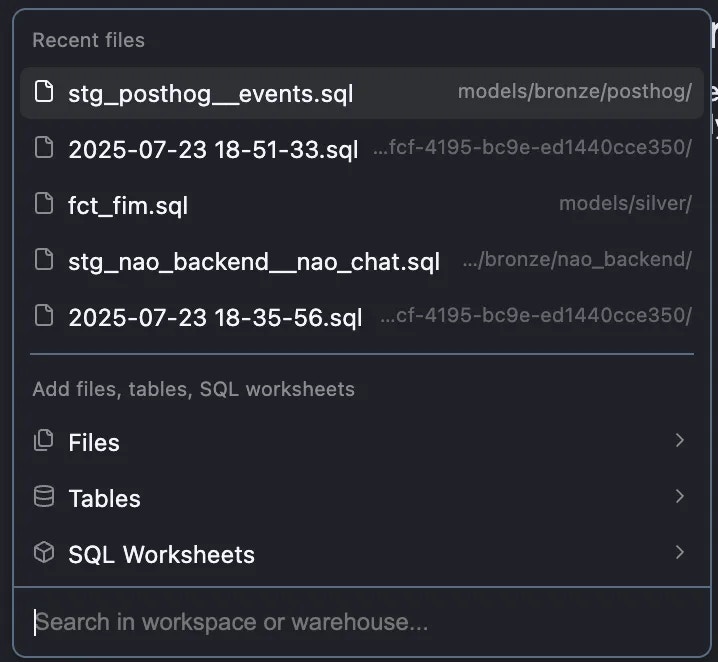
* Files from your repositories
* Data warehouse tables
* SQL Worksheets
## Context Picker
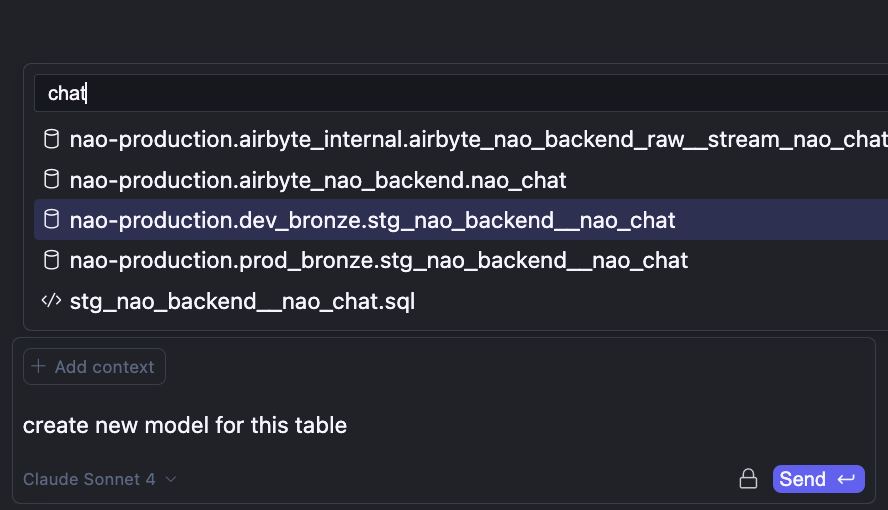
The context picker is a powerful tool that helps you add relevant context to your agent conversations. Click on "Add context" in the chat area to open it.
**What you can add via context picker:**
* **Files**: Browse and select files from your repository
* **Folders**: Add entire folders to provide broader context
* **SQL Worksheets**: Include saved SQL worksheets
* **Data Warehouse Tables**: Add table schemas (metadata only, not data content)
* **Schemas**: Select entire database schemas
**Table Context Note**
When you add a table to context, only the table's schema (column names, types, etc.) is sent to the agent, not the actual data. This keeps your data private while giving the agent the information it needs to write accurate SQL.
Automatic Context Addition
nao automatically adds relevant context to your conversations:
* **Latest table viewed**: The context picker shows the most recently viewed table - only sends their schema
* **Previewed tables**: When you preview a table, its schema is automatically added to the agent context
* **Open files**: Files you're currently viewing are available to the agent
## Drag and Drop context
You can drag and drop items directly into the chat to add them as context. This is a quick way to add files, tables, or other items without using the context picker.
## Cmd L
You can add lines of code as context to the chat as well.
Select code in your worksheet that you want to add. Then click "+ Add to Chat" when it appears, or alternatively use ⌘ + L.
You can send query results directly to the agent context using ⌘ + L. This allows the agent to analyze your data and provide insights based on actual query results.
**How to use**
1. Execute a SQL query in a worksheet or SQL file
2. Select the results or use ⌘ + L to send them to the chat
3. The agent receives the data and can analyze it
4. Ask questions about the data or request visualizations
This feature is particularly useful when you want the agent to:
* Analyze query results
* Create visualizations from your data
* Identify patterns or anomalies
* Generate insights and recommendations
**Privacy Note:** You control what data is shared with the agent.
## Infinite Chat
nao supports long-running chat conversations without requiring you to manually start over when a thread gets large.
**Benefits**
* No conversation length restrictions
* Preserve the active part of the conversation as chats grow
* Continue complex multi-step workflows without interruption
* Keep a usable summary of earlier context instead of dropping it entirely
When a conversation approaches a model's context window, nao automatically compacts the older part of the thread into a summary while keeping your current turn verbatim. This helps the agent stay grounded in the latest exchange without losing the important history of the conversation.
This makes long chats more reliable for multi-step work such as debugging, analytics investigations, and iterative code changes.
This makes it easier to ask questions about your data without manually adding context each time.
## Data security