> ## Documentation Index
> Fetch the complete documentation index at: https://docs.getnao.io/llms.txt
> Use this file to discover all available pages before exploring further.
# dbt setup
nao is directly integrated with dbt.
Set up your dbt connection to: preview dbt models, get lineage, give dbt tools to nao AI.
Learn more about nao x dbt features: [Work with dbt](/nao-ide/features/work-with-dbt).
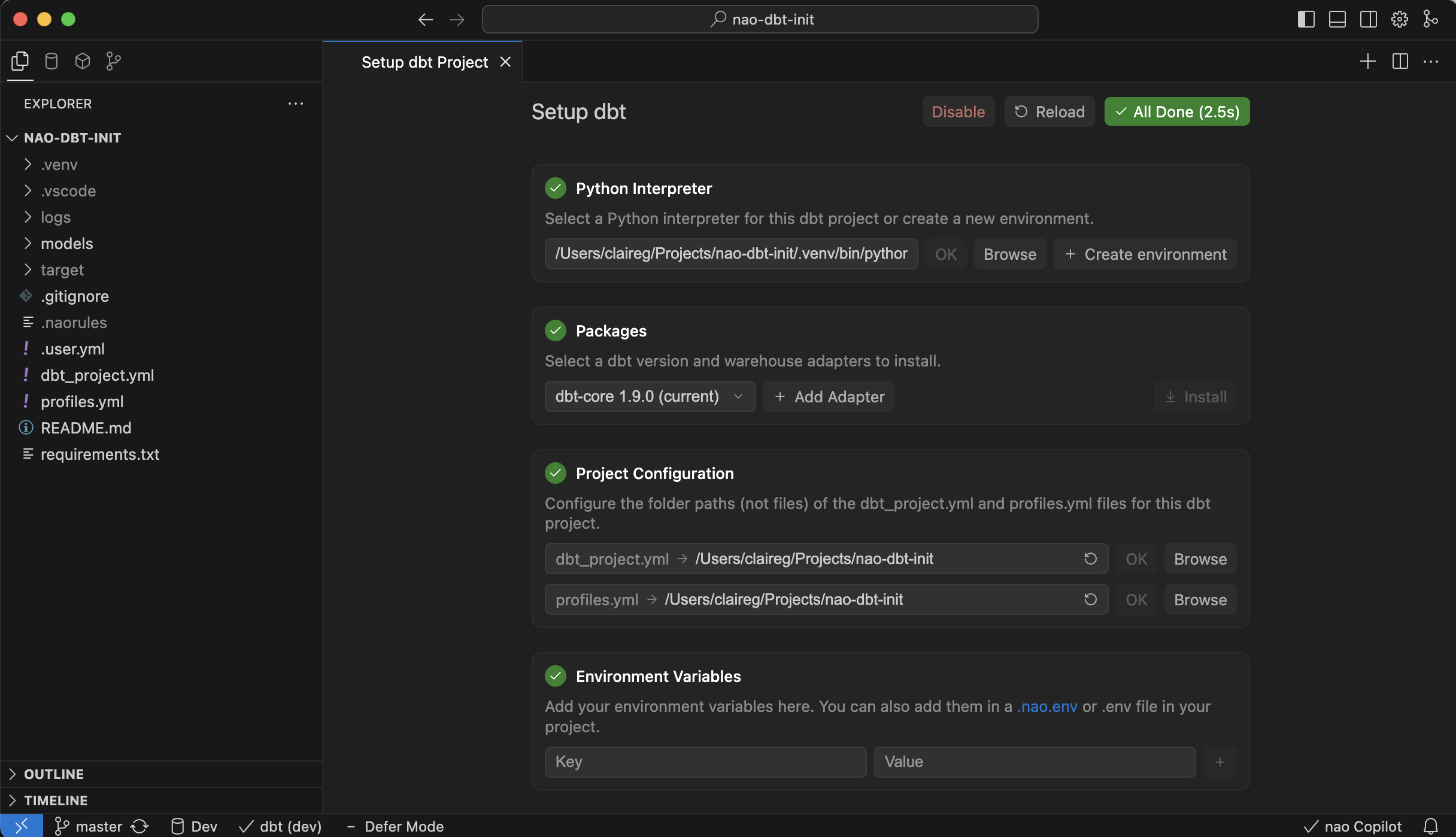
To configure dbt, open the "dbt configuration" panel.
It is available in the home page of nao, or at the left of the bottom bar.
## dbt configuration panel
Activate dbt detection.
Choose an existing interpreter / virtual environment or create a fresh virtual environment for the project.
Select the dbt-core version and install any warehouse adapters (Snowflake, BigQuery, etc.) your project needs.
Set the folders that contain `dbt_project.yml` and `profiles.yml`. nao will try to find them automatically.
Populate secrets or configs inline, or reference a `.nao.env` / `.env` file. Existing `.env` values are imported automatically.
Pick the dbt target defined in `profiles.yml` (for example `dev`, `prod`). You can change it later on the bottom left bar.
Enable the **dbt defer** toggle. Provide the production `manifest.json` you want to defer to.
When editing a dbt model, switch on **Defer mode** so previews fall back to production data when dev data is missing.
Read more about defer in the dbt docs.
**Check dbt is setup properly**
When your dbt project is configured correctly, you'll see a checkmark in the lower-left status bar. If it shows a cross instead, click the **dbt project** button to reopen the setup panel and fix any missing steps.
## dbt integration requirements
* **dbt Core only**: nao currently supports dbt Core projects. If you're on dbt Cloud, run a dbt Core project locally to integrate with nao.
* **Local environment**: The dbt project must live on the same machine where nao runs; remote dbt environments are not supported.