> ## Documentation Index
> Fetch the complete documentation index at: https://docs.getnao.io/llms.txt
> Use this file to discover all available pages before exploring further.

# Data connection

Data connection in nao is key.<br />
It allows you to browse, view, query your data directly in the IDE.<br />
It gives context of your data schema to nao AI featurse.

<Tip>
  **Data privacy:**\
  When you connect a data warehouse to nao, your connection stays between your computer and the data warehouse. **No data content is ever sent to nao servers or the LLM.** Only metadata (like table and column names) is used to provide warehouse context to nao features.

  Read more about how your data is secured in our [security documentation](/nao-ide/support/security).
</Tip>

## Add a data connection

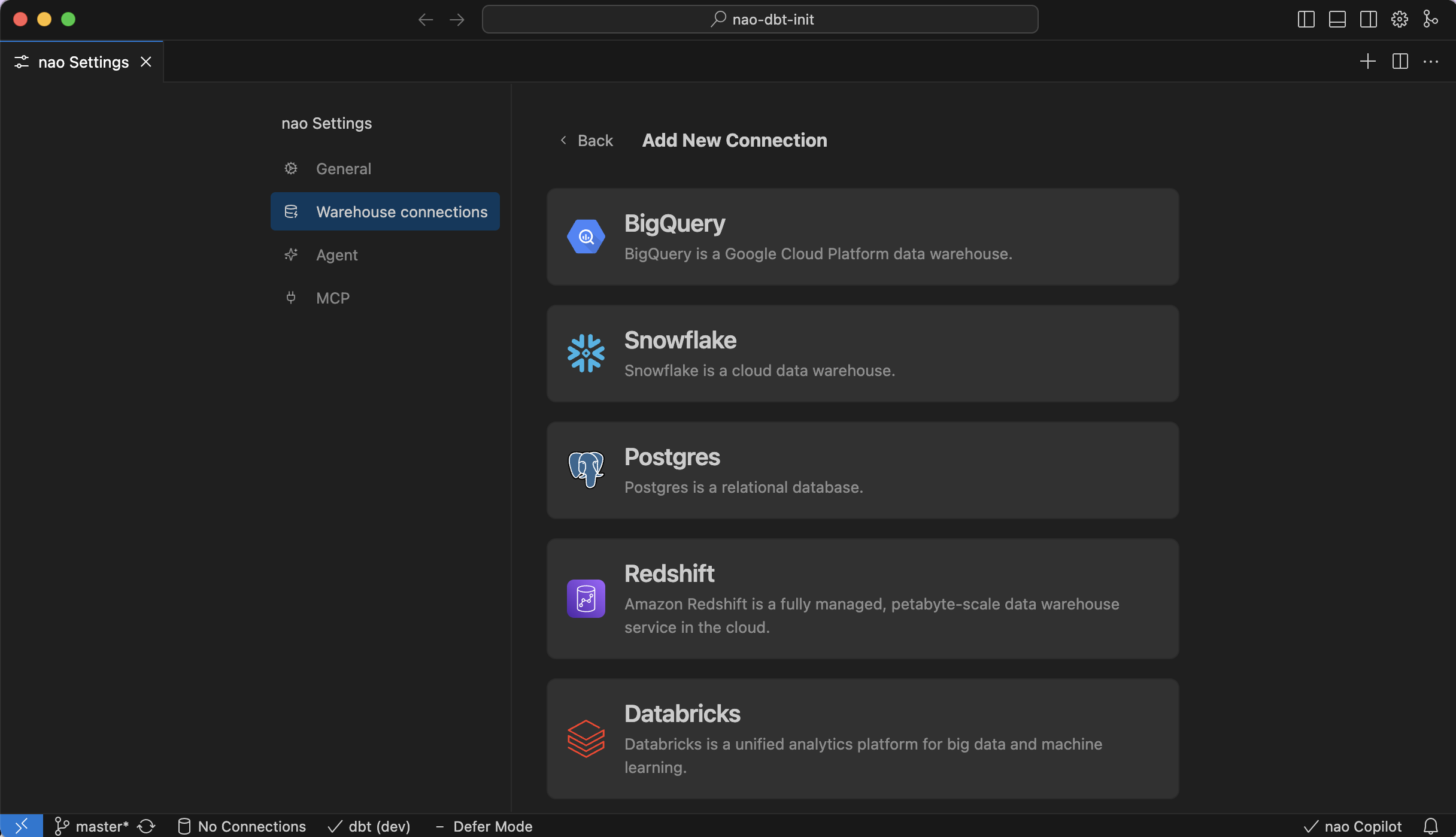
To add a connection:<br />
Go to Settings > Warehouse Connections > Add Connection<br />

<div style={{ textAlign: 'center' }}>
  <img src="https://mintcdn.com/naolabs/hnfoHyTp46IcsGKd/images/get-started/dataco_data_connection_panel.png?fit=max&auto=format&n=hnfoHyTp46IcsGKd&q=85&s=52d6a62cba3becf1edc3a45257ef00c8" alt="Data connection panel" width="800" data-path="images/get-started/dataco_data_connection_panel.png" />
</div>

<br />

<Tabs>
  <Tab title="BigQuery" icon="https://mintcdn.com/naolabs/SrCHy4m-rDoUF-k2/images/get-started/datawarehouses/bigquery.webp?fit=max&auto=format&n=SrCHy4m-rDoUF-k2&q=85&s=e00fe8f4a047b119aa2fbb3174c744d9" width="512" height="512" data-path="images/get-started/datawarehouses/bigquery.webp">
    <ParamField path="connection_name" type="string" required placeholder="BigQuery">
      Display name for this connection inside nao.
    </ParamField>

    <ParamField path="project_ids" type="string" required placeholder="project-1,project-2">
      Comma-separated project IDs. Supports wildcards (e.g. `project_*`) and exclusions (`!project-dev`).
    </ParamField>

    <ParamField path="region" type="string" placeholder="US">
      Optional BigQuery location. Leave blank to use the project default.
    </ParamField>

    <ParamField path="datasets" type="string" placeholder="dataset1,dataset2">
      Optionally scope access to specific datasets by listing them explicitly.
    </ParamField>

    <ParamField path="authentication_method" type="string" required default="SSO via OAuth">
      Choose between **SSO via OAuth** or **Service Account**. SSO requires your BQ project ID; service accounts use key files.
    </ParamField>

    <ParamField path="service_account_private_key" type="file" placeholder="Select private key file">
      Required only when **Service Account** authentication is selected. Upload the JSON key for a service account with at least the **BigQuery Data Viewer** (Reader) role.
    </ParamField>

    <Tip>
      **Connect multiple BigQuery projects**

      Select multiple project-ids and datasets using the following patterns:

      * Comma separated values (project1,project2): Select specific projects by listing them explicitly (no space after the comma)
      * Wildcard prefix (project\_\*): Select all projects that start with "project\_"
      * Exclusion (!project2): Select all projects except "project2"
    </Tip>

    <Info>
      **Set query size limits**

      You can limit the size of queries executed within nao.

      If you do, nao will perform a dry run of every query, and cancel query execution if it's above the GB limit.
      The limit will be effective for **both user queries and AI agent queries**.

      Go to Settings → Warehouse Connections and set the query size limit field to the maximum rows you want nao to run automatically.
    </Info>
  </Tab>

  <Tab title="Snowflake" icon="https://mintcdn.com/naolabs/SrCHy4m-rDoUF-k2/images/get-started/datawarehouses/snowflake.png?fit=max&auto=format&n=SrCHy4m-rDoUF-k2&q=85&s=785ab7a0776f774eef24fe5bd87a35ff" width="2160" height="2160" data-path="images/get-started/datawarehouses/snowflake.png">
    <ParamField path="connection_name" type="string" required placeholder="Custom display name">
      Name that appears inside nao; can be any label you prefer.
    </ParamField>

    <ParamField path="account_id" type="string" required placeholder="your-account">
      Snowflake account identifier without `.snowflakecomputing.com`.
    </ParamField>

    <ParamField path="warehouse" type="string" required placeholder="Warehouse name">
      Target warehouse for query execution.
    </ParamField>

    <ParamField path="role" type="string" placeholder="Role name">
      Optional role override for this connection.
    </ParamField>

    <ParamField path="databases" type="string" placeholder="db1,db2">
      Optional list of databases to load. Supports comma-separated values, wildcards (`db_*`), and exclusions (`!db2`).
    </ParamField>

    <ParamField path="schemas" type="string" placeholder="schema1,schema2">
      Optional schemas to load. Accepts the same comma, wildcard, and exclusion patterns as databases.
    </ParamField>

    <ParamField path="authentication_method" type="string" required default="SSO">
      Choose between **Password**, **SSO**, or **Key Pair Authentication**.
    </ParamField>

    <ParamField path="password_auth.username" type="string" placeholder="Username">
      Only required when **Password** authentication is selected.
    </ParamField>

    <ParamField path="password_auth.password" type="string" placeholder="Password">
      Password for the Snowflake user. Approve the DUO prompt both when testing and saving the connection.
    </ParamField>

    <ParamField path="key_pair_auth.username" type="string" placeholder="Username">
      Snowflake user that owns the private key. Required for **Key Pair Authentication**.
    </ParamField>

    <ParamField path="key_pair_auth.private_key" type="file" placeholder="Select private key file">
      Upload the PEM private key file corresponding to your Snowflake user.
    </ParamField>

    <ParamField path="key_pair_auth.passphrase" type="string" placeholder="Passphrase">
      Optional passphrase protecting the private key.
    </ParamField>

    <Tip>
      **MFA reminder**
      Password-based logins require approving the DUO push twice: once for **Test Connection** and again for **Save**.
    </Tip>
  </Tab>

  <Tab title="Postgres" icon="https://mintcdn.com/naolabs/SrCHy4m-rDoUF-k2/images/get-started/datawarehouses/postgres.png?fit=max&auto=format&n=SrCHy4m-rDoUF-k2&q=85&s=51ae18399a96e15cf49e34b45cca39a3" width="1200" height="1237" data-path="images/get-started/datawarehouses/postgres.png">
    <ParamField path="connection_name" type="string" required placeholder="Custom display name">
      Friendly name for the connection inside nao.
    </ParamField>

    <ParamField path="host" type="string" required placeholder="10.192.1.10 or localhost">
      Hostname or IP where Postgres is reachable.
    </ParamField>

    <ParamField path="port" type="number" required default="5432">
      Listening port for your Postgres instance.
    </ParamField>

    <ParamField path="database" type="string" required placeholder="Database name">
      Target database to connect to.
    </ParamField>

    <ParamField path="username" type="string" required placeholder="Username">
      Database user nao should authenticate with.
    </ParamField>

    <ParamField path="password" type="string" required placeholder="Password">
      Password for the database user. Stored securely in nao.
    </ParamField>

    <ParamField path="advanced_options.ssh" type="boolean" default="false">
      Enable SSH tunneling. When toggled, provide the SSH host, port, username, and a private key or password.
    </ParamField>

    <ParamField path="advanced_options.ssl_tls" type="boolean" default="false">
      Turn on SSL/TLS. Choose SSL, TLS, or add channel binding depending on your Postgres setup.
    </ParamField>
  </Tab>

  <Tab title="Databricks" icon="https://mintcdn.com/naolabs/SrCHy4m-rDoUF-k2/images/get-started/datawarehouses/databricks.png?fit=max&auto=format&n=SrCHy4m-rDoUF-k2&q=85&s=5df5ab7ff02c93012ad140db13745943" width="2160" height="2160" data-path="images/get-started/datawarehouses/databricks.png">
    <div style={{ textAlign: 'center' }} />

    <ParamField path="connection_name" type="string" required placeholder="Custom display name">
      Name that appears inside nao for this workspace connection.
    </ParamField>

    <ParamField path="server_hostname" type="string" required placeholder="your-workspace.cloud.databricks.com">
      Databricks workspace hostname.
    </ParamField>

    <ParamField path="http_path" type="string" required placeholder="/sql/1.0/warehouses/your-warehouse-id">
      HTTP path for the SQL warehouse or cluster you want nao to use.
    </ParamField>

    <ParamField path="default_catalog" type="string" placeholder="main">
      Optional catalog that nao should select by default.
    </ParamField>

    <ParamField path="default_schema" type="string" placeholder="default">
      Optional schema to use when one is not specified in queries.
    </ParamField>

    <ParamField path="authentication_method" type="string" required default="OAuth User-to-Machine (U2M)">
      Choose between **OAuth User-to-Machine (U2M)** or **Personal Access Token**.
    </ParamField>

    <ParamField path="personal_access_token" type="string" placeholder="Databricks PAT">
      Required only when using the **Personal Access Token** authentication method.
    </ParamField>
  </Tab>

  <Tab title="Redshift" icon="https://mintcdn.com/naolabs/mmkGAjayJmVMUkQm/images/get-started/datawarehouses/Redshift.svg?fit=max&auto=format&n=mmkGAjayJmVMUkQm&q=85&s=23aa98703d27a31fe0fcd7eaa7b158c6" width="80" height="80" data-path="images/get-started/datawarehouses/Redshift.svg">
    <ParamField path="connection_name" type="string" required placeholder="Custom display name">
      Friendly label for this Redshift connection.
    </ParamField>

    <ParamField path="host" type="string" required placeholder="your-cluster.region.redshift.amazonaws.com">
      Redshift cluster endpoint.
    </ParamField>

    <ParamField path="port" type="number" required default="5439">
      Port Redshift listens on (defaults to 5439).
    </ParamField>

    <ParamField path="database" type="string" required placeholder="Database name">
      Default database nao should use.
    </ParamField>

    <ParamField path="username" type="string" required placeholder="Username">
      Database user with access to the schemas you need.
    </ParamField>

    <ParamField path="password" type="string" required placeholder="Password">
      Password for that database user.
    </ParamField>

    <ParamField path="advanced_options.ssh" type="boolean" default="false">
      Enable SSH tunneling and provide SSH host, port, username, and private key/passphrase.
    </ParamField>

    <ParamField path="advanced_options.ssl_tls" type="boolean" default="false">
      Turn on SSL/TLS. Choose SSL, TLS, and optional channel binding per your security requirements.
    </ParamField>
  </Tab>

  <Tab title="ClickHouse" icon="https://mintcdn.com/naolabs/mmkGAjayJmVMUkQm/images/get-started/datawarehouses/clickhouse.svg?fit=max&auto=format&n=mmkGAjayJmVMUkQm&q=85&s=9bdfc4d42233bf932b4cbb2982091adc" width="2417" height="2500" data-path="images/get-started/datawarehouses/clickhouse.svg">
    <ParamField path="connection_name" type="string" required placeholder="Custom display name">
      Friendly label for this ClickHouse connection.
    </ParamField>

    <ParamField path="authentication_method" type="string" required default="HTTPS">
      Choose between **HTTPS** or **Local**.
    </ParamField>

    <ParamField path="url" type="string" required placeholder="http://localhost:8123 or https://your-instance.clickhouse.cloud:8443">
      Full URL to your ClickHouse instance, including protocol and port. Use `http://localhost:8123` for Local connections or `https://your-instance.clickhouse.cloud:8443` for HTTPS connections.
    </ParamField>

    <ParamField path="username" type="string" required placeholder="Username">
      ClickHouse user with access to the databases you need.
    </ParamField>

    <ParamField path="password" type="string" required placeholder="Password">
      Password for the ClickHouse user.
    </ParamField>

    <ParamField path="database" type="string" placeholder="Database to load (optional)">
      Optional database to load. If not specified, nao will discover available databases.
    </ParamField>
  </Tab>

  <Tab title="Amazon Athena" icon="https://mintcdn.com/naolabs/mmkGAjayJmVMUkQm/images/get-started/datawarehouses/Athena.svg?fit=max&auto=format&n=mmkGAjayJmVMUkQm&q=85&s=de045cb4eda5d2199ddd082bc8483183" width="80" height="80" data-path="images/get-started/datawarehouses/Athena.svg">
    <ParamField path="connection_name" type="string" required placeholder="Custom display name">
      Friendly name for the Athena connection inside nao.
    </ParamField>

    <ParamField path="region" type="string" required placeholder="us-east-1">
      AWS region where your Athena workgroup runs.
    </ParamField>

    <ParamField path="access_key_id" type="string" required placeholder="AWS Access Key ID">
      Access key for the IAM user or role you created for nao.
    </ParamField>

    <ParamField path="secret_access_key" type="string" required placeholder="AWS Secret Access Key">
      Secret key paired with the access key.
    </ParamField>

    <ParamField path="database" type="string" placeholder="default">
      Optional default Athena database to load.
    </ParamField>
  </Tab>

  <Tab title="DuckDB" icon="https://mintcdn.com/naolabs/SrCHy4m-rDoUF-k2/images/get-started/datawarehouses/duckdb.png?fit=max&auto=format&n=SrCHy4m-rDoUF-k2&q=85&s=5ccfda1cb24eda795bdb84b78d6aab41" width="320" height="320" data-path="images/get-started/datawarehouses/duckdb.png">
    <ParamField path="connection_name" type="string" required placeholder="Custom display name">
      Choose any label for the DuckDB connection inside nao.
    </ParamField>

    <ParamField path="database_type" type="string" required default="File Database">
      Select **File Database** to point to a `.duckdb` file, or **In-Memory Database** to create a temporary in-memory database.
    </ParamField>

    <ParamField path="database_file_path" type="string" placeholder="/path/to/db.duckdb">
      Required when **File Database** is selected. Browse to an existing file or provide a new path to create one.
    </ParamField>

    <ParamField path="schema_filter" type="string" placeholder="main,temp">
      Optional comma-separated list of schemas to load.
    </ParamField>

    <ParamField path="read_only_mode" type="boolean" default="false">
      Enable to prevent nao from making any modifications to the DuckDB database.
    </ParamField>
  </Tab>

  <Tab title="MotherDuck" icon="https://mintcdn.com/naolabs/SrCHy4m-rDoUF-k2/images/get-started/datawarehouses/MotherDuck.png?fit=max&auto=format&n=SrCHy4m-rDoUF-k2&q=85&s=37e1ecc5c5cf6fae4dc7875c616d385f" width="156" height="156" data-path="images/get-started/datawarehouses/MotherDuck.png">
    MotherDuck connections use the same flow as DuckDB. Open the **DuckDB** tab in this section and follow that form to connect to your MotherDuck warehouse.
  </Tab>
</Tabs>

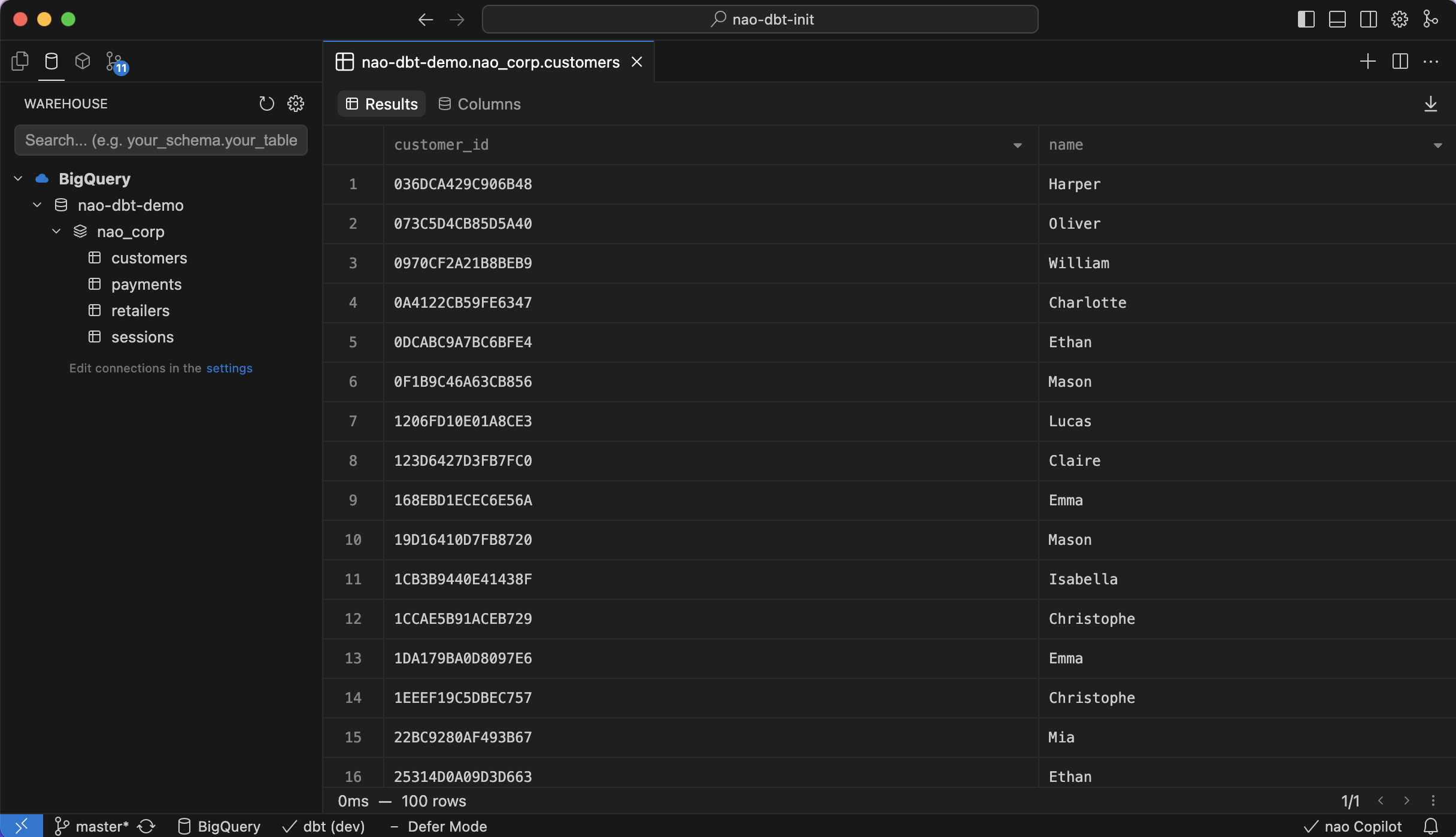
To check your data is connected, open the left panel then click on the data warehouse icon. Here you will see all the tables from your data connection.

When you click on a table, you will be able to preview it directly within nao.
<div style={{ textAlign: 'center' }}>
  <img src="https://mintcdn.com/naolabs/hnfoHyTp46IcsGKd/images/get-started/dataco_data_preview.png?fit=max&auto=format&n=hnfoHyTp46IcsGKd&q=85&s=d81419ca2ff95ab2b9b56fea15147097" alt="Data preview" width="800" data-path="images/get-started/dataco_data_preview.png" />
</div>

## Multiple data connections

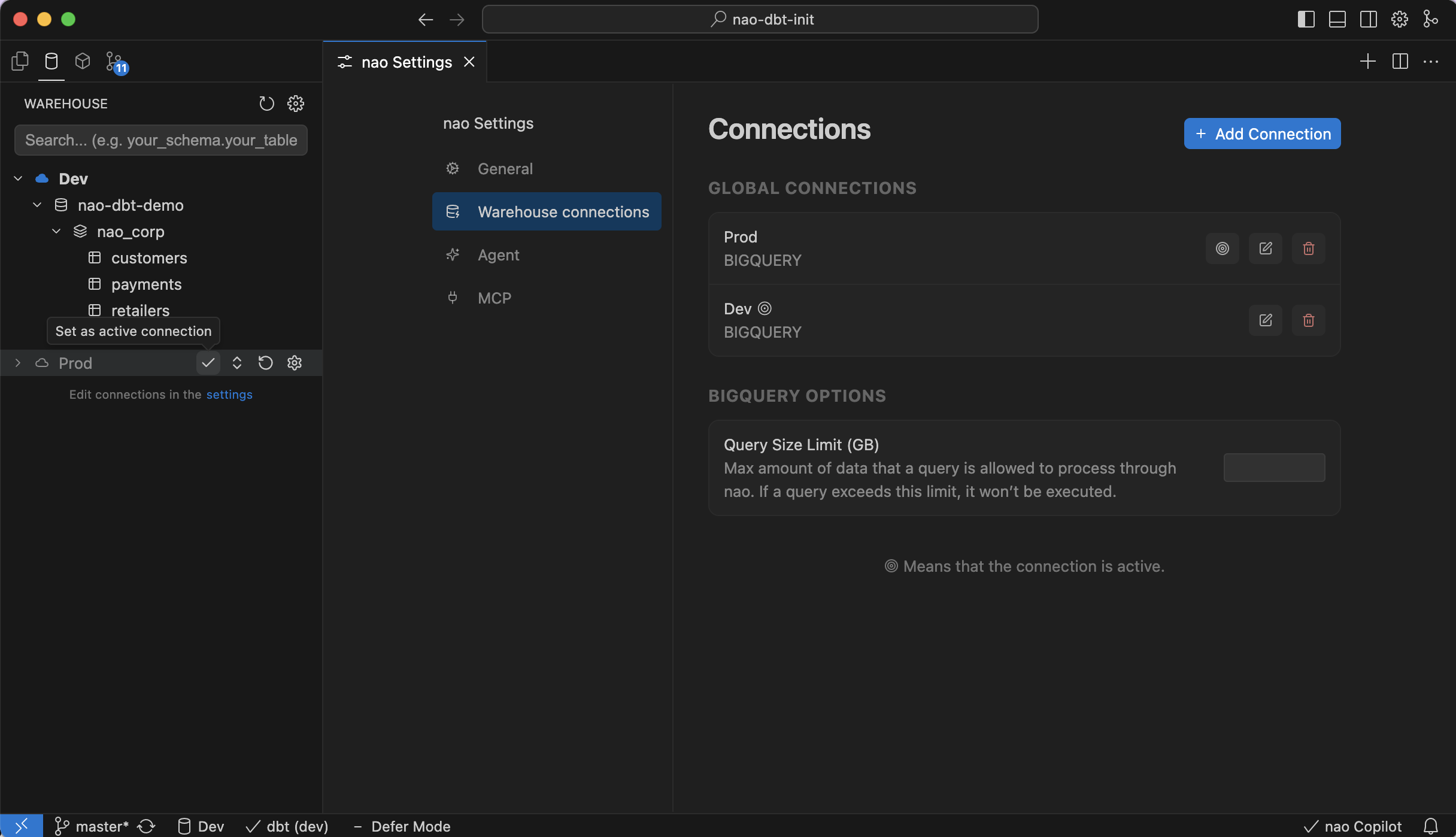
You can connect multiple databases at once in nao.<br />
You can choose to:

* Set a connection as a global connection (available across all folders in nao)
* Attach a connection to a specific workspace

To do this, hover over a connection and you'll see the options:
"Attach to workspace" or "Make global"

<Info>
  **Only one connection is active at once in nao.**

  You can choose the active connection either from the data tree on the left or from the nao settings / data connections menu with the small circles.
</Info>

<div style={{ textAlign: 'center' }}>
  <img src="https://mintcdn.com/naolabs/hnfoHyTp46IcsGKd/images/get-started/dataco_multiple_connections.png?fit=max&auto=format&n=hnfoHyTp46IcsGKd&q=85&s=6f1f793a041f101f20c64d40556e163e" alt="Data Multiple connections" width="800" data-path="images/get-started/dataco_multiple_connections.png" />
</div>