> ## Documentation Index
> Fetch the complete documentation index at: https://docs.getnao.io/llms.txt
> Use this file to discover all available pages before exploring further.
# Work with SQL
nao can replace your data warhouse console.
It is directly connected to your data and let you preview, query, auto-complete your SQL.
## Browse your database
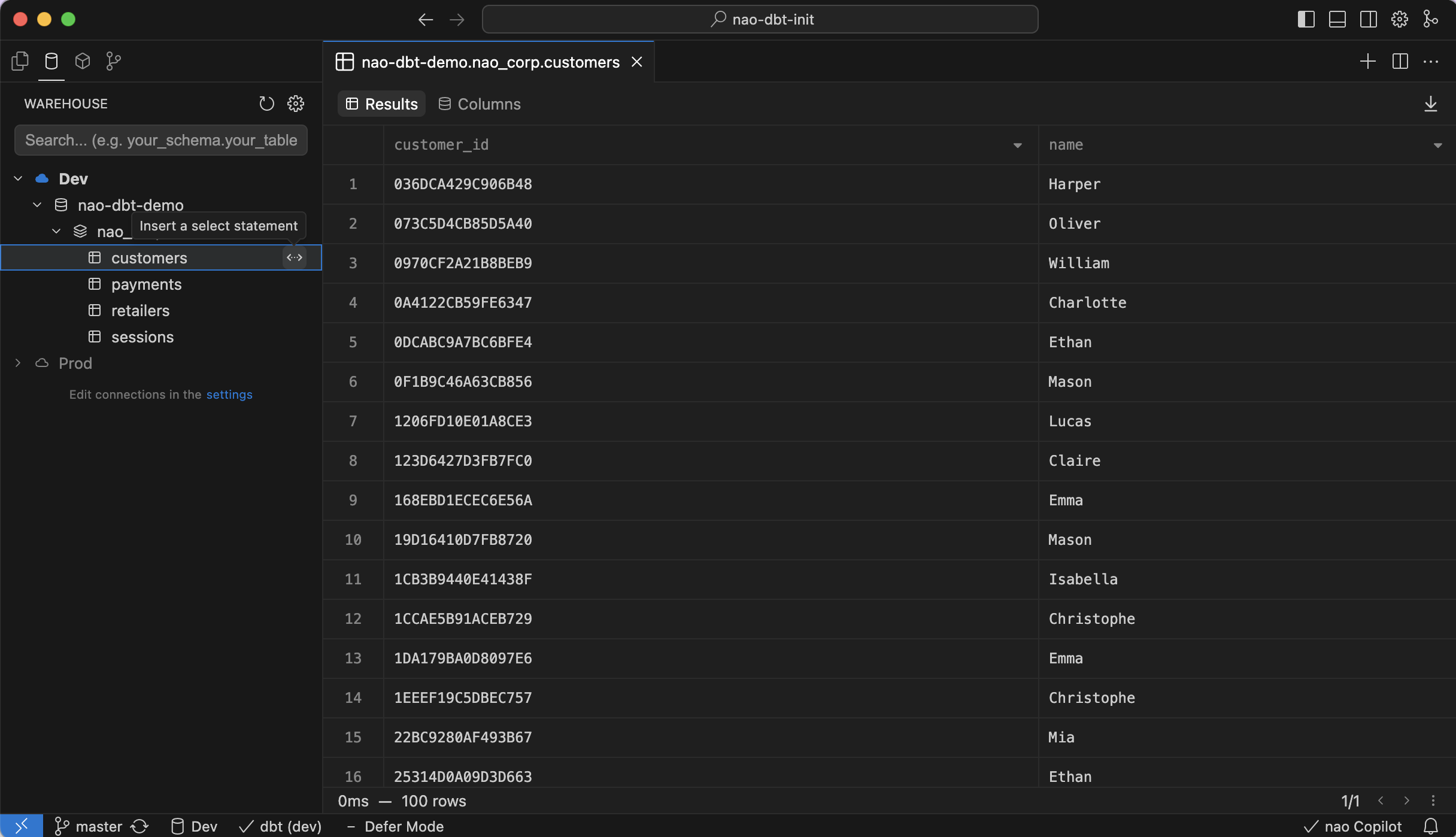
You can browse your available data from nao left panel in "Warehouse" tab.
From the data tree you can:
* View all tables available
* Search for a table
* Preview a table and see its list of columns
* Start a query on a table by clicking on `<…>` icon
Press ⌘ + B to open or close the left sidebar at any time.
## Write SQL queries
### Data warehouse console features
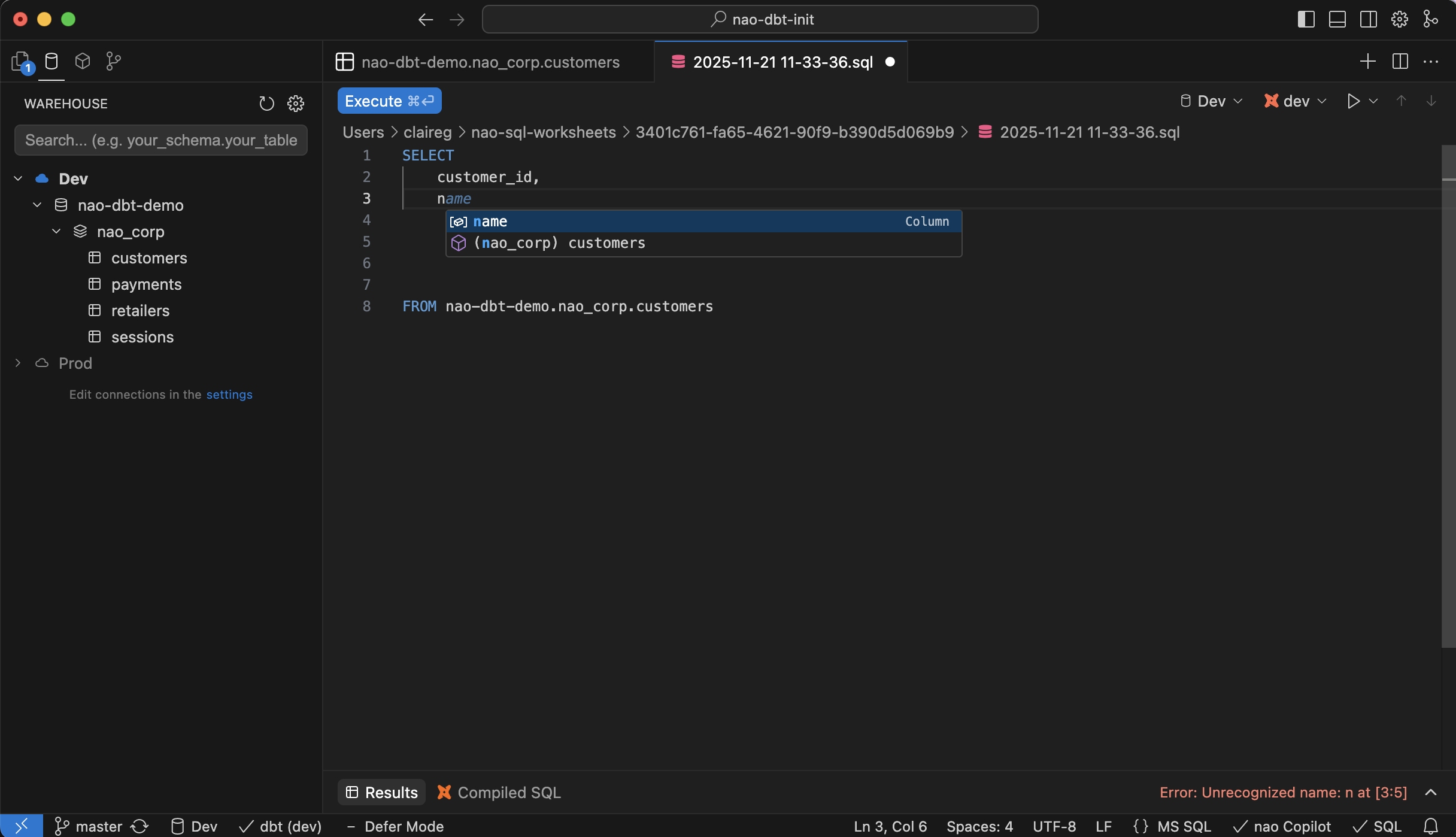
nao provides same features as any data warehouse console:
* **Auto-complete of tables and column names**: every time you type "space", a dropdown with available tables/columns will appear.
* **BigQuery dry run**: for BigQuery connections, nao will show dry run results, with errors and cost of query in GB.
### AI auto-complete
On top of regular auto-complete, nao AI tab provides **AI suggestion** to complete your SQL code.
These suggestions are **based on the context of your data/columns metadata** so as to suggest code that actually matches your data schema.
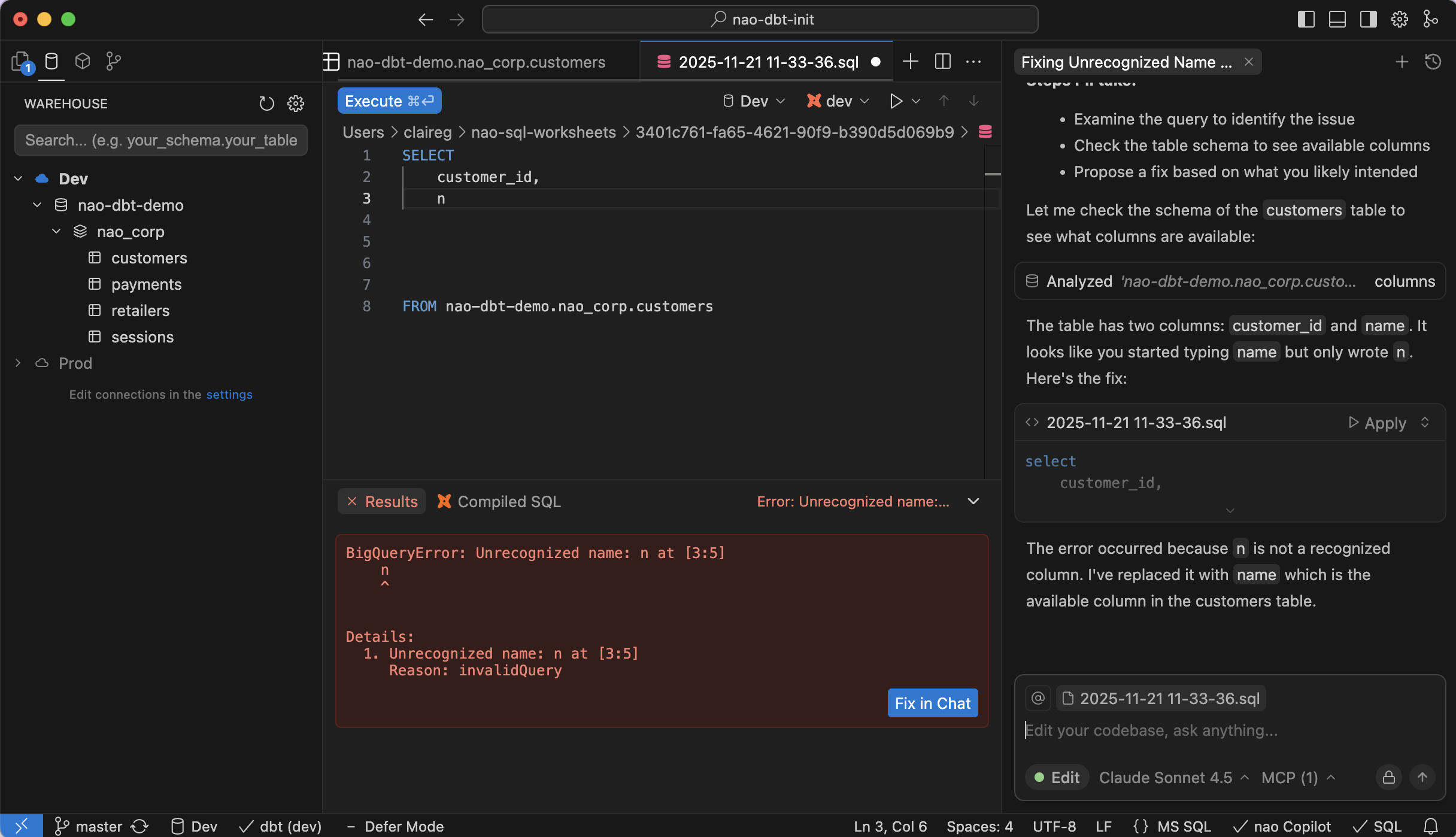
### Fix SQL in chat
When you SQL has an error, just hit the "Fix in chat" button to send query error to the agent and have it fix it.
## Run SQL queries
In nao, you can run any SQL query by pressing ⌘ + ⏎ (**cmd + enter**).\
You can also execute queries with dbt syntax (if configured). See the [dbt setup guide](/nao-ide/get-started/set-up-dbt) for details.
**Multi-query execution:**
* If you have multiple SQL queries in a single file, **nao will execute the query where your cursor is**
* You can also select a portion of SQL and run it with ⌘ + ⏎
## Create SQL worksheets
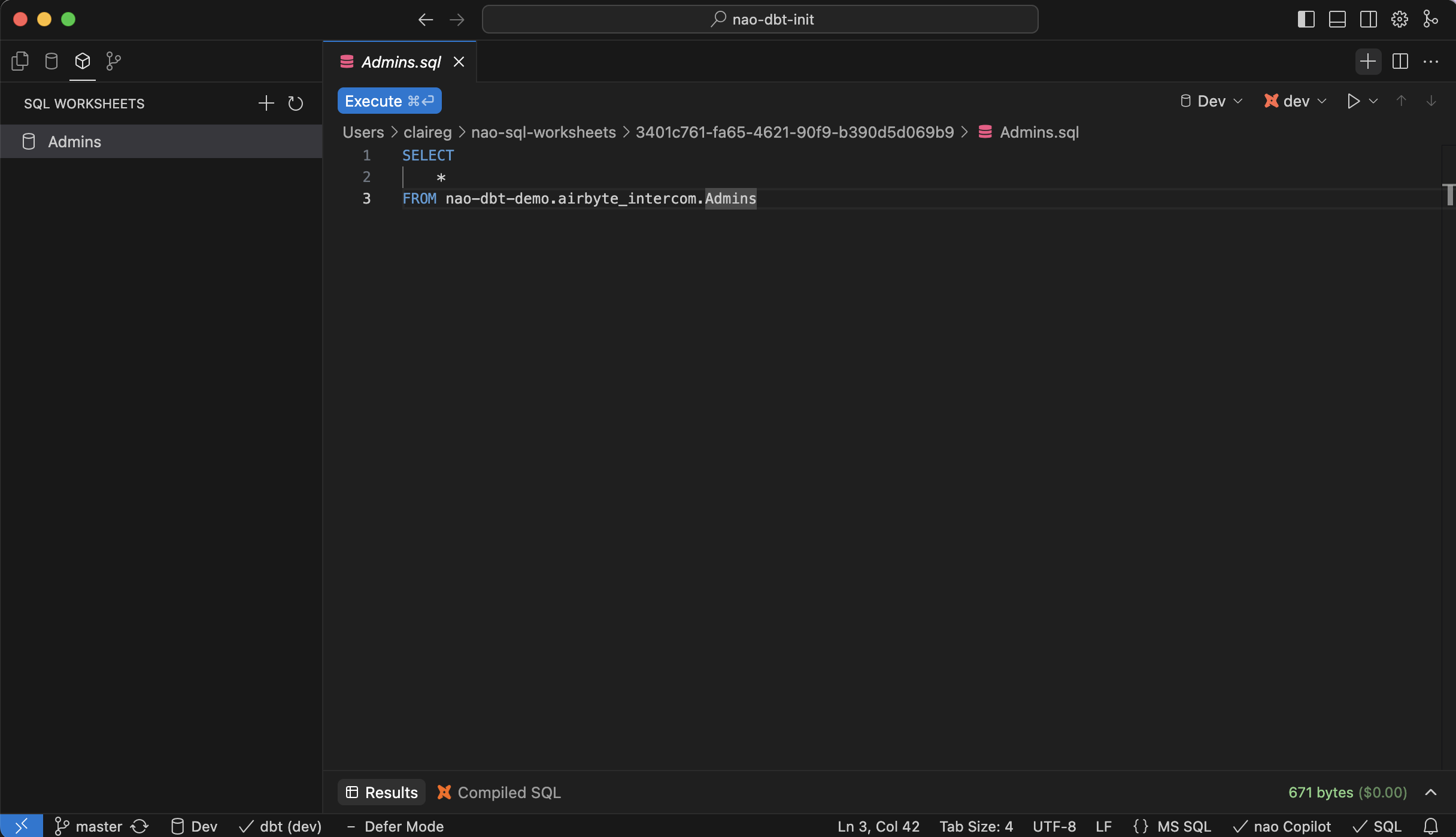
You can create **SQL worksheets** within nao, for adhoc query writing.\
These worksheets will be **saved within nao**, in the "SQL worksheets" tab.
To create a worksheet, you can either click on the **"+" button** from an SQL file, or go to the **"worksheet" tab** on the left panel.
From this panel, you will also be able to **rename, delete, or open your worksheets**.
## Data preview
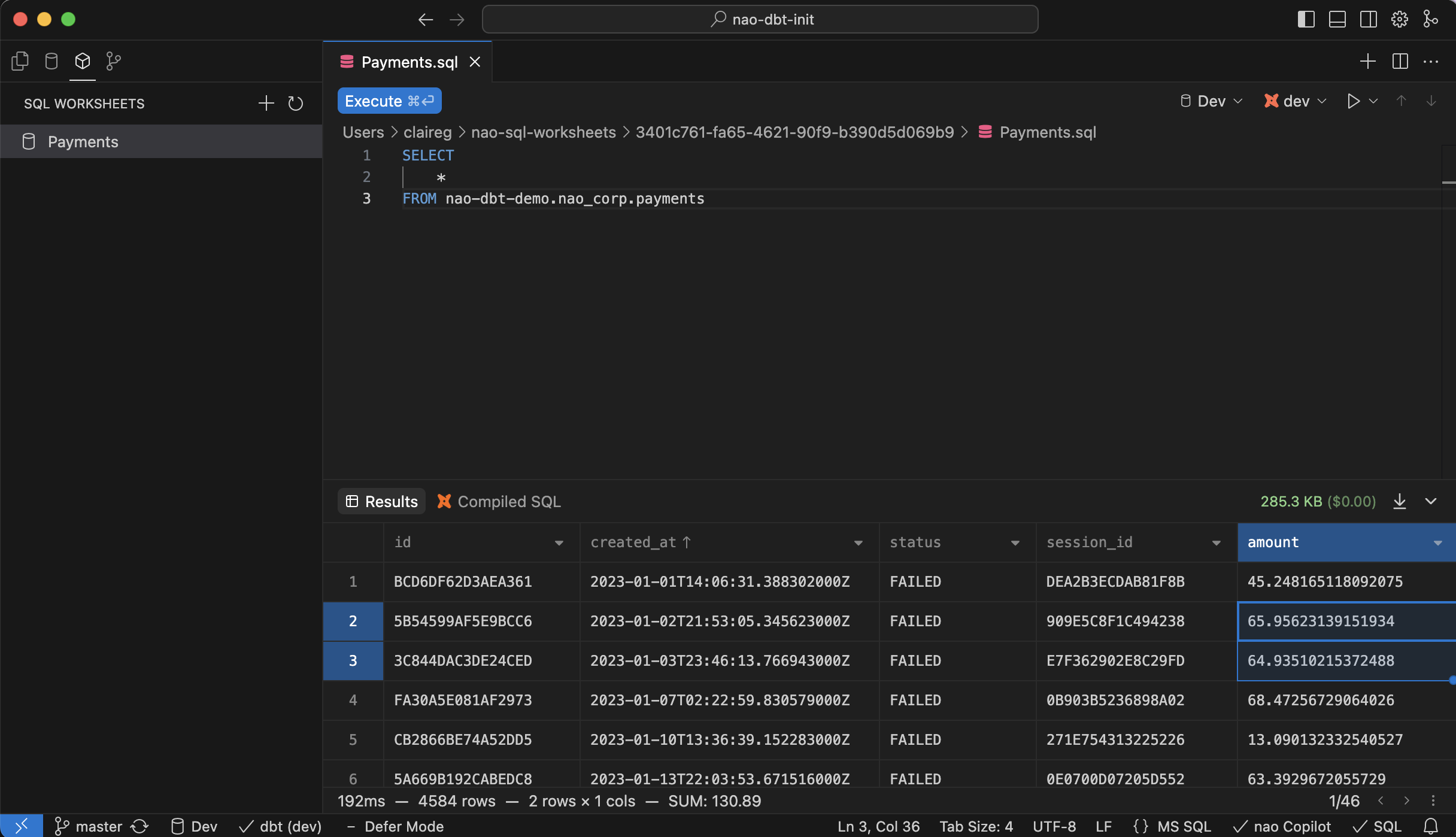
In nao data preview you can do:
* **Sorting**: Click column headers to sort data ascending or descending
* **Pagination**: Navigate through large result sets with client-side pagination controls. The main preview pane defaults to 50 rows per page, and the side panel defaults to 100 rows per page. Controls only appear when the result set is larger than the page size.
* **Cell Selection**: Click to select individual cells
* **Row Selection**: Select entire rows for analysis
* **Column Selection**: Select entire columns
* **Zoom in Cell**: Double click on a cell to see the full value when it's truncated
* **Sum/Count Display**: See the sum and count of selected cells/rows in the preview
* **Export to csv**: Export query results to a csv file
**Keyboard Shortcut**
Open or close the data preview panel with ⌘ + ⇧ + J.
## Data diff
When you change SQL code, nao allows you to **preview directly corresponding changes in the data**. Click on **"table diff"** in the preview section to see a highlighted version of additions / deletions in your data.
**What is comparison point for the diff?**
This table diff is based on the **last commit of your branch**.\
It will show you data differences between running code in the last commit and current code of the file.