> ## Documentation Index
> Fetch the complete documentation index at: https://docs.getnao.io/llms.txt
> Use this file to discover all available pages before exploring further.
# WhatsApp Bot
> Enable your team to ask questions directly in WhatsApp
The nao WhatsApp bot brings your analytics agent directly into WhatsApp, allowing your team to ask questions and get insights without leaving their workspace.
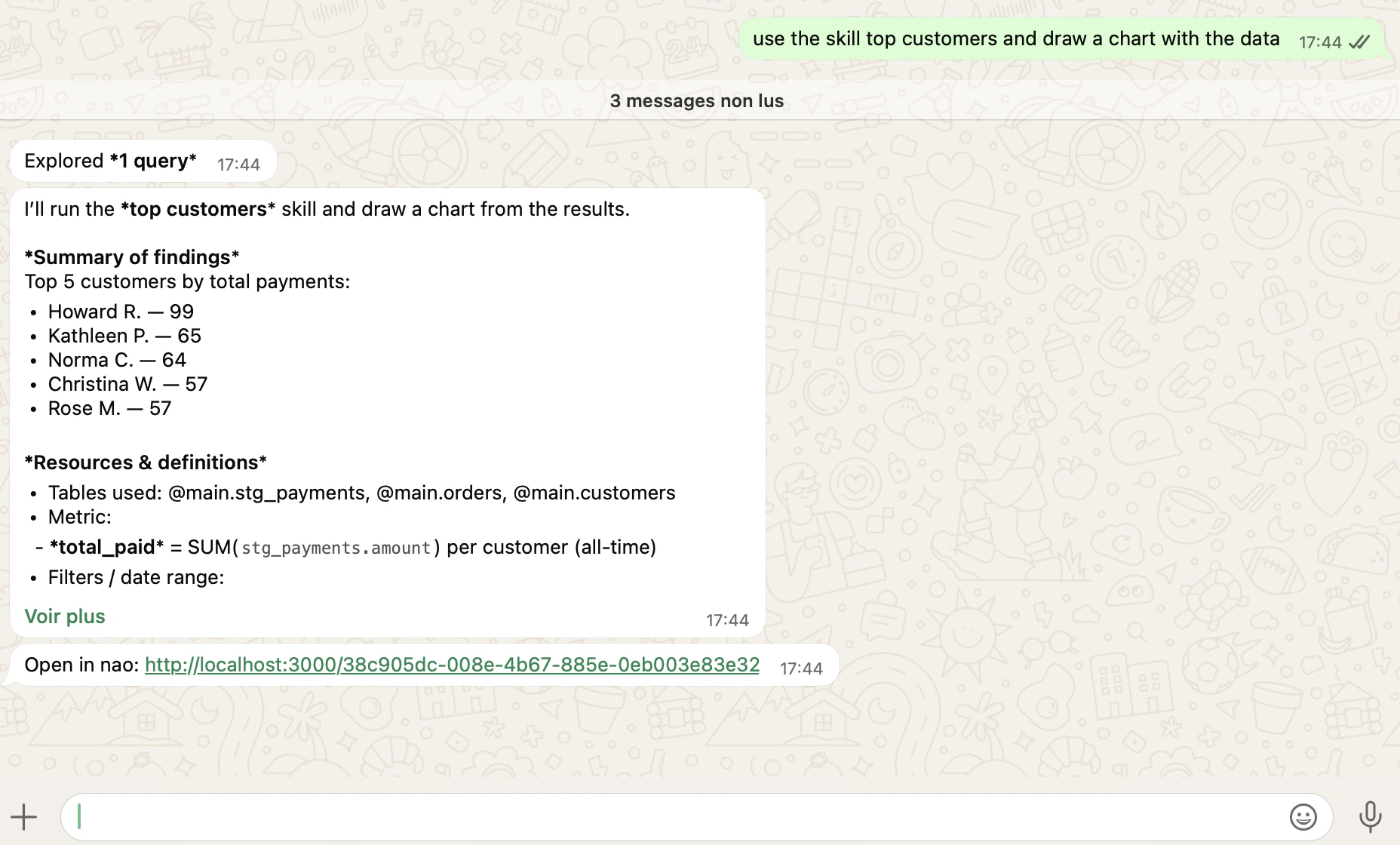 When configured, the nao WhatsApp bot:
* Responds to messages in WhatsApp conversations and group chats
* Processes questions using the same agent as the web chat interface
* Returns answers with SQL queries, data tables, and visualizations
* Maintains conversation context within threads
The WhatsApp bot uses the same agent context, rules, and capabilities as your
web chat interface. Any improvements to your agent automatically benefit
WhatsApp users.
## Setup
### Step 1: Create a Meta App
1. Go to [developers.facebook.com/apps](https://developers.facebook.com/apps)
2. Click **"Create App"**
3. Fill in your app name and contact email
4. Select **"WhatsApp"** as the use case
5. Link a **business portfolio** to the app
6. Click **"Review and Create"**
### Step 2: Open the WhatsApp Integration in nao
1. In nao, click on your profile → **"Project"** → **"WhatsApp"**
2. Keep this page open — you will paste your credentials here in the next steps
### Step 3: Get App Credentials
1. From your app dashboard, click **"Personalize WhatsApp"**
2. Go to **"API Configuration"**
3. Click **"Generate access token"** — copy it and paste it as **Access Token** in nao
4. Copy the **Phone Number ID** and paste it in nao
The default access token expires in 24 hours. For production, generate a
permanent **System User Token** via Meta Business Settings.
5. Go to **App Settings** → **"General"**
6. Copy the **Secret Key** and paste it as **App Secret** in nao
7. In nao, fill in a **Verify Token** of your choice, then click **"Save"**
### Step 4: Configure the Webhook
1. Go back to **"Personalize WhatsApp"** → **"Configuration"**
2. Paste the **Webhook URL** and **Verify Token** from nao, then click **"Verify and Save"**
3. Subscribe to the **`messages`** webhook field
### Step 5: Link WhatsApp accounts to project users
Before a user can message the bot, their WhatsApp identity must be mapped to a nao project user. nao uses a per-user linking code for this.
**Admin side**
1. In nao, go to **Settings** -> **Project** -> **WhatsApp** -> **Users**.
2. For any project user, click **Generate linking code**. Each code is single-use and scoped to that user.
3. Share the code with the user through a secure channel.
Admins can regenerate or revoke codes from the same screen.
**User side**
1. Open WhatsApp and message the bot's phone number.
2. Send `/login ` using the code their admin generated.
3. The bot confirms that their WhatsApp account is now linked to the matching nao project user.
Once linked, messages from that WhatsApp account are attributed to the correct user in monitoring and audit views.
### Persistent memory and Redis
WhatsApp conversations share the same [user memory](/nao-agent/chat/capabilities/memory) as the web chat: preferences, definitions, and notes the user has asked nao to remember are preserved across WhatsApp sessions and across channels.
On self-hosted deployments, enabling Redis improves reliability under load and is recommended when you expect several WhatsApp users in parallel. See the [deployment guide](/nao-agent/self-hosting/deployment-guide) for Redis configuration.
## Usage
**Ask Questions**
Message the bot directly:
```
What were our top 5 products by revenue last month?
```
The bot will:
1. Process your question using the same agent as the web interface
2. Generate SQL queries based on your context
3. Execute queries against your connected databases
4. Return results in a formatted WhatsApp message
5. Send you the link to the full conversation to open it in the browser UI
**Thread Conversations**
Follow-up questions maintain context within the same conversation:
```
What were our top 5 products by revenue last month?
# ... bot responds ...
Can you break that down by region?
# ... bot responds with regional breakdown ...
```
**What's Next?**
Configure authentication, models, and messaging integrations
Learn how the main chat interface works
When configured, the nao WhatsApp bot:
* Responds to messages in WhatsApp conversations and group chats
* Processes questions using the same agent as the web chat interface
* Returns answers with SQL queries, data tables, and visualizations
* Maintains conversation context within threads
The WhatsApp bot uses the same agent context, rules, and capabilities as your
web chat interface. Any improvements to your agent automatically benefit
WhatsApp users.
## Setup
### Step 1: Create a Meta App
1. Go to [developers.facebook.com/apps](https://developers.facebook.com/apps)
2. Click **"Create App"**
3. Fill in your app name and contact email
4. Select **"WhatsApp"** as the use case
5. Link a **business portfolio** to the app
6. Click **"Review and Create"**
### Step 2: Open the WhatsApp Integration in nao
1. In nao, click on your profile → **"Project"** → **"WhatsApp"**
2. Keep this page open — you will paste your credentials here in the next steps
### Step 3: Get App Credentials
1. From your app dashboard, click **"Personalize WhatsApp"**
2. Go to **"API Configuration"**
3. Click **"Generate access token"** — copy it and paste it as **Access Token** in nao
4. Copy the **Phone Number ID** and paste it in nao
The default access token expires in 24 hours. For production, generate a
permanent **System User Token** via Meta Business Settings.
5. Go to **App Settings** → **"General"**
6. Copy the **Secret Key** and paste it as **App Secret** in nao
7. In nao, fill in a **Verify Token** of your choice, then click **"Save"**
### Step 4: Configure the Webhook
1. Go back to **"Personalize WhatsApp"** → **"Configuration"**
2. Paste the **Webhook URL** and **Verify Token** from nao, then click **"Verify and Save"**
3. Subscribe to the **`messages`** webhook field
### Step 5: Link WhatsApp accounts to project users
Before a user can message the bot, their WhatsApp identity must be mapped to a nao project user. nao uses a per-user linking code for this.
**Admin side**
1. In nao, go to **Settings** -> **Project** -> **WhatsApp** -> **Users**.
2. For any project user, click **Generate linking code**. Each code is single-use and scoped to that user.
3. Share the code with the user through a secure channel.
Admins can regenerate or revoke codes from the same screen.
**User side**
1. Open WhatsApp and message the bot's phone number.
2. Send `/login ` using the code their admin generated.
3. The bot confirms that their WhatsApp account is now linked to the matching nao project user.
Once linked, messages from that WhatsApp account are attributed to the correct user in monitoring and audit views.
### Persistent memory and Redis
WhatsApp conversations share the same [user memory](/nao-agent/chat/capabilities/memory) as the web chat: preferences, definitions, and notes the user has asked nao to remember are preserved across WhatsApp sessions and across channels.
On self-hosted deployments, enabling Redis improves reliability under load and is recommended when you expect several WhatsApp users in parallel. See the [deployment guide](/nao-agent/self-hosting/deployment-guide) for Redis configuration.
## Usage
**Ask Questions**
Message the bot directly:
```
What were our top 5 products by revenue last month?
```
The bot will:
1. Process your question using the same agent as the web interface
2. Generate SQL queries based on your context
3. Execute queries against your connected databases
4. Return results in a formatted WhatsApp message
5. Send you the link to the full conversation to open it in the browser UI
**Thread Conversations**
Follow-up questions maintain context within the same conversation:
```
What were our top 5 products by revenue last month?
# ... bot responds ...
Can you break that down by region?
# ... bot responds with regional breakdown ...
```
**What's Next?**
Configure authentication, models, and messaging integrations
Learn how the main chat interface works