> ## Documentation Index
> Fetch the complete documentation index at: https://docs.getnao.io/llms.txt
> Use this file to discover all available pages before exploring further.
# Telegram Bot
> Enable your team to ask questions directly in Telegram
The nao Telegram bot brings your analytics agent directly into Telegram, allowing your team to ask questions and get insights without leaving their workspace.
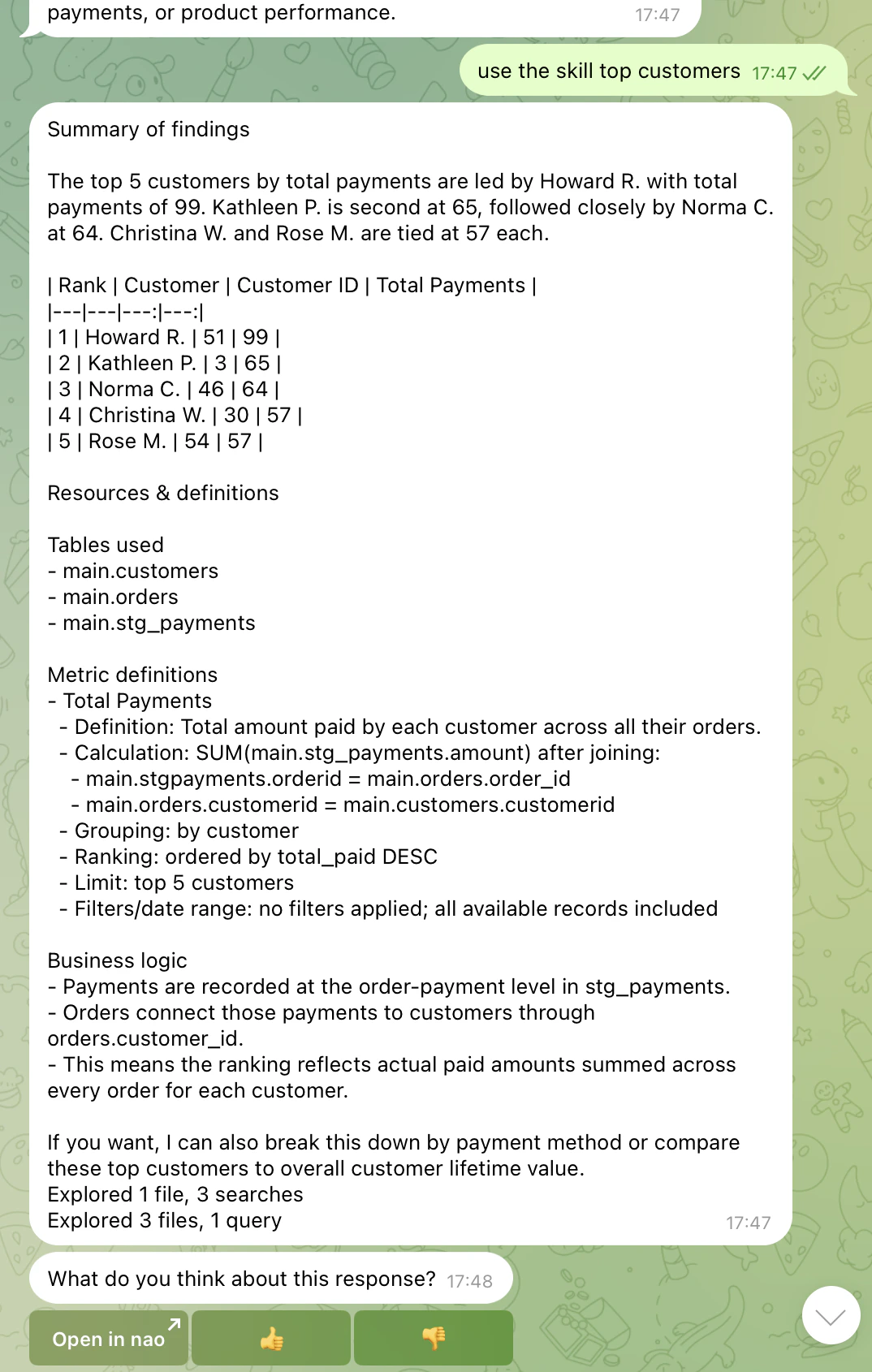 When configured, the nao Telegram bot:
* Responds to messages in Telegram groups and direct messages
* Processes questions using the same agent as the web chat interface
* Returns answers with SQL queries, data tables, and visualizations
* Maintains conversation context within reply threads
The Telegram bot uses the same agent context, rules, and capabilities as your
web chat interface. Any improvements to your agent automatically benefit
Telegram users.
## Setup
### Step 1: Create a Telegram Bot
1. Open Telegram and search for **@BotFather**
2. Send `/newbot`
3. Follow the prompts to choose a **name** and **username** for your bot
4. BotFather will send you a **Bot Token** — copy it
### Step 2: Connect your Telegram Bot to nao
1. In nao, click on your profile → **"Project"** → **"Telegram"**
2. Paste the **Bot Token** from BotFather
3. Click **"Save"**
4. Open a chat with your bot in Telegram and send `/login ` — you can find your **Linking Code** in the Telegram settings page
### Step 3: Configure Bot for Groups
If you want the bot to respond in group chats, you need to enable group access and disable privacy mode in BotFather:
1. Open **@BotFather** in Telegram
2. Send `/mybots` and select your bot
3. Go to **"Bot Settings"**
4. Click **"Allow Groups"** — make sure it is **turned on**
5. Click **"Group Privacy"** — set it to **disabled** so the bot can read all messages in the group
### Step 4: Add Bot to Groups
1. Open the Telegram group where you want the bot
2. Click **"Add Members"**
3. Search for your bot's username and add it
4. The bot will now respond to messages in that group
## Usage
**Ask Questions**
Mention the bot in any group where it's been added:
```
@nao What were our top 5 products by revenue last month?
```
The bot will:
1. Process your question using the same agent as the web interface
2. Generate SQL queries based on your context
3. Execute queries against your connected databases
4. Return results in a formatted Telegram message
5. Send you the link to the full conversation to open it in the browser UI
**Thread Conversations**
Follow-up questions using replies maintain context:
```
@nao What were our top 5 products by revenue last month?
# ... bot responds ...
# Reply to the bot's message:
Can you break that down by region?
# ... bot responds with regional breakdown ...
```
The bot replies in threads to keep conversations organized. Use replies for
follow-ups.
**Direct Messages**
You can also message the bot directly in a private chat (no mention required).
**What's Next?**
Configure authentication, models, and messaging integrations
Learn how the main chat interface works
When configured, the nao Telegram bot:
* Responds to messages in Telegram groups and direct messages
* Processes questions using the same agent as the web chat interface
* Returns answers with SQL queries, data tables, and visualizations
* Maintains conversation context within reply threads
The Telegram bot uses the same agent context, rules, and capabilities as your
web chat interface. Any improvements to your agent automatically benefit
Telegram users.
## Setup
### Step 1: Create a Telegram Bot
1. Open Telegram and search for **@BotFather**
2. Send `/newbot`
3. Follow the prompts to choose a **name** and **username** for your bot
4. BotFather will send you a **Bot Token** — copy it
### Step 2: Connect your Telegram Bot to nao
1. In nao, click on your profile → **"Project"** → **"Telegram"**
2. Paste the **Bot Token** from BotFather
3. Click **"Save"**
4. Open a chat with your bot in Telegram and send `/login ` — you can find your **Linking Code** in the Telegram settings page
### Step 3: Configure Bot for Groups
If you want the bot to respond in group chats, you need to enable group access and disable privacy mode in BotFather:
1. Open **@BotFather** in Telegram
2. Send `/mybots` and select your bot
3. Go to **"Bot Settings"**
4. Click **"Allow Groups"** — make sure it is **turned on**
5. Click **"Group Privacy"** — set it to **disabled** so the bot can read all messages in the group
### Step 4: Add Bot to Groups
1. Open the Telegram group where you want the bot
2. Click **"Add Members"**
3. Search for your bot's username and add it
4. The bot will now respond to messages in that group
## Usage
**Ask Questions**
Mention the bot in any group where it's been added:
```
@nao What were our top 5 products by revenue last month?
```
The bot will:
1. Process your question using the same agent as the web interface
2. Generate SQL queries based on your context
3. Execute queries against your connected databases
4. Return results in a formatted Telegram message
5. Send you the link to the full conversation to open it in the browser UI
**Thread Conversations**
Follow-up questions using replies maintain context:
```
@nao What were our top 5 products by revenue last month?
# ... bot responds ...
# Reply to the bot's message:
Can you break that down by region?
# ... bot responds with regional breakdown ...
```
The bot replies in threads to keep conversations organized. Use replies for
follow-ups.
**Direct Messages**
You can also message the bot directly in a private chat (no mention required).
**What's Next?**
Configure authentication, models, and messaging integrations
Learn how the main chat interface works