> ## Documentation Index
> Fetch the complete documentation index at: https://docs.getnao.io/llms.txt
> Use this file to discover all available pages before exploring further.
# Mattermost Bot
> Enable your team to ask questions directly in Mattermost
The nao Mattermost bot brings your analytics agent directly into Mattermost, allowing your team to ask questions and get insights without leaving their workspace.
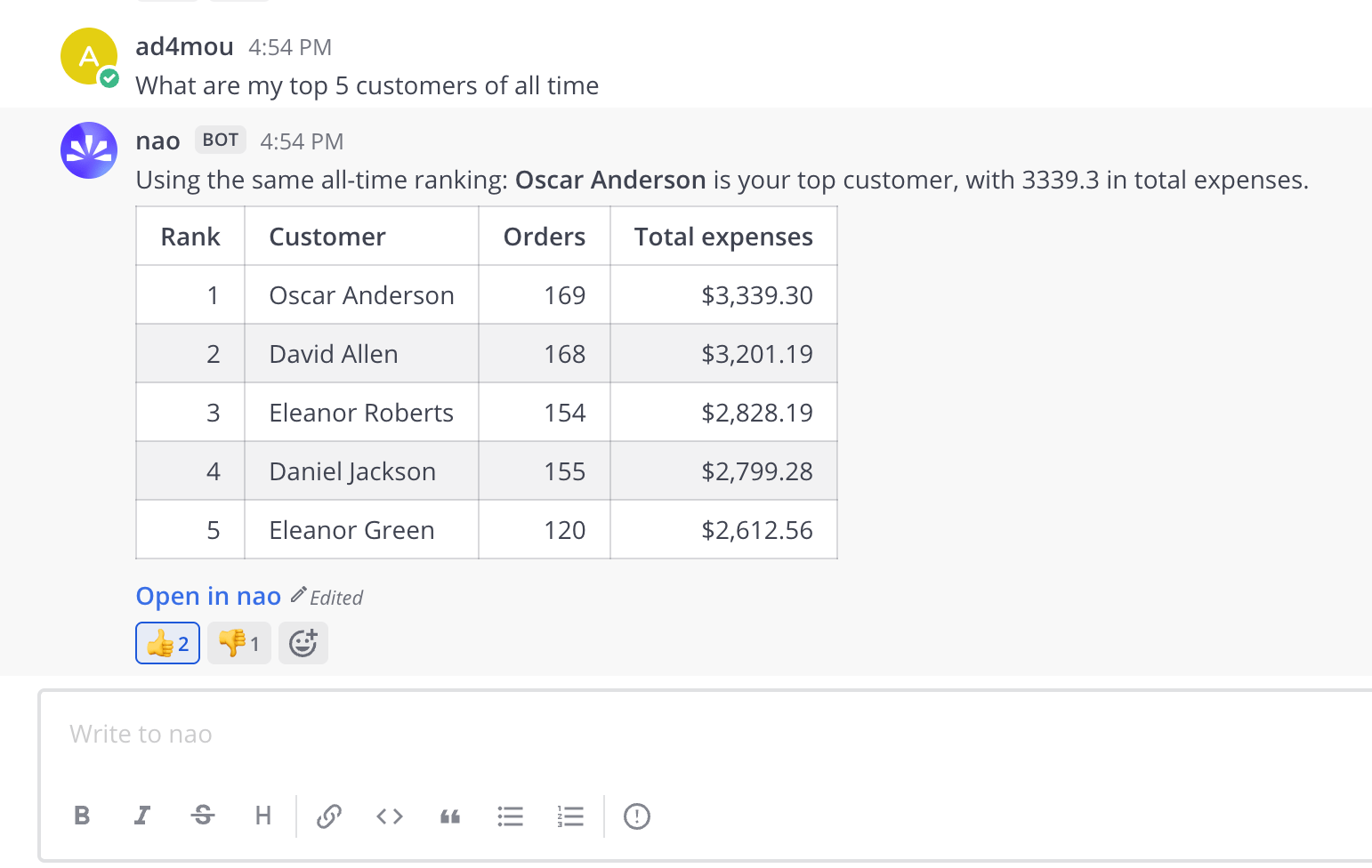 When configured, the nao Mattermost bot:
* Runs against your own **self-hosted Mattermost** server
* Connects as a **bot account** with a personal access token, over a persistent WebSocket
* Answers mentions in channels, and every message in direct messages
* Returns answers with SQL queries, data tables, and visualizations
* Streams the answer into a single message that is edited as the answer grows
The Mattermost bot uses the same agent context, rules, models, and capabilities
as your web chat interface. Any improvements to your agent automatically
benefit Mattermost users.
Each nao project connects its own bot, so several projects can live on the same Mattermost server.
## Setup
### Step 1: Create a Bot Account in Mattermost
1. In Mattermost, go to the **System Console** → **Integrations** → **Bot Accounts** and set **Enable Bot Account Creation** to **true**. It is off by default.
2. Go to **Integrations** → **Bot Accounts** → **Add Bot Account**, create the bot, and copy the **token**. It is shown only once, at creation.
3. Add the bot to the **team** first, then to each **channel** where it should answer.
Adding the bot straight to a channel does not work until it is a member of the
team. Add it to the team first, then to the channels.
See the [Mattermost bot accounts guide](https://docs.mattermost.com/integrations-guide/bot-accounts.html) for more detail.
### Step 2: Connect your Mattermost Bot to nao
1. In nao, click on your profile → **"Project"** → **"Mattermost"**
2. Fill in the **Server URL** (for example `https://mattermost.example.com`) and the **Bot Token**
3. Click **"Save"**
4. Choose the model used for Mattermost replies
### Step 3: Turn on the Stop button
On the same settings page, turn on **Enable interactive buttons**. This adds a **Stop** button to the answer while nao is generating, so people can cut a long answer short. The button disappears on its own once the answer finishes.
Buttons work by Mattermost calling back into nao over HTTP, so **your Mattermost server must be able to reach nao**. Two things commonly block that:
1. **The address is wrong.** The address your Mattermost server uses to reach nao can differ from the one you use in your browser. That is what the optional **Callback URL** field is for — leave it blank unless buttons fail. For example, with Mattermost running in Docker on a laptop, the callback URL would be `http://host.docker.internal:5005`.
2. **The host is not allow-listed.** Mattermost refuses calls to internal hosts unless you allow them.
Go to **System Console** → **Environment** → **Developer** → **Allow
untrusted internal connections to** and add the host from your Callback URL.
This is the most common reason buttons fail silently.
This step is optional. Everything except the Stop button works with the toggle off.
### Step 4: Account Linking
People are linked **automatically by their Mattermost email**. If the email on someone's Mattermost account matches their nao account, they are recognised on their first message and there is nothing to type.
If the two emails do not match, they can link manually instead: send the bot a direct message with `login `. The linking code is on the Mattermost settings page, tucked behind a collapsible section.
Write `login ` without a leading slash. Mattermost intercepts
slash commands, so `/login` never reaches the bot.
## Usage
**Ask Questions**
In a channel, mention the bot:
```
@nao What were our top 5 products by revenue last month?
```
The bot will:
1. Process your question using the same agent as the web interface
2. Generate SQL queries based on your context
3. Execute queries against your connected databases
4. Stream the answer into a single Mattermost message, editing it as the answer grows
5. End the answer with a bold **Open in nao** link to the full conversation
**Thread Conversations**
Once a thread exists, follow-ups inside it need no mention:
```
@nao What were our top 5 products by revenue last month?
# ... bot responds in the channel ...
# Reply in the thread under the bot's message:
Can you break that down by region?
# ... bot responds with regional breakdown ...
```
The first answer lands in the channel itself, and follow-up housekeeping
messages go into a thread under it, so channels stay quiet. Direct messages
are never threaded.
**Direct Messages**
In a direct message the bot answers every message. No mention needed.
**Tables and formatting**
Mattermost supports full markdown, so answers come through with real tables, code blocks, bold text, and links. Charts are posted as images. Large tables are capped at about 20 rows, with a note pointing to the full result in nao.
**Feedback**
React to an answer with 👍 or 👎 and the vote is recorded in nao, the same as the thumbs in the web UI. Remove the reaction to remove the vote.
**What's Next?**
Configure authentication, models, and messaging integrations
Learn how the main chat interface works
When configured, the nao Mattermost bot:
* Runs against your own **self-hosted Mattermost** server
* Connects as a **bot account** with a personal access token, over a persistent WebSocket
* Answers mentions in channels, and every message in direct messages
* Returns answers with SQL queries, data tables, and visualizations
* Streams the answer into a single message that is edited as the answer grows
The Mattermost bot uses the same agent context, rules, models, and capabilities
as your web chat interface. Any improvements to your agent automatically
benefit Mattermost users.
Each nao project connects its own bot, so several projects can live on the same Mattermost server.
## Setup
### Step 1: Create a Bot Account in Mattermost
1. In Mattermost, go to the **System Console** → **Integrations** → **Bot Accounts** and set **Enable Bot Account Creation** to **true**. It is off by default.
2. Go to **Integrations** → **Bot Accounts** → **Add Bot Account**, create the bot, and copy the **token**. It is shown only once, at creation.
3. Add the bot to the **team** first, then to each **channel** where it should answer.
Adding the bot straight to a channel does not work until it is a member of the
team. Add it to the team first, then to the channels.
See the [Mattermost bot accounts guide](https://docs.mattermost.com/integrations-guide/bot-accounts.html) for more detail.
### Step 2: Connect your Mattermost Bot to nao
1. In nao, click on your profile → **"Project"** → **"Mattermost"**
2. Fill in the **Server URL** (for example `https://mattermost.example.com`) and the **Bot Token**
3. Click **"Save"**
4. Choose the model used for Mattermost replies
### Step 3: Turn on the Stop button
On the same settings page, turn on **Enable interactive buttons**. This adds a **Stop** button to the answer while nao is generating, so people can cut a long answer short. The button disappears on its own once the answer finishes.
Buttons work by Mattermost calling back into nao over HTTP, so **your Mattermost server must be able to reach nao**. Two things commonly block that:
1. **The address is wrong.** The address your Mattermost server uses to reach nao can differ from the one you use in your browser. That is what the optional **Callback URL** field is for — leave it blank unless buttons fail. For example, with Mattermost running in Docker on a laptop, the callback URL would be `http://host.docker.internal:5005`.
2. **The host is not allow-listed.** Mattermost refuses calls to internal hosts unless you allow them.
Go to **System Console** → **Environment** → **Developer** → **Allow
untrusted internal connections to** and add the host from your Callback URL.
This is the most common reason buttons fail silently.
This step is optional. Everything except the Stop button works with the toggle off.
### Step 4: Account Linking
People are linked **automatically by their Mattermost email**. If the email on someone's Mattermost account matches their nao account, they are recognised on their first message and there is nothing to type.
If the two emails do not match, they can link manually instead: send the bot a direct message with `login `. The linking code is on the Mattermost settings page, tucked behind a collapsible section.
Write `login ` without a leading slash. Mattermost intercepts
slash commands, so `/login` never reaches the bot.
## Usage
**Ask Questions**
In a channel, mention the bot:
```
@nao What were our top 5 products by revenue last month?
```
The bot will:
1. Process your question using the same agent as the web interface
2. Generate SQL queries based on your context
3. Execute queries against your connected databases
4. Stream the answer into a single Mattermost message, editing it as the answer grows
5. End the answer with a bold **Open in nao** link to the full conversation
**Thread Conversations**
Once a thread exists, follow-ups inside it need no mention:
```
@nao What were our top 5 products by revenue last month?
# ... bot responds in the channel ...
# Reply in the thread under the bot's message:
Can you break that down by region?
# ... bot responds with regional breakdown ...
```
The first answer lands in the channel itself, and follow-up housekeeping
messages go into a thread under it, so channels stay quiet. Direct messages
are never threaded.
**Direct Messages**
In a direct message the bot answers every message. No mention needed.
**Tables and formatting**
Mattermost supports full markdown, so answers come through with real tables, code blocks, bold text, and links. Charts are posted as images. Large tables are capped at about 20 rows, with a note pointing to the full result in nao.
**Feedback**
React to an answer with 👍 or 👎 and the vote is recorded in nao, the same as the thumbs in the web UI. Remove the reaction to remove the vote.
**What's Next?**
Configure authentication, models, and messaging integrations
Learn how the main chat interface works