> ## Documentation Index
> Fetch the complete documentation index at: https://docs.getnao.io/llms.txt
> Use this file to discover all available pages before exploring further.
# User Groups
> Control project features, context, conditional rules, SSO membership, and row access by group
Open **Settings** -> **User Groups**.
User Groups are project-level and admin-only. They complement project roles: a
role determines what a user can do in nao, while groups determine which
enabled features, context, rules, and data rows apply inside this project.
## How group access works
Every project has an **All Users** group. It is created automatically, includes everyone with access to the project, and cannot be renamed, deleted, or assigned manually.
A user can also belong to any number of custom groups through:
* Manual assignment on the **Users** tab
* Assignment while an admin adds the user to the project
* [SSO group mapping](#map-sso-groups)
Permissions use allow-only union semantics. The user's effective access is the combination of every group they belong to:
* A feature is available when any applicable group allows it.
* Database and docs access includes everything allowed by any applicable group.
* A conditional `RULES.md` block is included when any named group matches.
* Row-level filters are combined as a union of each level of access the groups grant. If one group the user is part of restricts a table's rows but another gives full acess, the user has full access to that table.
There are no deny rules that override an allow from another group. See the detailed [row-level security combination rules](#combine-row-policies-across-groups).
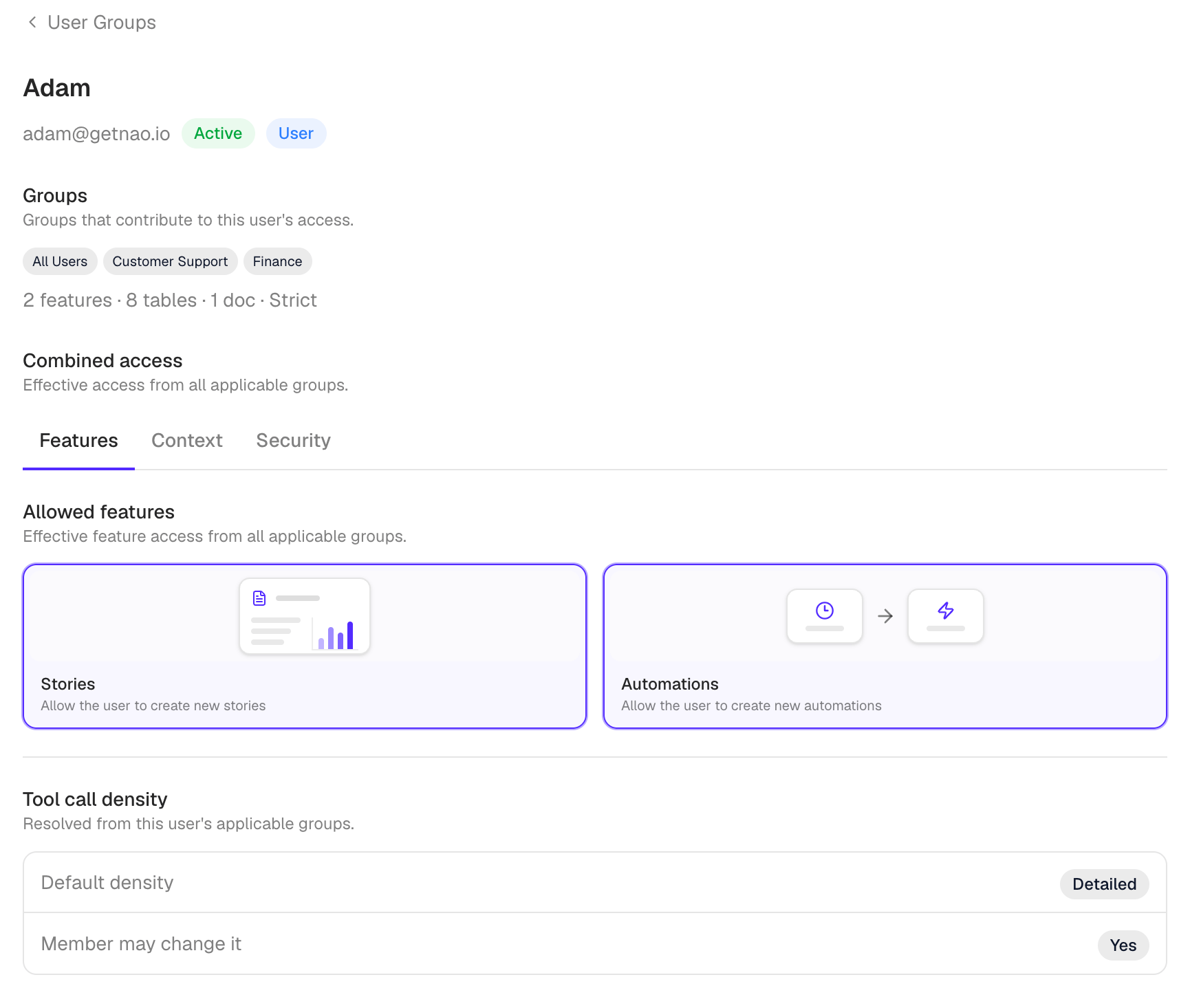
To inspect the result for one person, open the **Users** tab and select the user. The **Combined access** view shows their applicable groups, features, context, and effective row policy.
 ## Plans and limits
User Groups are available on the free plan.
* Free projects include **All Users plus three custom groups**.
* Enterprise licenses with the `user-groups` entitlement enable unlimited custom groups.
* SSO group mapping requires the `sso` entitlement.
* nao-managed row-level security requires its own Enterprise entitlement.
## Create a group and assign users
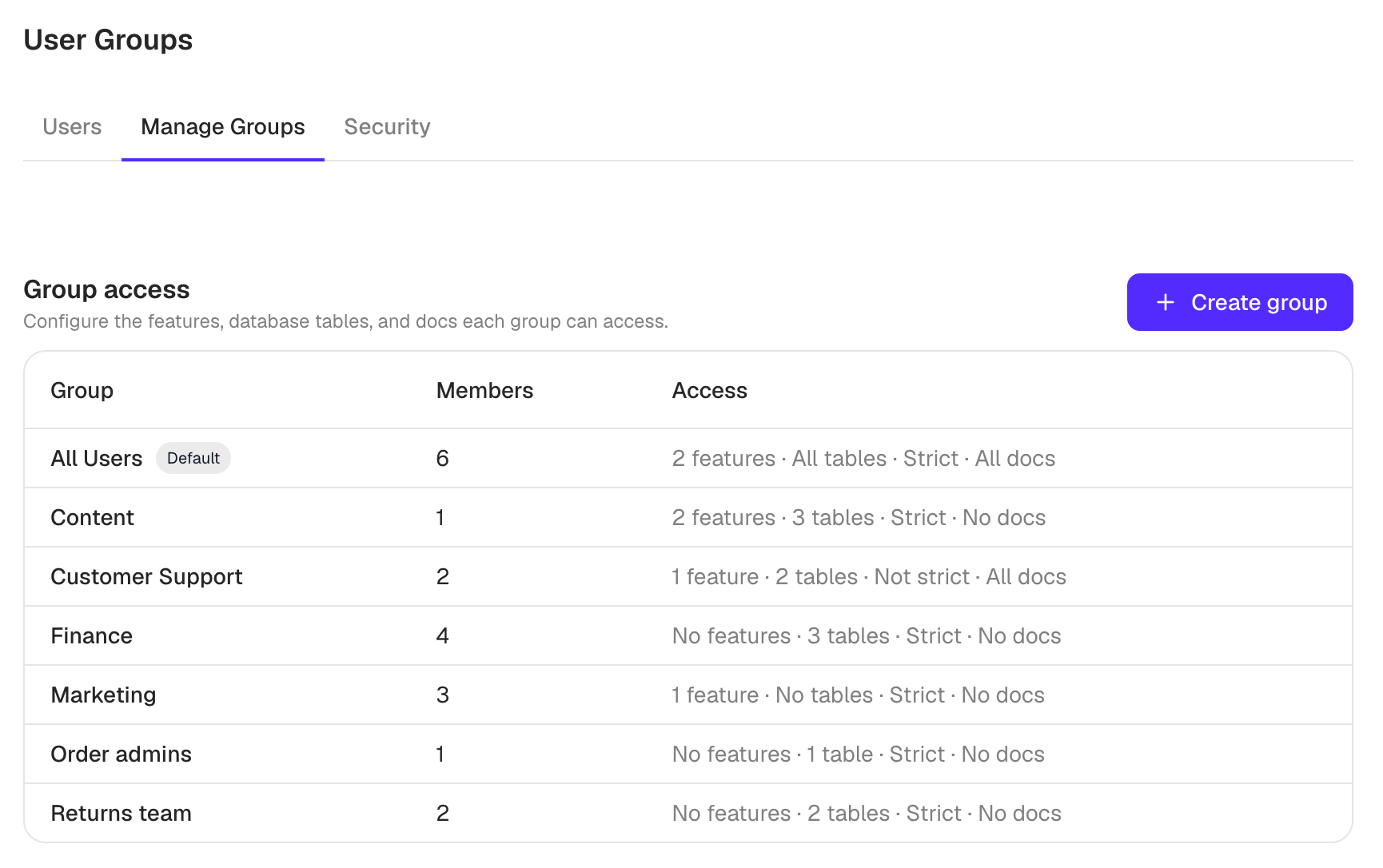
The **Manage Groups** tab summarizes each group's users and access. Open a group to edit it, or click **Create group** to add one.
## Plans and limits
User Groups are available on the free plan.
* Free projects include **All Users plus three custom groups**.
* Enterprise licenses with the `user-groups` entitlement enable unlimited custom groups.
* SSO group mapping requires the `sso` entitlement.
* nao-managed row-level security requires its own Enterprise entitlement.
## Create a group and assign users
The **Manage Groups** tab summarizes each group's users and access. Open a group to edit it, or click **Create group** to add one.
 1. Open **Manage Groups**.
2. Click **Create group** and enter a unique name.
3. Configure the group's **Features** and **Context**.
4. If licensed, configure **Security** and, when an OIDC or Microsoft Entra provider is configured, **SSO**.
5. Save the group.
6. Open **Users**, open a user's group selector, and select the custom groups to assign.
1. Open **Manage Groups**.
2. Click **Create group** and enter a unique name.
3. Configure the group's **Features** and **Context**.
4. If licensed, configure **Security** and, when an OIDC or Microsoft Entra provider is configured, **SSO**.
5. Save the group.
6. Open **Users**, open a user's group selector, and select the custom groups to assign.
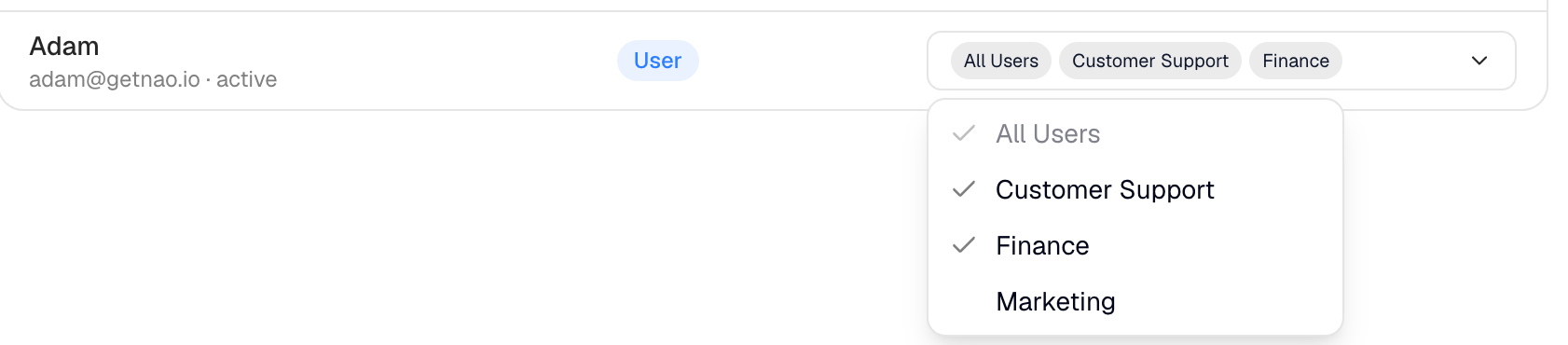 Membership supplied by SSO is marked as SSO-managed and cannot be removed manually. Change the mapping or the user's external group membership instead.
## Configure feature access
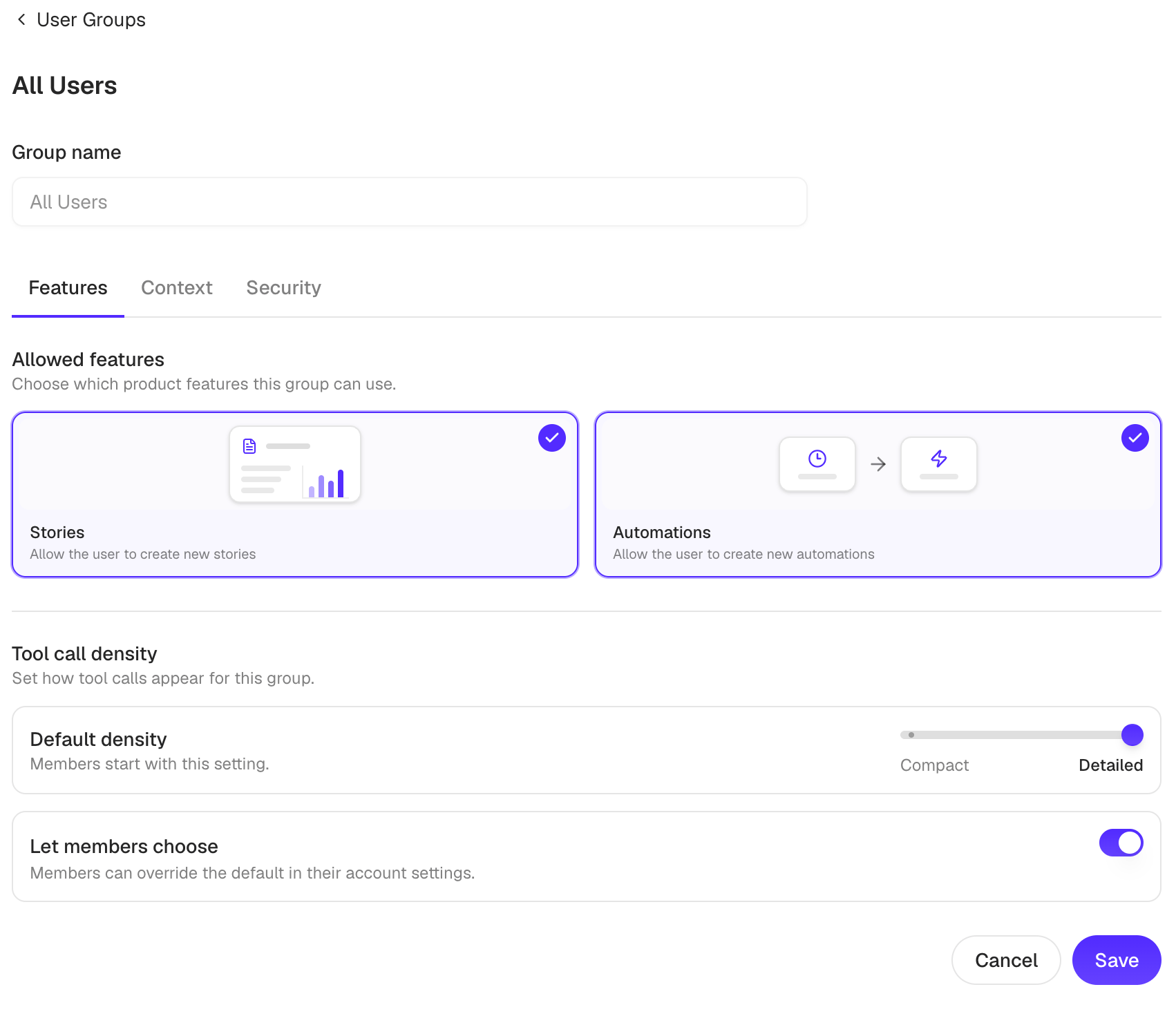
Open **Manage Groups**, select a group, then open **Features**.
### Stories and automations
* **Stories** allows users to create new stories. Turning it off does not remove access to stories the user can already open or edit.
* **Automations** allows users to create new automations.
These grants combine across groups. If **Finance** allows Story creation and **Analysts** allows Automation creation, a user in both groups can create both.
### Tool-call detail
User Groups control how much detail the conversation shows for the agent's tool calls:
* **Compact**
* **Detailed**
Choose the default and whether users may change it in their account settings.
When several groups apply, the most recently assigned custom group supplies the default. If the user has no custom group, **All Users** supplies it. The user may change the setting when any applicable group allows user overrides.
This setting controls the display of tool calls. It does not set the model's
thinking or reasoning effort.
Membership supplied by SSO is marked as SSO-managed and cannot be removed manually. Change the mapping or the user's external group membership instead.
## Configure feature access
Open **Manage Groups**, select a group, then open **Features**.
### Stories and automations
* **Stories** allows users to create new stories. Turning it off does not remove access to stories the user can already open or edit.
* **Automations** allows users to create new automations.
These grants combine across groups. If **Finance** allows Story creation and **Analysts** allows Automation creation, a user in both groups can create both.
### Tool-call detail
User Groups control how much detail the conversation shows for the agent's tool calls:
* **Compact**
* **Detailed**
Choose the default and whether users may change it in their account settings.
When several groups apply, the most recently assigned custom group supplies the default. If the user has no custom group, **All Users** supplies it. The user may change the setting when any applicable group allows user overrides.
This setting controls the display of tool calls. It does not set the model's
thinking or reasoning effort.
 ## Limit context access
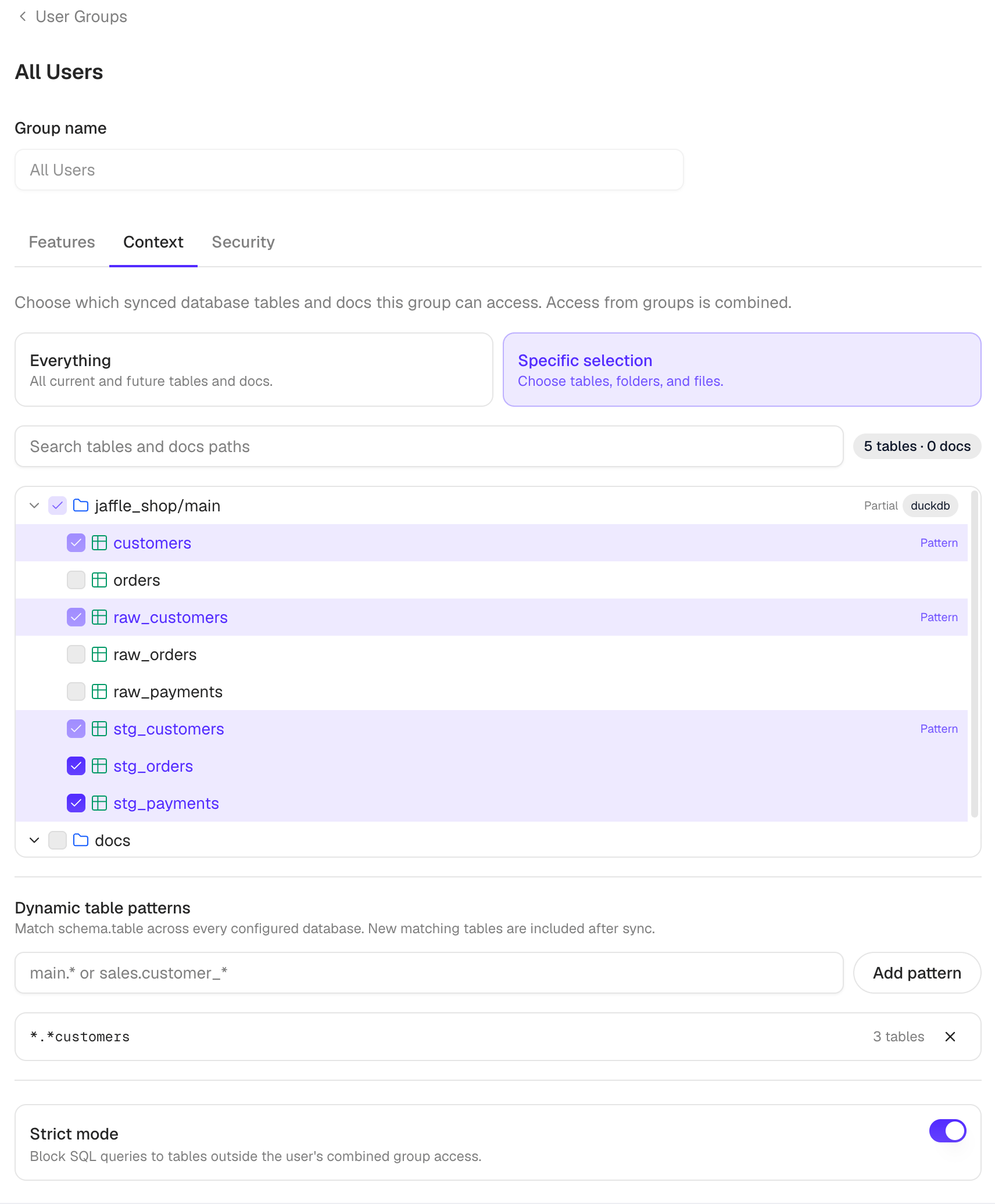
Open a group and select **Context**. Choose **Everything** or **Specific context**.
### Database context
For specific access, select databases, schemas, or individual tables from the synced context tree. You can also add dynamic `schema.table` patterns, for example:
```text theme={null}
main.*
sales.customer_*
```
Patterns apply across configured databases and include new matching tables after the next sync.
Database access from all applicable groups is combined. Selecting all database context in any applicable group therefore makes all synced tables available to that user.
### Docs context
Select the whole `docs/` folder, a subfolder, or individual files. A folder grant includes every file below it. Docs grants from applicable groups are also combined.
### Strict enforcement
Context permissions always limit the database context and docs that the agent can discover or read. This includes its file-reading, listing, search, and sandbox tools.
Turn on **Strict mode** to also block warehouse SQL that references a table outside the user's combined database access. If nao cannot safely parse and validate a query, it blocks the query instead of running it.
When several groups apply, Strict mode is enabled if any of them enables it, and the SQL allowlist is the union of their database access.
## Limit context access
Open a group and select **Context**. Choose **Everything** or **Specific context**.
### Database context
For specific access, select databases, schemas, or individual tables from the synced context tree. You can also add dynamic `schema.table` patterns, for example:
```text theme={null}
main.*
sales.customer_*
```
Patterns apply across configured databases and include new matching tables after the next sync.
Database access from all applicable groups is combined. Selecting all database context in any applicable group therefore makes all synced tables available to that user.
### Docs context
Select the whole `docs/` folder, a subfolder, or individual files. A folder grant includes every file below it. Docs grants from applicable groups are also combined.
### Strict enforcement
Context permissions always limit the database context and docs that the agent can discover or read. This includes its file-reading, listing, search, and sandbox tools.
Turn on **Strict mode** to also block warehouse SQL that references a table outside the user's combined database access. If nao cannot safely parse and validate a query, it blocks the query instead of running it.
When several groups apply, Strict mode is enabled if any of them enables it, and the SQL allowlist is the union of their database access.
 ## Add conditional rules by group
Conditional group blocks are supported only in the `RULES.md` file at the project root. For example:
```markdown theme={null}
{% if group("Finance") %}
Finance-specific instructions
{% endif %}
```
Group-name matching is case-insensitive. Put several names in one condition to use OR semantics:
```markdown theme={null}
{% if group("Finance", "Accounting") %}
Use the approved finance definitions.
{% endif %}
```
The block is included when the user belongs to **Finance** or **Accounting**. Nested blocks must all match.
In **File Explorer**, open the root `RULES.md` and use **Preview as** to select one or more custom groups. The preview always includes **All Users** and renders the same conditional content those memberships would receive.
`nao test` renders the root `RULES.md` with the groups of the account authenticated by the CLI. Sign in as the intended test user when validating group-specific behavior.
## Map SSO groups
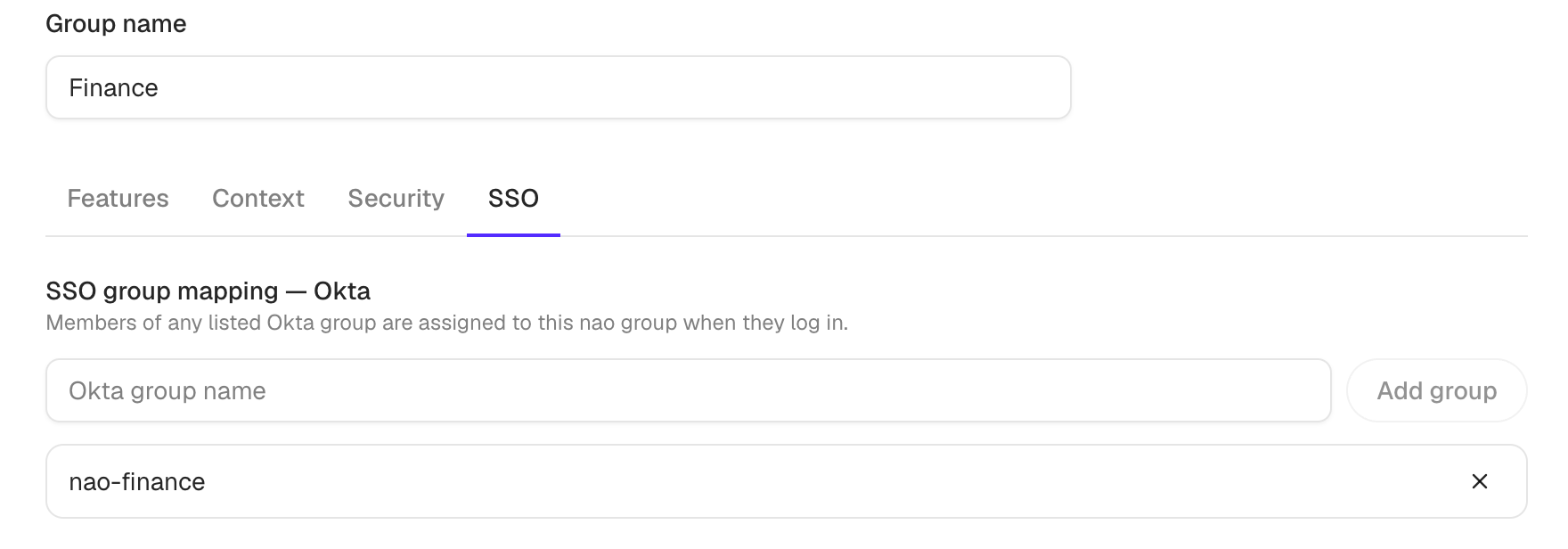
Open a custom User Group and select **SSO**. The tab is shown only when:
1. The license includes the `sso` entitlement, and
2. A generic OIDC or Microsoft Entra provider is configured.
* For generic OIDC, add group names from the configured groups claim.
* For Microsoft Entra, add group **Object IDs**, not display names.
* Multiple identifiers in one nao User Group use OR semantics.
The default **All Users** group cannot be mapped.
## Add conditional rules by group
Conditional group blocks are supported only in the `RULES.md` file at the project root. For example:
```markdown theme={null}
{% if group("Finance") %}
Finance-specific instructions
{% endif %}
```
Group-name matching is case-insensitive. Put several names in one condition to use OR semantics:
```markdown theme={null}
{% if group("Finance", "Accounting") %}
Use the approved finance definitions.
{% endif %}
```
The block is included when the user belongs to **Finance** or **Accounting**. Nested blocks must all match.
In **File Explorer**, open the root `RULES.md` and use **Preview as** to select one or more custom groups. The preview always includes **All Users** and renders the same conditional content those memberships would receive.
`nao test` renders the root `RULES.md` with the groups of the account authenticated by the CLI. Sign in as the intended test user when validating group-specific behavior.
## Map SSO groups
Open a custom User Group and select **SSO**. The tab is shown only when:
1. The license includes the `sso` entitlement, and
2. A generic OIDC or Microsoft Entra provider is configured.
* For generic OIDC, add group names from the configured groups claim.
* For Microsoft Entra, add group **Object IDs**, not display names.
* Multiple identifiers in one nao User Group use OR semantics.
The default **All Users** group cannot be mapped.
 ### Configure mappings with environment variables
Self-hosted deployments can manage the same mappings through environment variables:
```bash theme={null}
# OIDC group name
OIDC_GROUP_NAO_GROUP_MAPPING=finance-team:*:Analysts
# Microsoft Entra group Object ID
AZURE_AD_GROUP_NAO_GROUP_MAPPING=::Analysts
```
Each entry uses `idp-group:project-id:nao-group`. Separate multiple entries with commas.
The project scope is either the internal project ID or `*` for every project. An exact project mapping takes precedence over a wildcard. To copy the ID, open **Settings** -> **Project Settings & Budget** and use the copy button beside **Project ID** in the **Information** card.
An environment mapping overrides a UI mapping for the same external identifier and project. This also applies when the environment target is missing, locked, or otherwise unavailable: nao does not fall back to the UI target. Environment-controlled mappings appear as read-only in the UI.
### Set the default project role
Each nao User Group can define a **Default project role** for SSO provisioning.
* The role creates project access only when the user does not already have explicit project access.
* Existing explicit or manually assigned project roles are never changed.
* If several matched groups define a role, the strongest wins: `admin` > `context_admin` > `user` > `viewer`.
* **Use organization role** creates no explicit project role, so normal organization access applies.
[Organization-role mapping](/nao-agent/enterprise/authentication#organization-role-mapping) is separate and cannot overwrite an explicit project role.
### Login synchronization
On every OIDC or Microsoft Entra login, nao reconciles SSO-managed User Group memberships from the latest provider claims and reapplies configured organization-role mappings. Existing manually assigned project roles remain unchanged.
In self-hosted deployments, a successful OIDC or Entra login restores an orphaned existing user to the default organization before synchronization. New SSO users are not pre-added to the default project, so a matched User Group's default project role can apply on their first login.
See [Authentication](/nao-agent/enterprise/authentication) for provider setup, organization-role mappings, and Microsoft Entra group claims.
## Configure row-level security
nao-managed row-level security (RLS) limits rows at warehouse SQL execution time. Policies are assigned to groups, not individual users.
### 1. Register protected tables
1. Open the project-level **Security** tab in **User Groups**.
2. Click **Add protected table**.
3. Select one or more synced tables.
4. For each table, select the constraint columns that group policies may use.
5. Save.
Registering a table makes it available for group policies. It does not grant a group access to that table; the group's **Context** settings still control table availability.
### 2. Set each group's row access
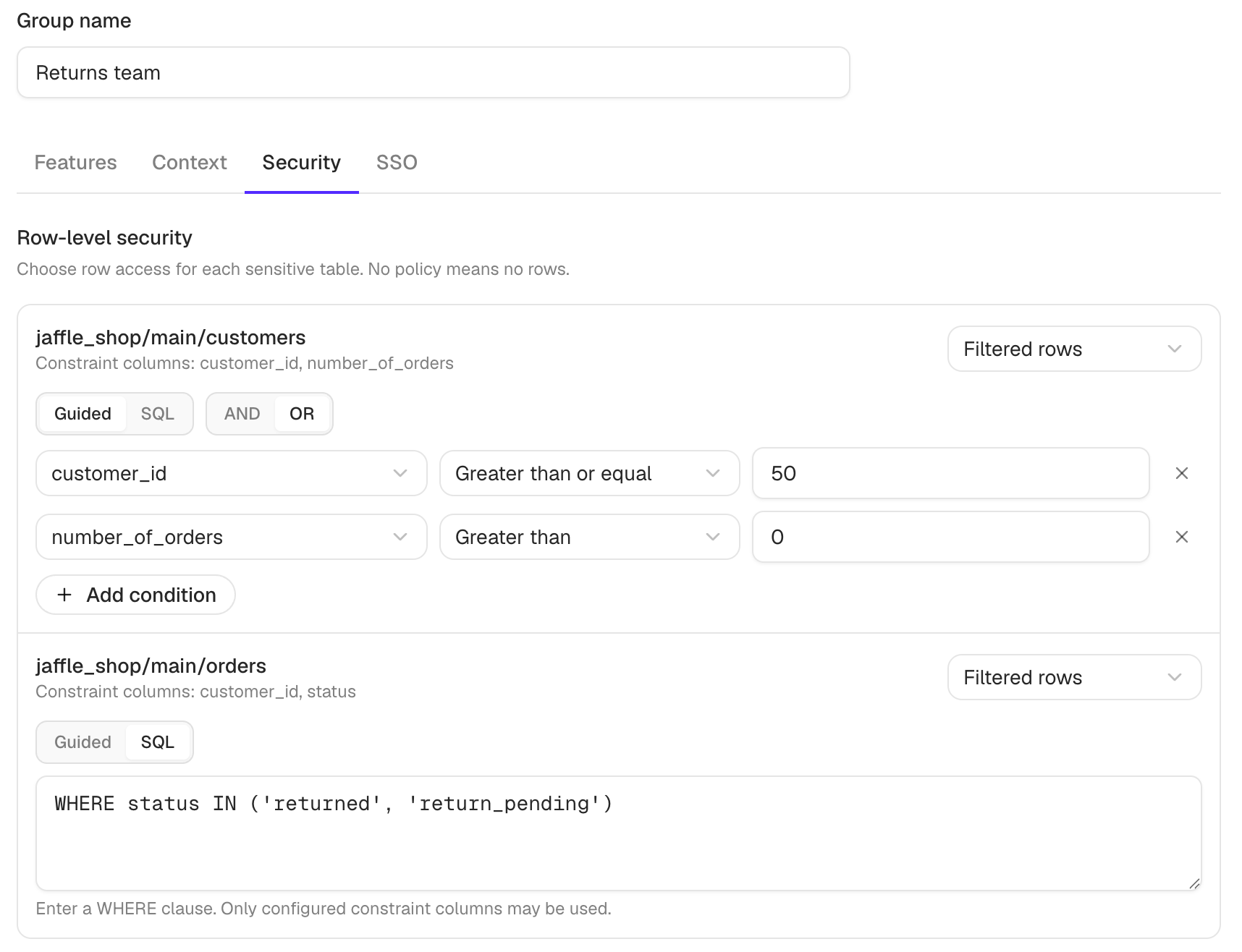
Open **Manage Groups**, select a group, then open **Security**. For each protected table available through this group's Context permissions, choose:
* **No rows** - users get no rows from this group. This is the default when no policy is configured.
* **Filtered rows** - users get rows matching a filter.
* **Full access** - this group adds no row restriction for the table.
For **Filtered rows**, choose one of:
* **Guided** - build conditions using the registered constraint columns. When there are multiple conditions, choose **AND** or **OR**.
* **SQL** - enter a manual predicate beginning with `WHERE`, for example `WHERE region = 'EMEA'`.
nao validates manual predicates against the table's configured constraint columns before saving them.
### Configure mappings with environment variables
Self-hosted deployments can manage the same mappings through environment variables:
```bash theme={null}
# OIDC group name
OIDC_GROUP_NAO_GROUP_MAPPING=finance-team:*:Analysts
# Microsoft Entra group Object ID
AZURE_AD_GROUP_NAO_GROUP_MAPPING=::Analysts
```
Each entry uses `idp-group:project-id:nao-group`. Separate multiple entries with commas.
The project scope is either the internal project ID or `*` for every project. An exact project mapping takes precedence over a wildcard. To copy the ID, open **Settings** -> **Project Settings & Budget** and use the copy button beside **Project ID** in the **Information** card.
An environment mapping overrides a UI mapping for the same external identifier and project. This also applies when the environment target is missing, locked, or otherwise unavailable: nao does not fall back to the UI target. Environment-controlled mappings appear as read-only in the UI.
### Set the default project role
Each nao User Group can define a **Default project role** for SSO provisioning.
* The role creates project access only when the user does not already have explicit project access.
* Existing explicit or manually assigned project roles are never changed.
* If several matched groups define a role, the strongest wins: `admin` > `context_admin` > `user` > `viewer`.
* **Use organization role** creates no explicit project role, so normal organization access applies.
[Organization-role mapping](/nao-agent/enterprise/authentication#organization-role-mapping) is separate and cannot overwrite an explicit project role.
### Login synchronization
On every OIDC or Microsoft Entra login, nao reconciles SSO-managed User Group memberships from the latest provider claims and reapplies configured organization-role mappings. Existing manually assigned project roles remain unchanged.
In self-hosted deployments, a successful OIDC or Entra login restores an orphaned existing user to the default organization before synchronization. New SSO users are not pre-added to the default project, so a matched User Group's default project role can apply on their first login.
See [Authentication](/nao-agent/enterprise/authentication) for provider setup, organization-role mappings, and Microsoft Entra group claims.
## Configure row-level security
nao-managed row-level security (RLS) limits rows at warehouse SQL execution time. Policies are assigned to groups, not individual users.
### 1. Register protected tables
1. Open the project-level **Security** tab in **User Groups**.
2. Click **Add protected table**.
3. Select one or more synced tables.
4. For each table, select the constraint columns that group policies may use.
5. Save.
Registering a table makes it available for group policies. It does not grant a group access to that table; the group's **Context** settings still control table availability.
### 2. Set each group's row access
Open **Manage Groups**, select a group, then open **Security**. For each protected table available through this group's Context permissions, choose:
* **No rows** - users get no rows from this group. This is the default when no policy is configured.
* **Filtered rows** - users get rows matching a filter.
* **Full access** - this group adds no row restriction for the table.
For **Filtered rows**, choose one of:
* **Guided** - build conditions using the registered constraint columns. When there are multiple conditions, choose **AND** or **OR**.
* **SQL** - enter a manual predicate beginning with `WHERE`, for example `WHERE region = 'EMEA'`.
nao validates manual predicates against the table's configured constraint columns before saving them.
 ### Combine row policies across groups
For each protected table, nao resolves all applicable group policies:
* Filtered policies are combined as a union (with **OR**).
* **Full access** from any applicable group removes the row restriction.
* **No rows** does not override filtered access, so No rows plus a filtered policy results in the filtered rows.
* If no applicable group supplies Full access or a valid filter, the user gets no rows.
The agent may only query tables allowed by combined Context permissions. When warehouse SQL is executed, nao applies the resolved row policy. Enforcement is fail-closed: if the table or predicate cannot be safely resolved, the query is blocked.
Admins can review the resolved result from **Users** -> select a user -> **Combined access** -> **Security**.
Column exclusion is a separate licensed control and is not configured through
User Groups or row-level security.
### Combine row policies across groups
For each protected table, nao resolves all applicable group policies:
* Filtered policies are combined as a union (with **OR**).
* **Full access** from any applicable group removes the row restriction.
* **No rows** does not override filtered access, so No rows plus a filtered policy results in the filtered rows.
* If no applicable group supplies Full access or a valid filter, the user gets no rows.
The agent may only query tables allowed by combined Context permissions. When warehouse SQL is executed, nao applies the resolved row policy. Enforcement is fail-closed: if the table or predicate cannot be safely resolved, the query is blocked.
Admins can review the resolved result from **Users** -> select a user -> **Combined access** -> **Security**.
Column exclusion is a separate licensed control and is not configured through
User Groups or row-level security.